
Author: DevelopWhale Automation

  • How to Purge Cloudflare Cache from n8n After WordPress Publishing

    How to Purge Cloudflare Cache from n8n After WordPress Publishing

    If your WordPress publishing workflow runs through n8n and your site uses Cloudflare caching, publishing the post is only half the job. The new article can exist correctly in WordPress while visitors still receive an older cached copy from Cloudflare.

    The safest fix is not to purge the entire zone every time. Cloudflare recommends targeted single-file purging, and its API lets you invalidate one or more exact URLs with a single request. That makes it a good fit for an n8n workflow that already knows the final WordPress URL after publishing.

    When this pattern is actually useful

    Cloudflare does not cache HTML by default. This workflow matters when you have deliberately made HTML cacheable, for example with a Cache Rule, Automatic Platform Optimization, or another configuration that can return cached page HTML. It is also useful for static assets whose URLs stay the same after deployment.

    Before adding any purge step, check the response headers for the page you are trying to invalidate. If Cloudflare is not caching that resource, a purge request may succeed but change nothing. Cloudflare explicitly notes that an HTTP 200 response only means the purge request was accepted; it does not prove that the target was cached.

    The architecture

    WordPress publish/update
            ↓
    final public URL available
            ↓
    n8n HTTP Request
            ↓
    POST /zones/{zone_id}/purge_cache
            ↓
    purge exact URLs
            ↓
    verify public response

    The important design choice is that the purge happens only after WordPress has successfully returned the final URL. Do not invalidate the cache first and then hope the publish succeeds.

    1. Create a least-privilege Cloudflare API token

    Use a Cloudflare API token rather than a Global API key. The purge endpoint accepts API token authentication and requires the Cache Purge permission. Scope the token to the smallest set of zones that your automation needs.

    Store the token in n8n credentials or another secret store. Do not hard-code it into a Function node, Code node, expression, exported workflow JSON, or Google Sheet.

    2. Get the Cloudflare zone ID

    The purge endpoint needs the zone ID:

    POST https://api.cloudflare.com/client/v4/zones/{ZONE_ID}/purge_cache

    The zone ID identifies the Cloudflare zone that owns the URL you are purging. Keep it as a workflow variable or credential-side configuration rather than repeating it throughout the workflow.

    3. Use purge-by-URL instead of purge-everything

    Cloudflare supports several purge modes. For a publishing workflow, exact URL purging is usually the smallest and safest blast radius.

    {
      "files": [
        "https://www.example.com/my-new-post/",
        "https://www.example.com/"
      ]
    }

    Cloudflare documents purge-by-URL for all tiers. By contrast, a purge-everything request removes every cached object in the zone and forces subsequent requests back to the origin until the cache is repopulated. That can create an unnecessary origin spike.

    For most WordPress publishing workflows, invalidate the final article URL and, only when your homepage or archive page is also cached and changed by the publication, invalidate that page too.

    4. Configure the n8n HTTP Request node

    Add an HTTP Request node after the successful WordPress publish or update step.

    Setting Value
    Method POST
    URL https://api.cloudflare.com/client/v4/zones/{ZONE_ID}/purge_cache
    Authentication Bearer token / Header Auth
    Content-Type application/json
    Body JSON

    The request header should send the API token as a Bearer token:

    Authorization: Bearer YOUR_CLOUDFLARE_API_TOKEN

    A minimal JSON body is:

    {
      "files": [
        "{{$json.url}}"
      ]
    }

    The exact expression depends on the output of your WordPress node. The rule is simple: pass the final canonical public URL returned by the successful publish step, not a draft URL, preview URL, REST endpoint, or internal post ID.

    5. Purge the homepage only when it really changed

    Many WordPress homepages show recent posts. If that page is cached at Cloudflare and publishing a new article changes its HTML, you may want to purge both the article and the homepage:

    {
      "files": [
        "{{$json.url}}",
        "https://www.example.com/"
      ]
    }

    Do not blindly add category pages, tag pages, feeds, sitemaps, and every navigation page. Each additional URL should have a reason to be invalidated. A targeted list keeps the cache warm and the workflow easy to reason about.

    6. Do not confuse Cloudflare edge cache with browser cache

    A Cloudflare purge removes the edge-cached object. It does not clear a visitor’s browser cache. If a repeat visitor still sees an older static asset, inspect the browser cache headers separately. Cloudflare’s Browser Cache TTL documentation explicitly notes that purging Cloudflare cache does not remove assets already stored in the visitor’s browser.

    7. Verify the purge instead of trusting HTTP 200

    Cloudflare states that a successful purge API call returns HTTP 200, but that status only confirms the request was received. It does not prove that Cloudflare previously cached the resource or that a specific cache entry existed.

    For a page that should be cached, request it again after the purge and inspect the CF-Cache-Status response header. A targeted purge should cause the next request to stop being a cache HIT; depending on the cache configuration, you may see a status such as MISS or EXPIRED.

    curl -I https://www.example.com/my-new-post/

    Do not build your workflow around the assumption that every HTML response must return MISS. Cloudflare does not cache HTML by default, and different cache products and rules can produce different status values.

    8. Handle failure without breaking the WordPress publish

    A cache purge failure and a WordPress publish failure are different operational events. Once WordPress has successfully published the article, rolling the post back because a cache invalidation request failed is usually the wrong recovery model.

    A more robust workflow is:

    Publish WordPress post
            ↓
    Store post ID + final URL
            ↓
    Try Cloudflare purge
            ↓
    Success → continue
    Failure → retry / alert / reconciliation queue

    This keeps the content state authoritative in WordPress while treating cache invalidation as a recoverable post-publish step.

    9. Watch for custom cache keys

    If your Cloudflare cache key includes request headers or other custom properties, a simple URL-only purge may not identify every cached variant. Cloudflare’s API documentation explains that custom cache-key inputs such as device type, country, or language may need to be included in the purge request.

    If you do not use custom cache keys, keep the request simple. If you do, document the key inputs before automating invalidation.

    10. Why this is better than adding another WordPress plugin

    If n8n already owns the publishing workflow, moving cache invalidation into the same automation keeps the responsibility in one place. The workflow already knows whether publishing succeeded, which URL changed, and whether a retry is needed.

    That does not mean every site should remove its cache plugin. The point is architectural: when Cloudflare edge invalidation is the only missing step, you can call the official API directly instead of installing a plugin solely to issue a purge request.

    Related DevelopWhale guides

    Production checklist

    • Confirm the target resource is actually cacheable at Cloudflare.
    • Create a scoped API token with Cache Purge permission.
    • Keep the token out of workflow source and logs.
    • Run the purge only after WordPress returns success.
    • Use the final canonical public URL.
    • Prefer exact URL purging over purge-everything.
    • Purge the homepage only if it is cached and changed.
    • Verify the result with response headers.
    • Treat purge failures as retryable post-publish failures.
    • Account for custom cache keys if you use them.

    Official references

    The practical rule is straightforward: let WordPress publish first, invalidate only the URLs that changed, and verify the public result. That gives you fast cache freshness without turning every deploy or article update into a full-zone cache reset.

  • How to Fix n8n Webhook 504 and Cloudflare 524 Timeouts with an Async Job Pattern

    How to Fix n8n Webhook 504 and Cloudflare 524 Timeouts with an Async Job Pattern

    A webhook is often used like a synchronous API: the caller sends a request and keeps the connection open until the workflow finishes. That works for short tasks. It becomes fragile when an n8n execution includes an AI agent, a large export, browser automation, or a slow third-party API. The client or a proxy may stop waiting even while n8n is still working.

    Returning a response quickly does not make retries safe by itself. Use Webhook Retry Lab to compare retry side effects and crash recovery before designing the durable worker; the lab sends no real webhooks.

    The reliable fix is usually an asynchronous job contract: accept and persist the work, return a job ID promptly, process it separately, and let the caller check the job status. This guide shows how to build that pattern in n8n, how its Webhook response modes fit together, and how to tell a 504 from Cloudflare’s 524.

    Why long-running webhook calls fail

    An HTTP request has multiple possible timeout points: the caller, a load balancer or reverse proxy, Cloudflare, and the n8n server. A 504 does not identify the failing layer by itself. Cloudflare’s documentation says its branded 502 or 504 pages can reflect an error returned by the origin or a Cloudflare-side condition, so check the response page and logs before changing n8n.

    A Cloudflare 524 is more specific: Cloudflare connected to the origin, but did not receive an HTTP response before its default 125-second Proxy Read Timeout. Cloudflare recommends status polling for large HTTP processes. Raising a timeout may help for a controlled, short-term case, but it does not give a caller a durable result if the connection drops or the worker restarts.

    First compare the same request through each network path you control. Record the start time, elapsed time, response status, request or trace ID, n8n execution ID, and any proxy request ID. If the direct origin succeeds while the proxied request fails near a consistent threshold, investigate the proxy path. If both fail, inspect the n8n execution and the slow upstream node.

    Choose the right n8n response mode

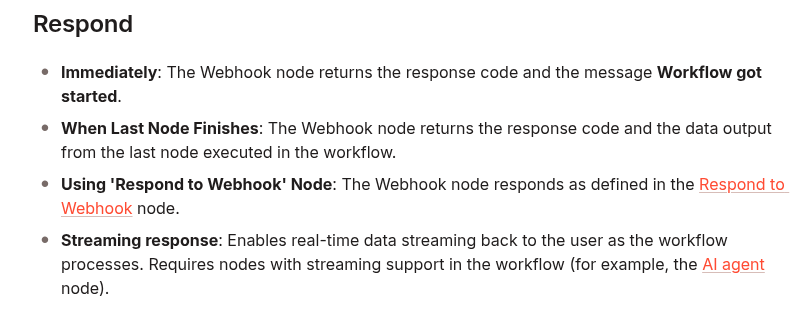
    The Webhook node offers several response modes. When Last Node Finishes waits for the workflow’s last node and returns its output; that keeps the HTTP request open for the entire job. Immediately returns the fixed message Workflow got started. It is a quick acknowledgment, but it does not provide a custom job ID. Using Respond to Webhook Node lets you return a chosen status code and response body, which is useful when the caller needs a job ID and status URL.

    The following screenshot is from the official n8n Webhook documentation and shows the response modes used to make that choice:

    Official n8n Webhook documentation listing Immediately, When Last Node Finishes, Respond to Webhook, and Streaming response modes

    Build the asynchronous job pattern

    Use two responsibilities: an ingress workflow that accepts and records work, and a worker workflow that performs it. A separate status endpoint reads the job record.

    POST /webhook/report-jobs
      → validate request and idempotency key
      → create or find durable job record (status: queued)
      → respond 202 with job_id and status_url
      → start worker without waiting for completion
    
    Worker workflow
      → claim queued job
      → set status: running
      → perform the long task
      → store result and set status: succeeded
      → or store safe error details and set status: failed
    
    GET /webhook/report-jobs/:job_id
      → authenticate caller
      → read job record
      → return current status and result when available

    1. Persist before acknowledging

    Do not return “accepted” while the only copy of the request is in the current execution’s memory. Store a job row in PostgreSQL or another durable queue before sending the response. A minimal PostgreSQL table could be:

    CREATE TABLE workflow_jobs (
      job_id uuid PRIMARY KEY DEFAULT gen_random_uuid(),
      idempotency_key text NOT NULL UNIQUE,
      request_hash text NOT NULL,
      status text NOT NULL CHECK (status IN ('queued', 'running', 'succeeded', 'failed')),
      request_json jsonb NOT NULL,
      result_json jsonb,
      error_code text,
      attempts integer NOT NULL DEFAULT 0,
      created_at timestamptz NOT NULL DEFAULT now(),
      updated_at timestamptz NOT NULL DEFAULT now()
    );

    Require an idempotency key for requests that may be retried. Enforce its uniqueness in the database. If the same key arrives again with the same request, return the existing job ID instead of creating duplicate work. If the key is reused for a different request, reject it rather than silently running the wrong payload. This matters because a caller that never receives the first response may retry even though the original request was accepted.

    2. Return a useful 202 response

    In the Webhook node, set Respond to Using ‘Respond to Webhook’ Node. After request validation and the durable insert, configure a Respond to Webhook node with response code 202 and a JSON body such as:

    {
      "job_id": "job_123",
      "status": "queued",
      "status_url": "/webhook/report-jobs/job_123"
    }

    Map those values from the inserted row using n8n expressions; do not paste the example UUID into a live workflow. Connect the Respond to Webhook node to the worker handoff, or use a separate queue consumer. If you use Execute Sub-workflow, turn off Wait for Sub-Workflow Completion so the parent does not wait for the long job. For stronger recovery, keep a scheduled sweeper that finds old queued rows and dispatches them if the initial handoff was interrupted.

    HTTP 202 Accepted means processing has not completed; it is not a success result or a promise that the job will eventually succeed. Include a status monitor in the response, then make that endpoint the source of truth.

    3. Claim work safely in the worker

    A worker should claim a job atomically so a manual retry, duplicate webhook, and recovery sweep cannot all run it at once. One PostgreSQL pattern is to update only a queued row and require a returned row before doing any work:

    UPDATE workflow_jobs
    SET status = 'running',
        attempts = attempts + 1,
        updated_at = now()
    WHERE job_id = $1
      AND status = 'queued'
    RETURNING job_id, request_json, attempts;

    Use the Postgres node’s query-parameter fields for $1; do not build SQL by concatenating untrusted webhook values. For jobs that may run longer than a worker lease, add a lease timestamp and a recovery rule for stale running rows. Make each side effect idempotent too: a database claim prevents simultaneous starts, but it cannot undo an external charge or email sent just before a worker crashes.

    4. Expose status without exposing the job

    Create a second Webhook workflow for GET /report-jobs/:job_id. Read the record by its ID and return a small, stable representation:

    {
      "job_id": "job_123",
      "status": "running",
      "created_at": "2026-09-24T07:30:00Z",
      "updated_at": "2026-09-24T07:30:18Z"
    }

    Return the stored result only when the job is succeeded. For failed, return a stable error code and a safe message, not credentials, raw stack traces, or private input. Authenticate the status endpoint and check that the caller is allowed to see that job; a UUID is an identifier, not access control. Add rate limits if callers may poll frequently.

    Retry and recovery rules

    • Retry transient failures such as a temporary rate limit or upstream 5xx with a bounded attempt count and exponential backoff.
    • Do not automatically retry validation errors or permanent 4xx responses.
    • Before retrying a step with an external side effect, use that provider’s idempotency feature or reconcile whether the side effect already happened.
    • Move exhausted jobs to failed and make them visible in an alert or operator queue.
    • Run a recovery workflow that re-dispatches stale queued jobs and investigates stale running jobs.
    • Keep a correlation value across the inbound request, job row, worker execution, and logs.

    Test the contract before production

    Use a staging webhook and a harmless test payload. Confirm that the ingress response arrives before the simulated long task completes, that the response contains a persisted job ID, and that polling shows the state move from queued to running to a terminal state. Then test a duplicate request with the same idempotency key, a worker failure, a retry, and a restart while a job is queued.

    curl -i -X POST "https://YOUR_N8N_HOST/webhook/report-jobs" \
      -H "Content-Type: application/json" \
      -H "Idempotency-Key: customer-42-report-2026-09" \
      -d '{"customer_id":"42","period":"2026-09"}'
    
    curl -i "https://YOUR_N8N_HOST/webhook/report-jobs/JOB_ID" \
      -H "Authorization: Bearer YOUR_TEST_TOKEN"

    Measure the time to the first response separately from the total job duration. The first should stay comfortably below the shortest timeout on the path. The job duration can be longer because it is no longer tied to that client connection.

    When streaming or a longer timeout is appropriate

    Use a streaming response when the caller truly needs incremental output and the whole connection path supports streaming. Use a longer timeout only when you control the relevant limits and the request is still a reasonable synchronous operation. For work that can outlive a browser, proxy, or client connection, a persisted job plus status polling is easier to recover, retry, and audit.

    Related DevelopWhale guides

    Production checklist

    • Identify which hop produced the 504 or 524 before changing timeout settings.
    • Persist the accepted request before returning 202.
    • Use a unique idempotency key and return the existing job on a safe duplicate.
    • Return a job ID and authenticated status URL.
    • Disable sub-workflow completion waiting when using it as an asynchronous handoff.
    • Claim work atomically and make external side effects idempotent.
    • Bound retries, record terminal failures, and recover stale jobs.
    • Test response latency, worker failures, duplicate delivery, and restart recovery in staging.

    The key change is in the contract: the webhook response confirms that the request was recorded, while a separate status resource reports the eventual outcome. That removes long processing time from the request’s connection lifetime and gives operators a durable place to inspect and recover work.

    Official references: n8n Webhook node, n8n Respond to Webhook node, n8n Execute Sub-workflow, Cloudflare Error 524, Cloudflare Error 502 or 504, and RFC 9110 section 15.3.3: 202 Accepted.