An EACCES: permission denied error during n8n startup usually means the process inside the container cannot read or write its persistent data directory. The safe fix is not to run n8n as root or make the directory world-writable. First identify the mount and the container’s real UID/GID, then back up the data, repair only the affected ownership or mount option, and prove that the data survives a restart.
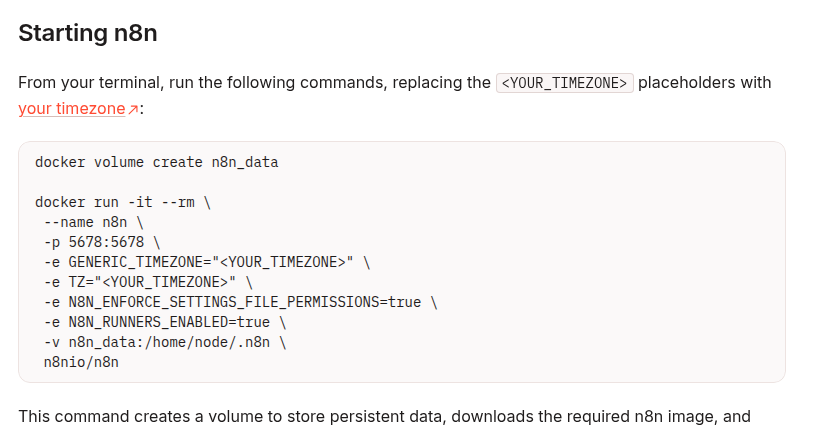
This guide uses /home/node/.n8n, the persistent user folder shown in n8n’s official Docker examples. Even when PostgreSQL stores workflow data, this folder can still contain important material such as the encryption key, logs, and source-control assets.
Why n8n reports EACCES in Docker
A container sees files through numeric user and group IDs. Names such as node are only labels. If a host directory is owned by UID 1002 but n8n runs as UID 1000, for example, Linux may reject writes even though the path is mounted at the expected location.
The same symptom can also come from a read-only mount, the wrong source path, an SELinux label, a rootless-Docker mapping, or a network filesystem. That is why a blanket chown 1000:1000 is unsafe: the runtime UID can differ between images and environments.
Step 1: capture the failure before changing anything
Confirm the service name in your Compose file, then collect the current state:
docker compose ps
docker compose logs --tail=200 n8n
docker compose exec n8n id
docker compose exec n8n sh -c 'ls -ldn /home/node /home/node/.n8n; test -w /home/node/.n8n && echo writable || echo not-writable'
If the container exits too quickly for docker compose exec, inspect the configured user and image without changing the service:
docker compose config
docker image inspect n8nio/n8n:latest --format '{{json .Config.User}}'
Prefer an immutable n8n version tag in production. If your deployment uses a custom image, inspect that exact image rather than the example above.
Step 2: determine whether this is a bind mount or a named volume
Docker named volumes are managed by Docker. Bind mounts map a specific host path into the container. The repair procedure is different, so inspect the live container rather than guessing from an old Compose file:
docker inspect <container-name-or-id> --format '{{json .Mounts}}'
Find the entry whose Destination is /home/node/.n8n.
| Mount type | What to inspect | Typical risk |
|---|---|---|
bind |
The host Source path and its numeric ownership |
Host directory UID/GID does not match the n8n process |
volume |
The exact Docker volume name and data inside it | A previous root-run container created root-owned files |
For a bind mount, inspect the exact source path returned by Docker:
sudo stat -c '%u:%g %a %n' /srv/n8n/data
sudo find /srv/n8n/data -maxdepth 2 -printf '%u:%g %m %p\n' | head -n 50
Replace /srv/n8n/data with the verified source path. Do not run a recursive ownership command against a path copied from an unverified tutorial.
Step 3: back up the complete state
Stop n8n before copying an SQLite-based .n8n directory. A live filesystem copy can capture an inconsistent database. If PostgreSQL is external, back it up separately; the .n8n folder can still be required to decrypt stored credentials.
For a named volume, first discover the real name because Compose may add a project prefix:
docker compose stop n8n
docker volume ls
docker volume inspect <actual-volume-name>
mkdir -p ./backups
docker run --rm \
  -v <actual-volume-name>:/source:ro \
  -v "$PWD/backups":/backup \
  alpine sh -c 'cd /source && tar -czf /backup/n8n-data.tgz .'
For a bind mount, copy or snapshot the verified host directory while n8n is stopped. Also preserve the Compose file, environment configuration, external database backup, custom nodes, and any external binary-data storage. Test that the archive can be listed before making permission changes.
Step 4: repair only the confirmed mismatch
Bind mount
Use the numeric UID and GID returned by docker compose exec n8n id. After confirming the backup and host path:
sudo chown -R <runtime-uid>:<runtime-gid> /srv/n8n/data
Do not substitute a guessed UID. If the mount is intentionally shared, a group-based design with the narrowest required permissions may be better than transferring all ownership.
Named volume
Use a short-lived helper container and the exact volume name. Keep n8n stopped while changing ownership:
docker run --rm --user root \
  -v <actual-volume-name>:/data \
  alpine chown -R <runtime-uid>:<runtime-gid> /data
This changes the files in the volume; it does not make the n8n service run as root. Reinspect the directory afterward with a helper container or the restarted n8n service.
Step 5: restart and prove persistence
docker compose up -d n8n
docker compose logs --tail=200 n8n
docker compose exec n8n sh -c 'id; ls -ldn /home/node/.n8n; test -w /home/node/.n8n && echo writable'
Then perform an application-level check:
- Open n8n and confirm existing workflows and credentials are present.
- Create a harmless test workflow, save it, and record its name.
- Restart the n8n service.
- Confirm the workflow still exists and that the logs contain no new
EACCESerrors.
A green container state alone is not enough. Persistence after restart is the evidence that the mount points to the intended data and remains writable.
When ownership is not the problem
| Evidence | Likely cause | Next check |
|---|---|---|
RW: false in Docker’s mount data |
Read-only mount | Remove an accidental :ro or read_only setting |
| Correct UID/GID but writes still fail on an SELinux host | Security label mismatch | Inspect audit logs and apply a deliberate z/Z policy only if appropriate |
| The mounted folder is empty | Wrong source path or a mount obscuring existing files | Compare Docker’s live Source and Destination with the Compose config |
Only WSL paths under /mnt/c fail |
Cross-filesystem permission behavior | Move the project data into the Linux filesystem and retest |
| IDs look unexpected under rootless Docker | User-namespace mapping | Inspect rootless/userns configuration before changing host ownership |
| Permissions change again after deployment | Another init job or root-run container rewrites files | Audit every service that mounts the same data |
Fixes to avoid
chmod -R 777: it grants unnecessary write access and hides the ownership mistake.- Running n8n as root: it weakens isolation and can create more root-owned files.
- Deleting and recreating the volume: it can erase workflows, credentials, and the encryption key.
- Assuming UID 1000 everywhere: verify the live image and container instead.
- Changing a broad host path: a typo in a recursive command can damage unrelated files.
A compact recovery checklist
- Capture logs, runtime UID/GID, mount type, source, destination, and read/write mode.
- Stop n8n and take a complete, testable backup.
- Repair the verified bind path or named volume using the actual runtime IDs.
- Check SELinux, user namespaces, or network storage if ownership already matches.
- Restart, inspect logs, save a test workflow, restart again, and verify persistence.