Category: n8n

  • Stop WordPress Admin Freezes: Queue n8n Webhooks with Action Scheduler

    Stop WordPress Admin Freezes: Queue n8n Webhooks with Action Scheduler

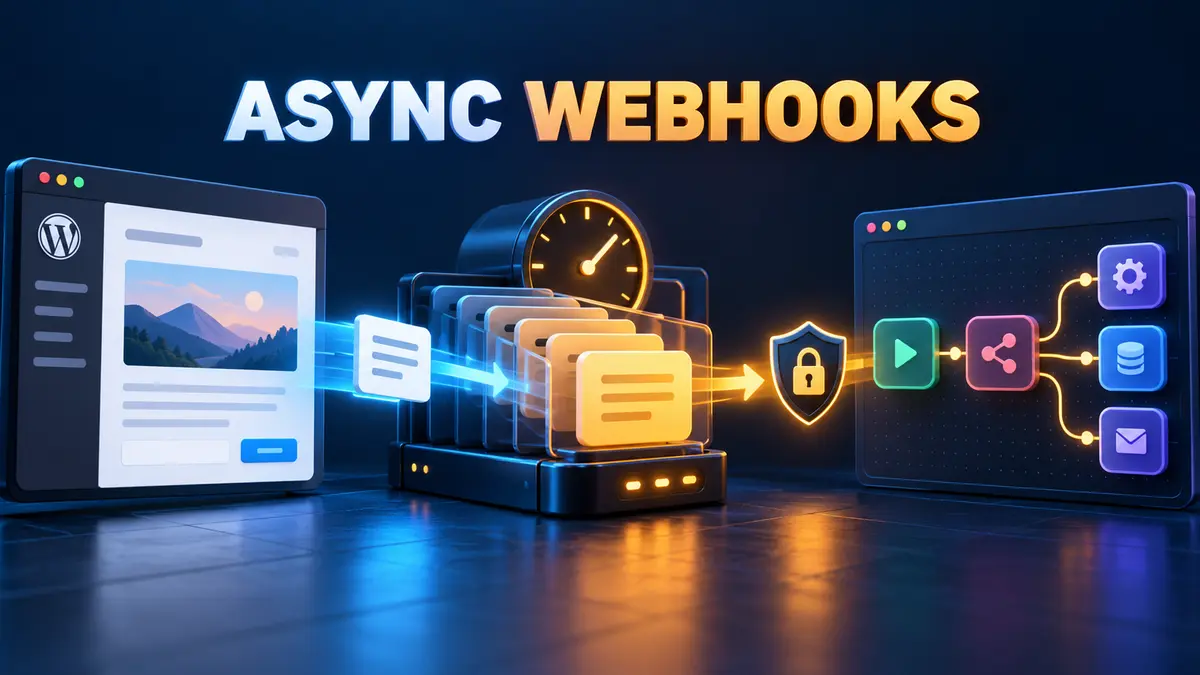
    A WordPress hook that calls an n8n webhook directly can make the editor wait for DNS, TLS, the remote server, and the workflow response. Even if the webhook usually returns quickly, one slow network path can turn a routine publish into a spinner, timeout, or “Publishing failed” message.

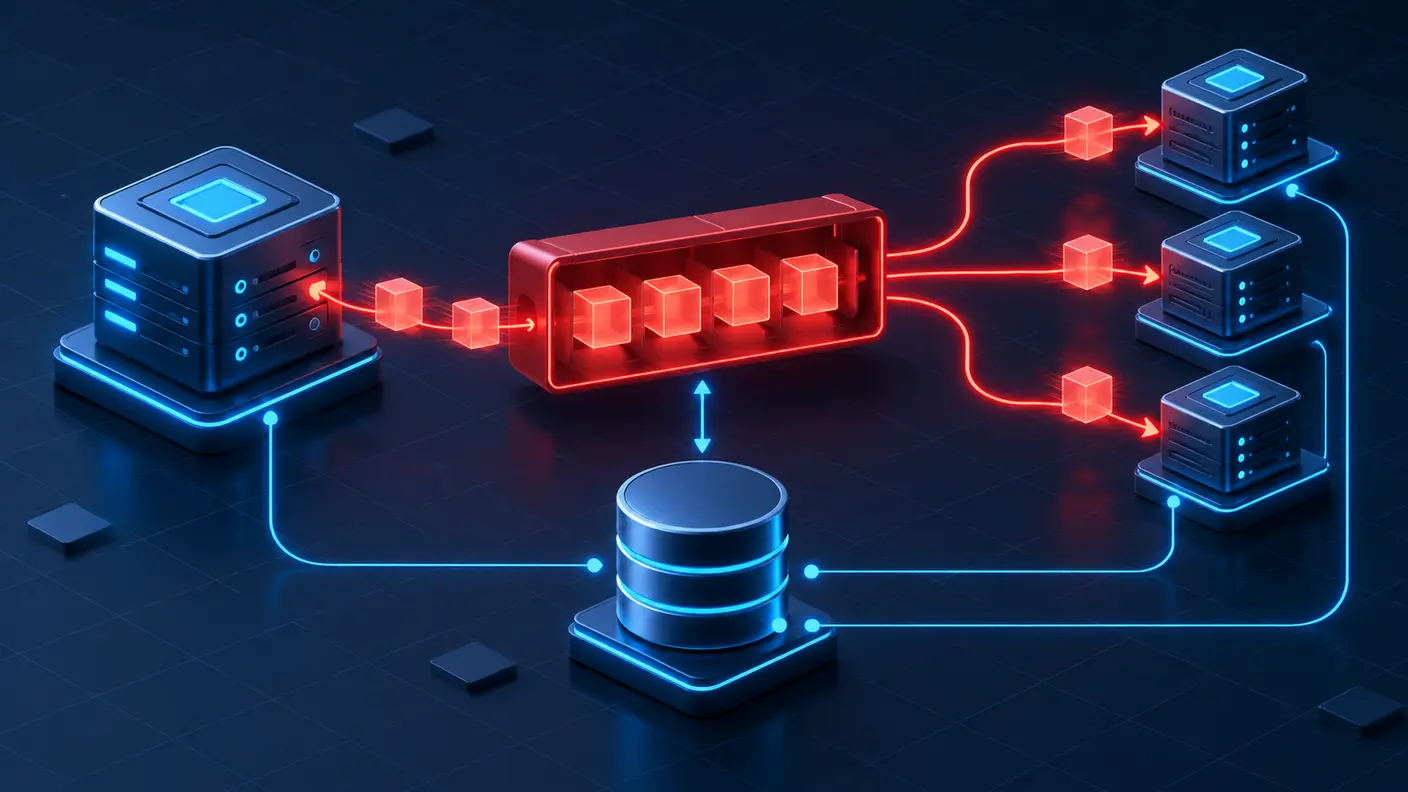
    The safer design is to keep the interactive request short: enqueue a durable background action, let WordPress finish the save, and have a queue worker deliver the webhook afterward. Action Scheduler provides a traceable WordPress job queue with an API, an administration screen, and per-action logs.

    The blocking pattern and the queued pattern

    Pattern Editor request Failure visibility Best use
    Direct wp_remote_post() Waits for the outbound request by default Must be added to the save path Short, noncritical calls where waiting is acceptable
    Non-blocking HTTP flag Returns without waiting for a response Little confirmation that the receiver accepted the event Best-effort notifications
    Action Scheduler queue Stores a job and lets the save complete Pending, complete, failed, and log views Production webhooks that need retries and auditability

    Action Scheduler is not WordPress core. It is commonly available through WooCommerce and some plugins, or it can be included as a library in your own plugin. Check that the API is loaded before enqueueing work.

    What as_enqueue_async_action() actually promises

    The official API describes as_enqueue_async_action() as enqueueing a one-time action to run “as soon as possible.” That is deliberately different from “run immediately.” The queue still needs a runner. On a typical site, Action Scheduler is driven by WP-Cron and asynchronous loopback requests; larger queues may be better served by WP-CLI.
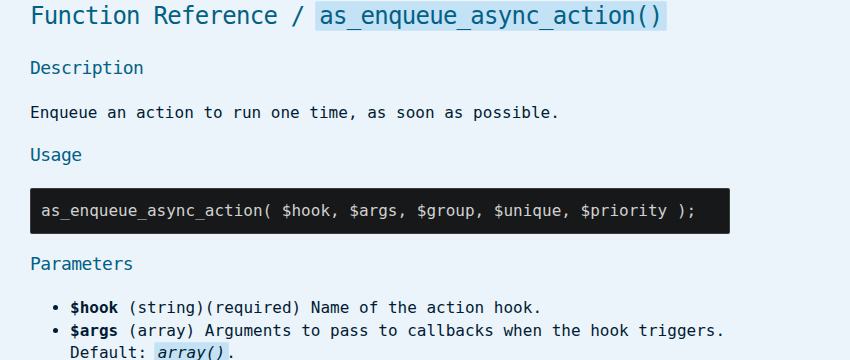
    Action Scheduler API documentation for as_enqueue_async_action with its description, usage, and parameters

    Use this distinction in both design and monitoring. The editor can return quickly after the job is stored, but actual delivery latency depends on traffic, loopback health, cron configuration, hosting limits, and queue load.

    Build a minimal WordPress plugin

    The following example queues a webhook only when a post first transitions to publish. It creates a deterministic event ID, uses a queue group for filtering, and asks Action Scheduler to avoid an identical pending action.

    <?php
    /**
     * Plugin Name: DevelopWhale Async n8n Dispatch
     */
    
    add_action(
        'transition_post_status',
        'dw_queue_n8n_dispatch',
        10,
        3
    );
    
    function dw_queue_n8n_dispatch(
        $new_status,
        $old_status,
        $post
    ) {
        if (
            'publish' !== $new_status
            || 'publish' === $old_status
            || 'post' !== $post->post_type
        ) {
            return;
        }
    
        if (
            ! function_exists('as_enqueue_async_action')
            || ! did_action('action_scheduler_init')
        ) {
            error_log(
                'n8n dispatch not queued: '
                . 'Action Scheduler is unavailable'
            );
            return;
        }
    
        $event_id = hash_hmac(
            'sha256',
            $post->ID . '|' . $post->post_modified_gmt,
            wp_salt('nonce')
        );
    
        as_enqueue_async_action(
            'dw_send_post_to_n8n',
            array($post->ID, $event_id, 1),
            'developwhale',
            true
        );
    }

    The true argument requests a unique action. Uniqueness is useful for repeated hooks, but it is not a complete idempotency strategy. The receiver should also store and reject an already-processed event_id.

    Deliver the webhook in the background

    Register a callback for the queued hook. Keep the endpoint and shared secret outside the plugin source—for example, in environment-backed configuration—and never place them in logs.

    add_action(
        'dw_send_post_to_n8n',
        'dw_send_post_to_n8n',
        10,
        3
    );
    
    function dw_send_post_to_n8n(
        $post_id,
        $event_id,
        $attempt
    ) {
        $endpoint = getenv('DW_N8N_WEBHOOK_URL');
        $secret   = getenv('DW_N8N_WEBHOOK_SECRET');
    
        if (! $endpoint || ! $secret) {
            throw new RuntimeException(
                'Webhook configuration is missing'
            );
        }
    
        $payload = array(
            'event_id'     => $event_id,
            'event_type'   => 'post.published',
            'post_id'      => (int) $post_id,
            'permalink'    => get_permalink($post_id),
            'published_at' => get_post_time(
                DATE_ATOM,
                true,
                $post_id
            ),
        );
    
        $body = wp_json_encode($payload);
        $signature = hash_hmac(
            'sha256',
            $body,
            $secret
        );
    
        $response = wp_safe_remote_post(
            $endpoint,
            array(
                'timeout' => 20,
                'headers' => array(
                    'Content-Type' => 'application/json',
                    'X-DW-Event-ID' => $event_id,
                    'X-DW-Signature' => $signature,
                ),
                'body' => $body,
                'data_format' => 'body',
            )
        );
    
        $status = is_wp_error($response)
            ? 0
            : wp_remote_retrieve_response_code($response);
    
        if ($status < 200 || $status >= 300) {
            if ($attempt < 3) {
                $delay = min(
                    900,
                    60 * (2 ** ($attempt - 1))
                );
    
                as_schedule_single_action(
                    time() + $delay,
                    'dw_send_post_to_n8n',
                    array(
                        $post_id,
                        $event_id,
                        $attempt + 1
                    ),
                    'developwhale',
                    true
                );
            }
    
            throw new RuntimeException(
                'n8n webhook delivery failed; HTTP '
                . $status
            );
        }
    }

    This example treats every non-2xx response as a failed delivery and schedules at most two additional attempts with increasing delay. Tune the policy to the receiver: retry timeouts, connection failures, 429, and temporary 5xx responses; usually do not retry a permanent authentication or payload error without intervention.

    Make the n8n side idempotent

    Background delivery changes when the webhook runs, not the realities of distributed systems. A timeout can occur after n8n accepted the request, so WordPress may retry an event that n8n has already started.

    1. Use X-DW-Event-ID as the idempotency key.
    2. Store the key before any external side effect.
    3. If the key already exists, return a successful duplicate response without repeating the work.
    4. Verify the HMAC against the unchanged request body before trusting the payload.
    5. Keep secrets and full sensitive payloads out of execution logs.

    Raw-body access varies by n8n version and webhook configuration, so verify the exact field in your deployment before enabling signature enforcement. Do not recreate the signature from a parsed and re-serialized object.

    Observe and operate the queue

    Action Scheduler’s administration screen lets operators filter actions by status and hook, run a pending action, and inspect log entries for a failure. Use a dedicated group such as developwhale so webhook jobs are easy to isolate.

    • Watch the age of the oldest pending action, not only the number of failures.
    • Alert when the queue runner has stopped or loopback tests fail.
    • Record the event ID, action ID, attempt number, response class, and elapsed time.
    • Do not log credentials, signatures, or unnecessary post content.
    • For large or long-running queues, evaluate the official WP-CLI runner instead of relying only on web requests.

    Common mistakes

    Assuming “async” means instant

    The API queues work as soon as possible; it does not guarantee zero-second dispatch. A low-traffic site with broken WP-Cron or blocked loopbacks can accumulate pending actions.

    Queueing on every save

    Autosaves, revisions, and repeated status transitions can create duplicate notifications. Filter post type and transition, use unique actions, and keep a receiver-side idempotency key.

    Using update calls as the queue

    Do not make a second synchronous HTTP call merely to confirm the first one. Let the background action own delivery, response checking, retries, and logging.

    Ignoring permanent failures

    A wrong URL, revoked secret, or invalid payload will not recover through blind retries. Limit attempts and expose the final failed action for review.

    Production checklist

    • Action Scheduler is installed and initialized.
    • The publish hook excludes revisions and repeated transitions.
    • The editor request only queues work.
    • The webhook URL and secret are outside source control.
    • The event has a stable idempotency key.
    • n8n verifies the signature using the unchanged body.
    • Retry rules distinguish temporary and permanent errors.
    • Pending and failed actions are visible to operators.
    • Loopback and WP-Cron health are monitored.
    • The workflow is tested with n8n offline before production.

    The practical boundary

    Action Scheduler removes remote webhook latency from the WordPress editor path and gives delivery work a durable, inspectable home. It does not replace an external message broker, guarantee immediate execution, or make n8n processing exactly once. The reliable boundary is: enqueue quickly, deliver in the background, verify the receiver, retry deliberately, and make every side effect idempotent.

    Official references: Action Scheduler API, Scheduled Actions administration, Action Scheduler WP-CLI runner, WordPress wp_safe_remote_post(), and WordPress loopback test.

  • Reliable Structured JSON from Ollama in n8n: Two Schema-First Patterns

    Reliable Structured JSON from Ollama in n8n: Two Schema-First Patterns

    Local models are attractive in n8n because they keep data close to your infrastructure and remove per-request API costs. The difficult part is not getting text back from Ollama. It is getting a predictable object that the next node can trust.

    A prompt such as “return JSON” is only a request. A production workflow needs a contract: a schema at generation time when possible, validation before side effects, and an explicit failure path when the response does not match.

    The three layers of reliable structured output

    Layer Purpose What it prevents
    Generation constraint Ask the model runtime to emit JSON or follow a JSON Schema Markdown fences and free-form prose
    Schema validation Check required fields, types, and allowed values Valid JSON with the wrong shape
    Workflow gate Stop or route invalid items before database, email, or API nodes Bad data reaching a side effect

    These layers are related, but they are not interchangeable. JSON mode can produce syntactically valid JSON while still omitting a required field. A parser can reject a bad response, but it cannot guarantee that every model attempt will succeed. The workflow must handle both outcomes.

    Choose one of two schema-first patterns

    Use the native n8n pattern when your AI root node supports an output-parser connection and you want the workflow canvas to own the schema. Use the direct Ollama API pattern when you need Ollama’s runtime-level format contract or the current n8n node does not expose the control you need.

    Pattern A: n8n Structured Output Parser

    1. Add a Basic LLM Chain or another compatible AI root node.
    2. Connect the Ollama Chat Model as the model.
    3. Enable Require Specific Output Format.
    4. Attach a Structured Output Parser.
    5. Define the shape with a JSON example or a JSON Schema.

    For a support-ticket classifier, a small schema is easier to debug than a deeply nested one:

    {
      "type": "object",
      "properties": {
        "category": {
          "type": "string",
          "enum": ["billing", "technical", "other"]
        },
        "priority": {
          "type": "string",
          "enum": ["low", "normal", "high"]
        },
        "summary": {
          "type": "string"
        }
      },
      "required": [
        "category",
        "priority",
        "summary"
      ]
    }

    n8n treats every field as required when it generates a schema from a JSON example. If optional fields matter, define the JSON Schema manually so required and optional properties are explicit.

    There is also an important agent caveat. n8n’s documentation says structured parsing directly inside agents is often unreliable and recommends a separate LLM chain to receive the agent result and parse the final object. That creates a cleaner boundary:

    AI Agent
      → Basic LLM Chain
      → Structured Output Parser
      → Validate business rules
      → Continue workflow

    The parser formats the final output. It is not intended to structure every intermediary tool call inside an agent.

    Pattern B: call Ollama with a JSON Schema

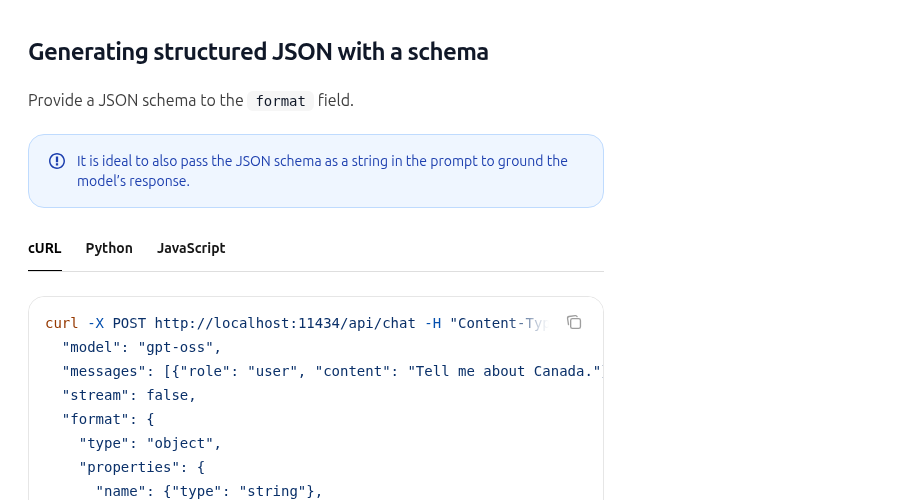
    Ollama’s API accepts either "json" or a JSON Schema object in the format field. A schema is stronger because it declares the fields and types you expect.

    Ollama Structured Outputs documentation showing a JSON schema passed to the format field

    The following request can be sent from an n8n HTTP Request node to Ollama’s chat endpoint:

    {
      "model": "qwen2.5:7b",
      "messages": [
        {
          "role": "user",
          "content": "Classify this ticket: {{$json.text}}"
        }
      ],
      "stream": false,
      "format": {
        "type": "object",
        "properties": {
          "category": {
            "type": "string",
            "enum": ["billing", "technical", "other"]
          },
          "priority": {
            "type": "string",
            "enum": ["low", "normal", "high"]
          },
          "summary": {
            "type": "string"
          }
        },
        "required": [
          "category",
          "priority",
          "summary"
        ]
      }
    }

    Use POST http://ollama:11434/api/chat when n8n and Ollama share a Docker network and the Ollama service is named ollama. If they run in different environments, use the reachable Ollama base URL for that deployment. Do not assume that localhost inside the n8n container points to the host or to another container.

    Ollama also recommends including the schema in the prompt to ground the response. Treat that as reinforcement, not as a replacement for the format schema and downstream validation.

    Parse once, then validate business rules

    Depending on the Ollama endpoint and n8n node configuration, the generated object may arrive as JSON text inside a response field. Parse it once in a Code node, then check the values that matter to your workflow:

    const raw = $json.message?.content
      ?? $json.response;
    
    if (typeof raw !== 'string') {
      throw new Error('Missing Ollama response text');
    }
    
    let data;
    try {
      data = JSON.parse(raw);
    } catch {
      throw new Error('Ollama returned invalid JSON');
    }
    
    const categories = [
      'billing',
      'technical',
      'other'
    ];
    const priorities = [
      'low',
      'normal',
      'high'
    ];
    
    if (!categories.includes(data.category)) {
      throw new Error('Unexpected category');
    }
    if (!priorities.includes(data.priority)) {
      throw new Error('Unexpected priority');
    }
    if (typeof data.summary !== 'string'
        || data.summary.trim() === '') {
      throw new Error('Missing summary');
    }
    
    return [{ json: data }];

    This check is intentionally boring. Deterministic validation is easier to inspect than asking a second agent to decide whether the first response “looks right.” For large schemas, use a dedicated JSON Schema validator in a controlled Code node or service rather than hand-writing dozens of checks.

    Fail closed before side effects

    Never connect unvalidated model output directly to a WordPress publish, database update, invoice, or outbound message. Route the result through a validation gate first:

    1. Accept the object only when JSON parsing and schema checks pass.
    2. Record the model, workflow execution, and validation error without logging secrets.
    3. Retry once only when the failure is likely transient.
    4. Send repeated failures to an error workflow or review queue.
    5. Make downstream writes idempotent so a retry cannot duplicate work.

    If you already operate a central failure handler, connect this validation branch to it. The related guide on building an n8n error workflow with Error Trigger explains the alerting side of that design.

    Batch-processing trap in parser sub-nodes

    n8n sub-nodes resolve expressions against the first input item rather than processing every expression independently across all incoming items. If five source items need separate prompts and separate structured results, split or loop them so each model invocation receives the intended item. Do not assume that a parser sub-node will automatically resolve a different schema expression for every input row.

    Production checklist

    • Keep the schema small and explicit.
    • Use enums for values that drive branching.
    • Mark required fields deliberately.
    • Set stream: false when your node expects one complete JSON response.
    • Parse the response once.
    • Validate business rules after JSON parsing.
    • Stop before side effects when validation fails.
    • Use a separate LLM chain for final agent-output formatting.
    • Test with missing fields, unexpected enum values, empty strings, and malformed JSON.
    • Record failures without storing sensitive prompts or credentials.

    What this pattern does—and does not—guarantee

    A schema-first design sharply reduces formatting failures and makes bad responses visible. It does not make every local model equally capable, eliminate hallucination inside valid fields, or replace domain validation. Model size, prompt quality, context length, and quantization can still affect correctness.

    The reliable contract is therefore: constrain generation, validate the object, enforce business rules, and fail closed before the workflow changes the outside world.

    Official references: Ollama Structured Outputs, Ollama Generate API, n8n Structured Output Parser, n8n parser common issues, and n8n Information Extractor.

  • How to Build a Centralized n8n Error Workflow with Error Trigger

    How to Build a Centralized n8n Error Workflow with Error Trigger

    An n8n workflow that fails silently is not production-ready. The most maintainable fix is not to add a separate Slack, email, or webhook node to every automation. Instead, create one reusable error workflow, connect it to the workflows that matter, and send a compact alert with enough context to investigate the failed execution.

    This guide shows how to build that shared error-handling path with n8n’s Error Trigger. It also covers the details that commonly cause false confidence: why manual tests do not trigger the handler, when an execution URL may be missing, how trigger failures use a different payload shape, and how to test the complete path safely.

    What you are building

    The design has two layers:

    1. Production workflows do the actual business work.
    2. One error workflow receives failure context and sends an alert to Slack, email, Microsoft Teams, PagerDuty, or another destination.

    n8n lets several workflows share the same error workflow. That keeps routing, formatting, and security policy in one place. It also makes it easier to change alert destinations without editing every production workflow.

    Component Responsibility Typical node
    Source workflow Runs the automation and fails when a step cannot complete Webhook, Schedule Trigger, app trigger
    Error workflow Receives failure metadata Error Trigger
    Normalizer Creates a stable alert payload Edit Fields (Set) or Code
    Alert destination Notifies the operator Slack, email, Teams, HTTP Request

    1. Create the reusable error workflow

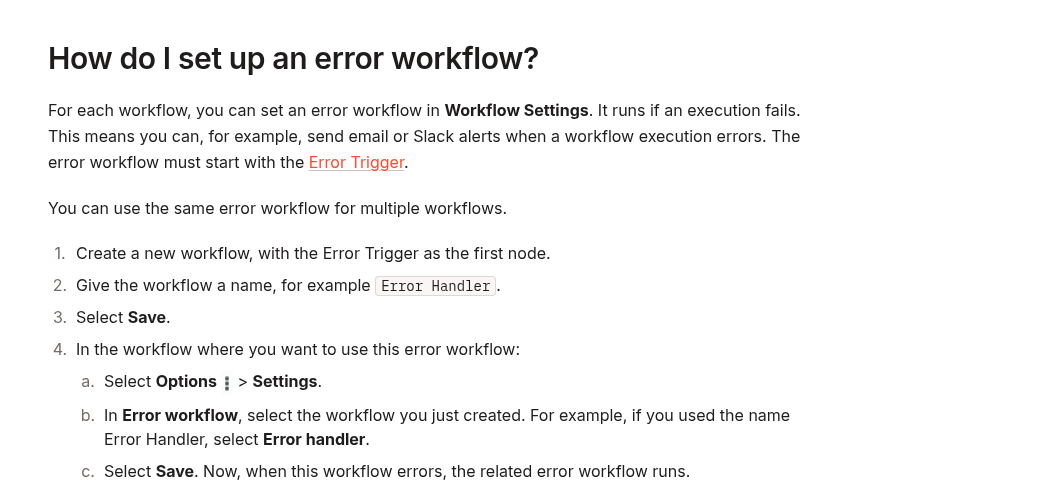
    Create a new workflow and add Error Trigger as the first node. Give the workflow a clear name such as Production Error Handler, then save it. The handler itself does not need a normal schedule or webhook trigger.

    Official n8n documentation showing how to set up a reusable error workflow with Error Trigger

    Open each production workflow that should use the handler, choose Options → Settings, and select Production Error Handler in the Error workflow field. Save the source workflow. The same handler can be selected by multiple workflows.

    Do not add Error Trigger to a normal processing branch. It belongs at the beginning of the dedicated error workflow.

    2. Understand the payload before formatting alerts

    For a failure that occurs after a workflow execution has started, n8n normally provides an execution object and a workflow object. Useful fields include:

    • workflow.id and workflow.name
    • execution.id and execution.url
    • execution.error.message
    • execution.lastNodeExecuted
    • execution.mode
    • execution.retryOf when the failed run was a retry

    There are two important caveats. First, execution.id and execution.url require the execution to be saved in the database. Second, if the source workflow fails in its trigger node, the workflow may never create a normal execution. In that case n8n sends a different structure with more detail under trigger.error and less under execution.

    Your alert workflow should therefore tolerate missing fields instead of assuming every failure has an execution URL.

    3. Normalize the failure into a stable alert object

    Add an Edit Fields (Set) node after Error Trigger. Create a small, predictable object that later notification nodes can consume. The following expressions illustrate the fallback logic:

    {
      "workflow": "{{
        $json.workflow?.name ||
        'Unknown workflow'
      }}",
      "workflowId": "{{
        $json.workflow?.id || ''
      }}",
      "executionId": "{{
        $json.execution?.id || ''
      }}",
      "executionUrl": "{{
        $json.execution?.url || ''
      }}",
      "lastNode": "{{
        $json.execution?.lastNodeExecuted ||
        'Trigger or activation'
      }}",
      "mode": "{{
        $json.execution?.mode ||
        $json.trigger?.mode ||
        'unknown'
      }}",
      "message": "{{
        $json.execution?.error?.message ||
        $json.trigger?.error?.message ||
        'Unknown error'
      }}"
    }

    If your n8n version or node configuration does not accept a whole object in one field, create the same properties as separate fields. The important part is the fallback order, not the exact node layout.

    Keep the alert payload deliberately small. Avoid sending full input data, credentials, headers, stack traces, or customer records to a chat channel. Put the execution link in the alert when it exists and keep sensitive diagnostic data inside n8n’s access-controlled execution view.

    4. Route the alert to the right destination

    Connect the normalizer to your notification node. A useful alert contains four things:

    • the workflow name;
    • the failed node or trigger context;
    • a short error message;
    • the saved execution URL, when available.

    A compact message is easier to scan than a raw JSON dump:

    n8n workflow failed
    Workflow:
    {{ $json.workflow }}
    Node:
    {{ $json.lastNode }}
    Error:
    {{ $json.message }}
    Execution:
    {{ $json.executionUrl ||
       'No saved execution URL' }}

    If the destination supports severity or routing, add a Switch node before the alert. For example, production payment or publishing workflows can go to an urgent channel, while lower-priority batch jobs go to a daily operations channel. Base this on explicit workflow IDs or tags that you control; do not infer severity from an unpredictable error message.

    5. Prevent an alert storm

    A centralized handler makes alerts consistent, but it can also concentrate noise. Add controls appropriate to the consequences of the workflow:

    • Keep the first alert actionable. Include identifiers and a link, not the entire payload.
    • Separate transient retries from final failure. If a node is configured to retry, alert after the workflow actually fails rather than duplicating every attempt in a custom branch.
    • Use a durable deduplication key when needed. A combination such as workflow ID plus execution ID is more reliable than matching message text.
    • Do not let the alert path fail silently. Choose a destination with observable delivery and periodically verify it.
    • Protect secrets. Treat error messages and stack traces as potentially sensitive.

    The Error Trigger is a notification and recovery hook, not a substitute for sensible timeouts, retries, and idempotency. For long-running or stuck jobs, pair it with the layered timeout controls described in How to Stop Stuck n8n Executions with Layered Timeouts.

    6. Test the real automatic-failure path

    This is the step most often missed: n8n does not run Error Trigger when you manually execute a workflow in the editor. A successful manual test of the notification nodes proves only that those nodes can send a message; it does not prove that the source workflow is connected to the handler.

    Use a controlled test workflow with an automatic trigger:

    1. Create or select a non-critical workflow with an automatic trigger.
    2. Assign Production Error Handler in Workflow Settings.
    3. Add a Stop And Error node in a test-only branch with a recognizable message.
    4. Publish or activate the source workflow as required by that trigger.
    5. Cause one automatic execution.
    6. Confirm that the error workflow runs and the alert arrives.
    7. Open the saved execution link if it is present.
    8. Remove or disable the intentional failure path after verification.

    The Stop And Error node is useful because it creates a deliberate workflow failure under conditions you choose. Do not test this pattern by breaking a real production credential or corrupting live data.

    7. Verify the edge cases

    Run the following checks before relying on the handler:

    Test Expected result
    Automatic failure after the trigger Alert includes workflow name, failed node, message, and usually an execution URL
    Failure in the trigger or activation stage Fallback reads trigger.error; missing execution URL does not break the handler
    Saved failed executions disabled Alert still sends, but execution ID or URL may be absent
    Alert destination temporarily unavailable Error is visible in the error workflow’s own execution history or external monitoring
    Several workflows share the handler Each alert identifies the correct source workflow
    Manual editor run Error Trigger does not fire; this is expected behavior

    Common mistakes

    Testing only with Execute Workflow

    Manual execution does not exercise Error Trigger. Test an automatic execution from a controlled source workflow.

    Assuming every failure has an execution URL

    The URL depends on a saved database execution and is absent for some trigger failures. Use a fallback and keep the alert node working without it.

    Sending the entire failure object to Slack or email

    Raw failure data can contain stack traces, URLs, request details, or business data. Send a concise summary and retain detailed investigation inside n8n.

    Creating one handler per workflow

    That duplicates formatting and routing logic. Start with one shared handler, then split only when teams, credentials, or security boundaries genuinely differ.

    Treating alerts as recovery

    An alert tells you that a failure occurred. Recovery still requires retry policy, idempotent operations, rollback or compensation where necessary, and a clear runbook.

    Production checklist

    • Error workflow starts with Error Trigger.
    • Source workflows select it in Workflow Settings.
    • Message fields tolerate missing execution or trigger data.
    • Alerts exclude secrets and unnecessary payload data.
    • Workflow name, failure location, message, and optional execution URL are present.
    • An automatic controlled failure has been tested.
    • The intentional Stop And Error test path has been removed or disabled.
    • Delivery failures in the alert channel are observable.

    Final takeaway

    A centralized n8n error workflow turns scattered failures into one consistent operational signal. The reliable pattern is straightforward: start a dedicated handler with Error Trigger, assign it in each source workflow’s settings, normalize both execution and trigger failure shapes, send a minimal actionable alert, and verify the connection with an automatic controlled failure. Once that path is proven, you can add severity routing and deduplication without duplicating error logic across every workflow.

    Official references: Handle errors gracefully, Error Trigger, and Configure workflow settings.

  • How to Build Reliable Pagination in the n8n HTTP Request Node

    How to Build Reliable Pagination in the n8n HTTP Request Node

    Most pagination bugs in n8n are not caused by the HTTP Request node. They start with a mismatch between the API’s pagination contract and the value that the next request sends. A workflow may fetch only the first page, repeat the same page forever, skip records, or consume far more memory than expected.

    This guide shows how to configure the three patterns you will meet most often: a next-page URL, a page or offset parameter, and an opaque cursor. It also adds a verification checklist so a workflow that “ran successfully” does not silently return an incomplete or duplicated dataset.

    Start with the API contract, not the n8n expression

    Before enabling pagination, run the endpoint once without pagination and inspect the response. The current n8n documentation explicitly recommends checking the API documentation or making a single request first because pagination shapes differ between APIs.

    Record these five details:

    Question Example answer Why it matters
    Where are records stored? body.data You need to distinguish records from pagination metadata.
    What identifies the next page? next, next_cursor, or page This determines the pagination mode and expression.
    What marks the end? next = null or has_more = false A reliable loop needs an explicit terminal signal.
    Does the first index start at 0 or 1? page=1 An off-by-one error can skip or repeat the first page.
    What is the maximum page size? limit=100 The API may reject or silently clamp larger values.

    Do not copy a pagination expression from another API just because both responses contain a field named next. One may return a complete URL; another may return an opaque token that belongs in a query parameter.

    The two pagination modes in n8n

    Open the HTTP Request node and select Add Option → Pagination. n8n currently documents two modes:

    • Response Contains Next URL — use this when the response provides the complete URL for the following page.
    • Update a Parameter in Each Request — use this when the next request must change a query parameter or body parameter.
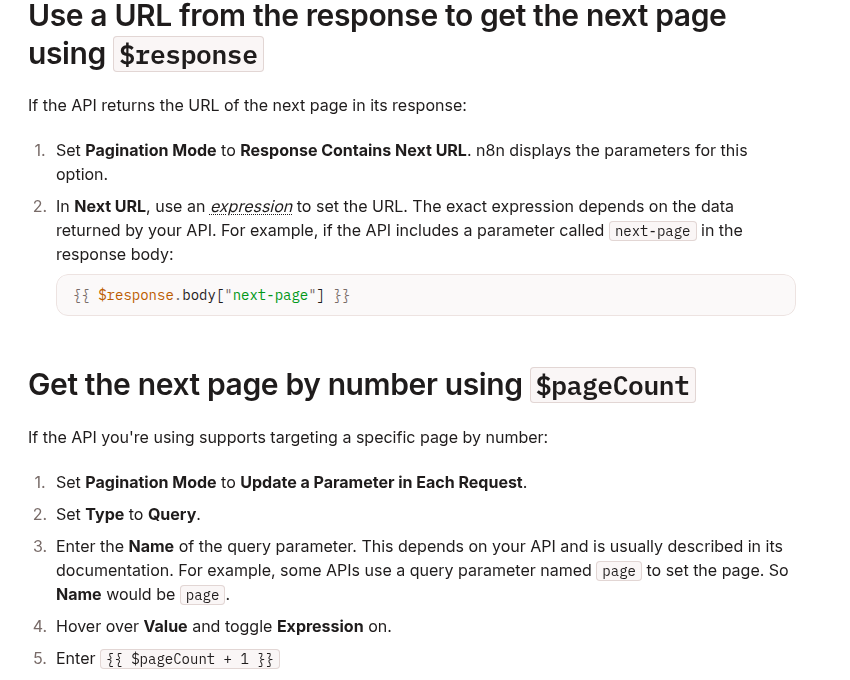
    Official n8n documentation showing next-URL and page-number pagination settings

    The node exposes pagination variables including $pageCount, $request, and $response. The response object includes the body, headers, and status code returned by the API. The exact JSON path remains API-specific.

    Pattern 1: follow a next-page URL

    This is the cleanest case. Suppose the endpoint returns:

    {
      "data": [
        { "id": "cus_101" },
        { "id": "cus_102" }
      ],
      "next-page": "https://api.example.com/customers?cursor=eyJpZCI6MTAyfQ"
    }

    Choose Response Contains Next URL and set Next URL to:

    {{ $response.body["next-page"] }}

    This is the same structure shown in n8n’s official pagination cookbook. Adapt only the property path. If the API uses links.next, for example, the expression becomes:

    {{ $response.body.links.next }}

    Confirm what the terminal response returns. A final page may use null, an empty string, an omitted property, or a separate Boolean such as has_more. Do not invent a fallback URL when the next-page value is absent; that can send the workflow back to page one.

    Pattern 2: increment a page number

    For an API that accepts ?page=1, choose Update a Parameter in Each Request, set Type to Query, and set the parameter name to page.

    n8n documents this value:

    {{ $pageCount + 1 }}

    $pageCount starts at zero. Adding one sends page 1 on the first request, page 2 on the next request, and so on. If the API is zero-based, do not add one:

    {{ $pageCount }}

    Set the page size separately in the node’s normal query parameters. For example:

    limit = 100
    page  = {{ $pageCount + 1 }}

    The page size should remain stable during a run. Changing it while also changing the page number can create gaps or overlaps because the server recalculates page boundaries.

    Pattern 3: calculate an offset

    Offset APIs commonly accept a fixed limit and a changing offset. If the first request uses offset zero and the page size is 100, the offset can be derived from the zero-based page count:

    limit  = 100
    offset = {{ $pageCount * 100 }}

    This arithmetic is an implementation pattern, not a universal API rule. Verify whether the endpoint defines offset as a record index, a page index, or something else. Also check whether the underlying dataset can change while the workflow is running. Inserts and deletions can shift offsets and cause duplicate or missing records.

    When the API offers a stable cursor as well as an offset, prefer the cursor for long-running synchronization jobs. An opaque cursor is designed to preserve the server’s traversal state; an offset is only a position in a potentially changing result set.

    Pattern 4: pass an opaque cursor

    A cursor response may look like this:

    {
      "data": [
        { "id": "evt_201" },
        { "id": "evt_202" }
      ],
      "next_cursor": "eyJhZnRlciI6ImV2dF8yMDIifQ",
      "has_more": true
    }

    Use Update a Parameter in Each Request and update the query parameter expected by the API, such as cursor. For subsequent requests, the expression usually reads the token from the previous response:

    {{ $response.body.next_cursor }}

    The token is opaque. Do not decode it, increment it, trim it, or substitute the last record ID unless the API explicitly documents that behavior. Preserve it exactly as returned.

    The API’s terminal signal still controls completion. For the sample response, that may be has_more = false or a missing next_cursor. Test the final page deliberately and verify the node stops instead of resending the last cursor.

    How infinite pagination loops happen

    The cursor never changes

    If page two returns the same cursor as page one and the workflow keeps using it, every later request can repeat the same page. During testing, compare the cursor or next URL between successive responses. A repeated non-empty token is a failure signal, not progress.

    The expression points to the wrong level

    An API may return body.meta.next_cursor while the expression reads body.next_cursor. The value becomes empty, and the next request may fall back to the original endpoint. Inspect the execution data and copy the actual JSON path.

    The first-page index is wrong

    Using $pageCount against a one-based API starts at page zero. Using $pageCount + 1 against a zero-based API starts at page one and can skip the first page. Confirm the convention from the API documentation or a manual request.

    There is no trustworthy end condition

    “Stop when fewer than 100 records are returned” can work only when the API guarantees that page size and response shape. Rate limits, filtering, permissions, or server-side caps may produce a short page before the dataset ends. Prefer the documented next-link, cursor, or Boolean completion signal.

    A safe test procedure

    1. Call the endpoint once with a small page size, such as 2 or 5.
    2. Save the first response and identify the records plus the pagination metadata.
    3. Configure exactly one pagination strategy.
    4. Execute the node against a bounded test dataset.
    5. Inspect at least the first, second, and final requests in execution data.
    6. Confirm the page value, offset, URL, or cursor changes every time progress is expected.
    7. Confirm the final response produces the documented terminal state.
    8. Compare the collected count with an authoritative count endpoint when the API provides one.
    9. Check record IDs for duplicates before connecting downstream side effects.

    Keep side-effect nodes—email sends, order creation, database writes—disconnected while pagination is being tested. A repeated page is merely annoying during a read-only test; it can become expensive or destructive when every repeated item triggers an action.

    Production hardening

    • Use API-defined limits. Stay within documented maximum page sizes and request-rate limits.
    • Separate fetching from side effects. Fetch and validate records before performing irreversible actions.
    • Deduplicate by a stable ID. Pagination correctness and business idempotency solve different problems; use both.
    • Persist sync checkpoints. For scheduled incremental jobs, store the last confirmed cursor or timestamp only after downstream processing succeeds.
    • Log the contract. Record the endpoint, mode, parameter name, page size, and terminal signal in workflow notes.
    • Monitor volume. A sudden jump in page count can indicate a filter regression or a terminal condition that stopped working.

    Related DevelopWhale guides

    Decision guide

    • Complete next-page URL: use Response Contains Next URL and pass the returned next URL.
    • One-based page number: use Update a Parameter with $pageCount + 1.
    • Zero-based offset: use Update a Parameter with $pageCount × page size.
    • Opaque cursor token: use Update a Parameter and pass the returned next_cursor unchanged.

    The most reliable rule is simple: let the API define the pagination contract, let n8n carry the documented value forward, and verify that every request makes measurable progress toward a real terminal state.

    Official references: n8n HTTP Request pagination cookbook and n8n HTTP Request node documentation.

  • How to Stop Stuck n8n Executions with Layered Timeouts

    How to Stop Stuck n8n Executions with Layered Timeouts

    A workflow that stays Running for hours is not always an n8n bug. It may be waiting on a slow API, retrying inside a node, looping over unexpected data, or running without an execution deadline. The practical fix is not one magic setting. It is a layered timeout policy that limits the entire execution, permits deliberate workflow-specific exceptions, and constrains network calls that can stall a node.

    This guide shows how to configure those layers on self-hosted n8n, how they interact, and how to verify the result without confusing a timeout with queue congestion or an upstream service failure.

    The three timeout layers

    Layer Control What it limits Best use
    Instance default EXECUTIONS_TIMEOUT Total runtime for workflows unless overridden A safe baseline for the whole n8n instance
    Workflow override Timeout Workflow / Timeout After Total runtime for one workflow Short jobs, long batch jobs, and explicit exceptions
    Request boundary HTTP Request node Timeout How long the node waits for the server to start responding Preventing one external API call from waiting indefinitely

    These controls solve different problems. An HTTP timeout can fail one slow request quickly, while the workflow timeout is the final guardrail for the complete execution. Neither setting guarantees that an overloaded queue, database lock, worker crash, or badly designed retry loop will disappear. Treat them as boundaries that make failures finite and observable.

    1. Set an instance-wide execution deadline

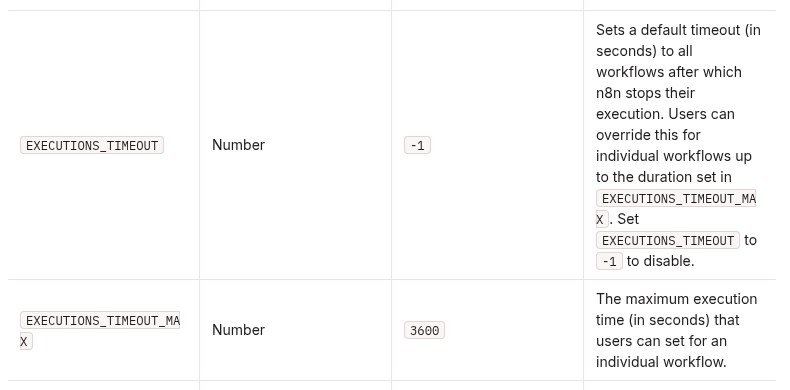
    n8n documents EXECUTIONS_TIMEOUT as the default number of seconds after which it stops a workflow execution. Its default value is -1, which disables the default timeout. EXECUTIONS_TIMEOUT_MAX is the maximum duration that a user may assign to an individual workflow.

    n8n execution environment variables showing EXECUTIONS_TIMEOUT and EXECUTIONS_TIMEOUT_MAX

    A conservative Docker Compose example is:

    services:
      n8n:
        environment:
          - EXECUTIONS_TIMEOUT=3600
          - EXECUTIONS_TIMEOUT_MAX=7200

    In this example, workflows receive a one-hour default deadline. A workflow owner can choose a different value, but not more than two hours. The right numbers depend on the workload: a webhook transformation may need minutes, while a controlled nightly batch may need longer. Start with observed normal runtimes plus a reasonable safety margin rather than copying a number blindly.

    After changing deployment environment variables, restart or redeploy the n8n service so the process starts with the new configuration. Keep the values in your deployment configuration rather than making an undocumented change inside a running container.

    2. Use per-workflow timeouts for intentional exceptions

    Open the workflow, select the three-dot menu, and choose Settings. Enable Timeout Workflow, then set Timeout After in hours, minutes, and seconds. n8n cancels the execution after that elapsed time.

    Use a workflow-specific value when the instance default is too broad:

    • Webhook or user-facing automation: choose a short deadline so callers receive a controlled failure path instead of waiting for a long background job.
    • Scheduled imports: allow enough time for the normal dataset, but stop a runaway loop or unexpectedly large batch.
    • AI or scraping jobs: separate the total workflow budget from the timeout of each external request.
    • Exception workflows: document why they need more time and keep the override below EXECUTIONS_TIMEOUT_MAX.

    A per-workflow timeout is especially useful when one automation has a very different runtime profile. It should not become a habit of raising every limit until errors disappear. If a job repeatedly reaches the deadline, inspect the execution data and find the slow node, retry behavior, input size, and upstream response time.

    3. Bound slow HTTP calls at the node level

    In an HTTP Request node, open Options, add Timeout, and enter a value in milliseconds. Current n8n documentation defines this as the time the node waits for the server to send response headers and begin the response body. The node aborts a request that exceeds that initial-response limit.

    HTTP Request Timeout: 30000
    Workflow Timeout:     00:05:00
    Instance Default:     3600 seconds

    This example gives an upstream API 30 seconds to start responding, gives the workflow five minutes to finish its complete error-handling path, and retains the one-hour instance fallback for workflows without a specific override.

    Do not assume the HTTP Request timeout measures the full download duration in every situation. Its documented purpose is the initial server response. If an API streams data, returns very large files, or performs long asynchronous work, design around that behavior explicitly. A job-ID plus polling or callback pattern is often safer than holding one request open.

    Choose values from runtime evidence

    Observed behavior First control to review What to inspect next
    One API node waits too long HTTP Request Timeout Provider latency, retries, rate limits, and async API support
    The whole workflow loops or grows unexpectedly Workflow Timeout Loop termination, item count, pagination, and batch size
    Many workflows have no deadline EXECUTIONS_TIMEOUT Instance-wide runtime distribution and legitimate long jobs
    A workflow needs longer than the default Workflow override Whether the exception is documented and below the maximum
    Executions remain queued before work starts Not a timeout-only problem Worker capacity, concurrency, Redis, database health, and queue mode

    A safe rollout sequence

    1. Measure first. Review recent successful and failed executions. Record typical and worst-case runtimes for important workflows.
    2. Set the maximum. Choose EXECUTIONS_TIMEOUT_MAX so individual workflows cannot silently receive an unlimited exception.
    3. Set the default. Add EXECUTIONS_TIMEOUT with enough headroom for ordinary jobs.
    4. Add explicit exceptions. Configure only workflows that genuinely need a shorter or longer deadline.
    5. Bound external calls. Add HTTP Request timeouts based on provider behavior and your retry policy.
    6. Connect an error workflow. Route failures to an error workflow so a timeout produces an alert or durable incident record.
    7. Redeploy and test. Confirm the active n8n process received the environment variables, then test in a controlled workflow.

    How to verify the policy

    Create a non-production test workflow that waits longer than the intended deadline. Give it a distinctive name and no side effects. Run it manually and verify:

    • the execution changes to an error or canceled state near the configured limit;
    • the execution record identifies the timeout rather than an unrelated node error;
    • the configured error workflow runs when appropriate;
    • a normal short execution still completes;
    • a workflow override works only within the maximum allowed duration;
    • an HTTP Request node with a shorter timeout fails before the entire workflow budget is exhausted.

    Then observe real workloads for several days. Watch for workflows that now fail close to the same duration, because that pattern usually means the deadline is revealing a slow dependency or unrealistic batch size. Adjust the workflow design before increasing the limit.

    What execution timeouts do not fix

    A deadline prevents unbounded runtime, but it does not diagnose every stuck execution. If an execution remains queued, investigate worker availability and concurrency. If a worker crashes, review container and process logs. If many executions slow down together, check PostgreSQL, Redis, CPU, memory, and the upstream services they call. If a webhook caller times out before n8n finishes, use an immediate acknowledgement plus asynchronous processing rather than only increasing n8n’s execution limit.

    The useful mental model is simple: node timeouts isolate slow dependencies, workflow timeouts constrain a single automation, and the instance default protects the platform. Apply all three deliberately, verify them with controlled failures, and keep the actual cause visible in your logs and execution history.

    Related DevelopWhale guides

    Official references

  • How to Migrate n8n to Queue Mode with Redis and PostgreSQL

    How to Migrate n8n to Queue Mode with Redis and PostgreSQL

    When a self-hosted n8n instance starts handling more webhooks, scheduled jobs, and AI-heavy workflows at the same time, simply giving one container more CPU is not always the cleanest next step. Queue Mode separates orchestration from execution: a main instance accepts triggers, Redis holds execution IDs, PostgreSQL stores shared state, and one or more workers run the workflows.

    This guide shows a conservative migration path for a Docker-based installation. It focuses on the configuration contract, the checks that prevent credential and data problems, and a rollback plan. Queue Mode improves horizontal scalability, but it does not make slow APIs, unsafe workflows, or synchronous webhook timeouts disappear by itself.

    What Queue Mode changes

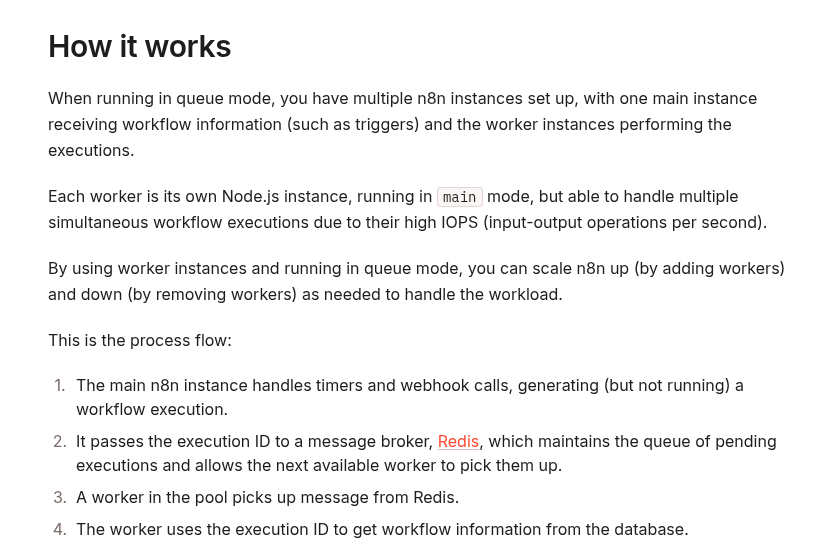
    In regular mode, the same n8n process can serve the editor, accept production triggers, and execute workflows. Under heavy parallel work, those responsibilities compete for the same process resources. In Queue Mode, the main instance creates an execution and sends its ID to Redis. A worker retrieves that ID, loads the workflow and execution state from the shared database, performs the work, writes the result back, and reports completion through Redis.

    Official n8n documentation explaining how Queue Mode sends execution IDs through Redis to worker processes

    The official n8n documentation describes Queue Mode as its most scalable execution mode. It also notes an important trade-off: webhook requests are received by the main or webhook process while actual execution happens on a worker, so the handoff can add some latency.

    Before you migrate

    Queue Mode is an infrastructure change, not a single environment-variable toggle. Prepare these items first:

    • PostgreSQL: all main and worker processes must share the same supported PostgreSQL database. A distributed Queue Mode setup over SQLite is not supported.
    • Redis: Redis is the message broker for pending execution IDs. Protect it from public access and use authentication where appropriate.
    • One encryption key: the main instance, workers, and optional webhook processors must use the same N8N_ENCRYPTION_KEY. Otherwise workers cannot decrypt credentials stored in the database.
    • One n8n version: pin the same image version across every n8n service. Avoid migrating and upgrading versions in the same change window.
    • Backups: back up PostgreSQL and the current n8n configuration before changing the topology.
    • Binary-data plan: n8n does not support Queue Mode with filesystem binary-data storage as the normal persistence model. If workflows persist files, choose a supported storage design before cutover.

    A minimal Docker Compose topology

    The following example is an architectural starting point, not a drop-in production file. Put secrets in an .env file or secret manager, add health checks and backups appropriate to your platform, and pin an explicit n8n image version.

    services:
      postgres:
        image: postgres:17
        environment:
          POSTGRES_DB: n8n
          POSTGRES_USER: n8n
          POSTGRES_PASSWORD: ${POSTGRES_PASSWORD}
        volumes:
          - postgres_data:/var/lib/postgresql/data
    
      redis:
        image: redis:7-alpine
        command: ["redis-server", "--requirepass", "${REDIS_PASSWORD}"]
    
      n8n-main:
        image: docker.n8n.io/n8nio/n8n:${N8N_VERSION}
        ports:
          - "5678:5678"
        environment: &n8n-env
          DB_TYPE: postgresdb
          DB_POSTGRESDB_HOST: postgres
          DB_POSTGRESDB_DATABASE: n8n
          DB_POSTGRESDB_USER: n8n
          DB_POSTGRESDB_PASSWORD: ${POSTGRES_PASSWORD}
          EXECUTIONS_MODE: queue
          QUEUE_BULL_REDIS_HOST: redis
          QUEUE_BULL_REDIS_PORT: 6379
          QUEUE_BULL_REDIS_PASSWORD: ${REDIS_PASSWORD}
          N8N_ENCRYPTION_KEY: ${N8N_ENCRYPTION_KEY}
          WEBHOOK_URL: https://n8n.example.com/
        depends_on:
          - postgres
          - redis
    
      n8n-worker:
        image: docker.n8n.io/n8nio/n8n:${N8N_VERSION}
        command: worker --concurrency=5
        environment: *n8n-env
        depends_on:
          - postgres
          - redis
    
    volumes:
      postgres_data:

    The key relationship is more important than the exact YAML: main and worker use the same database, Redis connection, encryption key, execution mode, and n8n version. Scale workers only after measuring CPU, memory, database load, and external API limits.

    Configuration that must match

    Setting Where Why it matters
    EXECUTIONS_MODE=queue Main, workers, webhook processors Places production executions on the Redis-backed queue.
    N8N_ENCRYPTION_KEY Every n8n process Allows workers to decrypt the same stored credentials.
    QUEUE_BULL_REDIS_HOST and port Every n8n process Points all processes to the same broker.
    PostgreSQL connection Every n8n process Provides the shared workflow and execution state.
    n8n image version Every n8n service Avoids protocol and schema mismatches during execution.
    WEBHOOK_URL Main configuration Keeps generated production webhook URLs aligned with the public origin.

    Choose worker concurrency deliberately

    A worker can run multiple jobs at once. The command-line --concurrency flag sets the worker concurrency, while N8N_CONCURRENCY_PRODUCTION_LIMIT can place a broader limit on production executions. More concurrency is not automatically better: every parallel workflow may consume memory, database connections, API quotas, and file bandwidth.

    Start with a conservative value, observe real workloads, and increase it gradually. A useful validation set includes:

    • worker CPU and memory at peak load;
    • PostgreSQL active connections and query latency;
    • Redis memory and queue depth;
    • execution wait time versus execution duration;
    • 429 responses or other rate-limit errors from downstream APIs;
    • failure and retry rates for large AI or file-processing jobs.

    If one workflow is unusually memory-heavy, reducing concurrency or routing that workload to dedicated workers is often safer than increasing the global worker count.

    Decide whether you need webhook processors

    Workers scale workflow execution. Webhook processors are an optional, separate layer that scales incoming production webhook requests. They are useful when webhook intake itself becomes a bottleneck.

    If you add webhook processors, route production paths such as /webhook/* and /webhook-waiting/* to their load-balancer pool. Keep editor and internal API traffic on the main instance. The official documentation advises against putting the main process in the webhook load-balancer pool because webhook load can degrade editor responsiveness.

    You can also disable production webhook handling on the main process with N8N_DISABLE_PRODUCTION_MAIN_PROCESS=true after the webhook-processor pool is healthy. Do not enable that flag before routing and health checks are proven, or production webhooks may have nowhere to go.

    Handle binary data before cutover

    Queue Mode changes where execution happens, so local files cannot be assumed to exist on every process. n8n explicitly warns that Queue Mode is not supported with filesystem binary-data storage as the normal persistence model.

    For workflows that persist images, PDFs, audio, or other binary data, review the current n8n storage options and licensing before migration. External S3 or Azure storage is available only on qualifying self-hosted plans. If you use external storage, every relevant n8n process must receive the same storage configuration. Also configure the provider’s lifecycle policy for binary data rather than allowing files to accumulate forever.

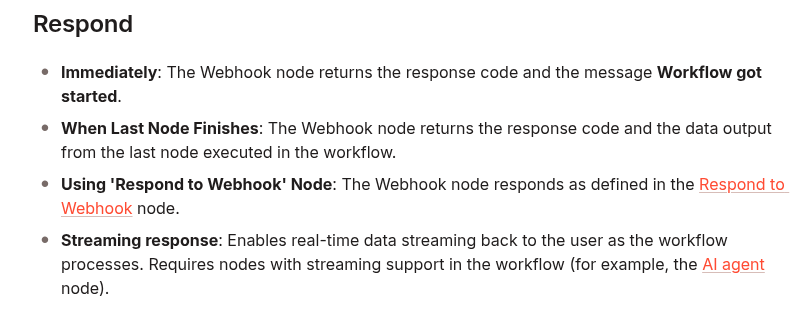
    Large synchronous webhook responses need separate attention. The worker sends the response back to the main or webhook process through the queue path, and n8n documents a relay-size limit. Queue Mode therefore is not a substitute for an asynchronous job pattern when a request can take a long time or return a very large payload.

    A safe migration sequence

    1. Inventory the current instance. Record the n8n version, database, encryption key source, public URL, binary-data mode, mounted volumes, and reverse-proxy routes.
    2. Back up PostgreSQL and configuration. Test that the backup can be read before continuing.
    3. Introduce Redis privately. Verify authentication and connectivity from the n8n Docker network; do not expose Redis directly to the internet.
    4. Start one worker with no production cutover. Give it the same database and encryption key, then enable QUEUE_HEALTH_CHECK_ACTIVE and check /healthz/readiness for database and Redis readiness.
    5. Enable Queue Mode on main and worker. Restart in a controlled window and confirm both processes remain on the same n8n version.
    6. Run a canary production workflow. Use a harmless webhook or schedule that reads credentials, performs a small external request, writes a result, and completes through the worker.
    7. Test failure paths. Confirm that a failed node is recorded, retries behave as expected, and queued executions recover after a worker restart.
    8. Increase load gradually. Add concurrency or workers one change at a time while watching resource and error signals.
    9. Add webhook processors only if intake needs scaling. Validate load-balancer paths before disabling production webhooks on main.

    Verification checklist

    Do not call the migration complete merely because all containers are running. Verify the behavior that matters:

    • The editor loads and saved credentials can be used by a worker.
    • A production webhook creates an execution and the worker completes it.
    • Scheduled workflows still trigger at the expected time.
    • Execution results appear in the UI and survive restarts.
    • Worker readiness reports successful database and Redis connectivity.
    • Stopping one worker leaves queued jobs available for another healthy worker.
    • Binary-data workflows can read their files on the process that executes them.
    • Your reverse proxy still sends the correct webhook and editor paths to the correct services.
    • Execution pruning remains configured so finished execution data does not grow without bound.

    Common migration failures

    Workers start but every credentialed node fails

    Compare N8N_ENCRYPTION_KEY byte for byte across main and workers. A newly generated worker key cannot decrypt credentials created by the original main instance.

    Executions remain queued

    Check worker logs, Redis connectivity, PostgreSQL connectivity, and whether every process actually has EXECUTIONS_MODE=queue. A running container is not the same as a ready worker.

    The editor becomes slow during webhook spikes

    Measure whether the main process is accepting too much production webhook traffic. If the workload justifies it, add webhook processors and route only production webhook paths to them instead of placing main in that pool.

    Image or document workflows fail after migration

    Revisit binary-data storage. A file written to one container’s local filesystem is not automatically available to another worker. Use a supported shared storage design and test the full write-and-read path.

    More workers create more 429 errors

    Queue Mode increases execution capacity; it does not increase a third-party API quota. Reduce concurrency, add workflow-level throttling, or coordinate global rate limits before scaling further.

    Rollback without data loss

    Keep the previous Compose configuration, pinned image version, and database backup available during the change window. If the canary fails, stop accepting new production triggers, allow or terminate active jobs according to your incident plan, restore the prior execution topology, and verify a known workflow before reopening traffic.

    A rollback should not replace the current database with an older backup unless the database itself is damaged; doing so can discard executions and configuration created after the snapshot. Treat configuration rollback and database restoration as separate decisions.

    Related DevelopWhale guides

    Final recommendation

    Use Queue Mode when measurement shows that separating intake and execution will solve a real capacity or isolation problem. The smallest reliable production topology is one main instance, PostgreSQL, Redis, and at least one worker, all sharing the same encryption key and n8n version. Add worker concurrency, more workers, webhook processors, and external storage only when the workload and verification data justify each layer.

    For the current behavior and supported options, keep the official Queue Mode guide, concurrency documentation, execution-data guidance, and external-storage documentation in your migration checklist.

  • How to Diagnose n8n–WordPress REST API 403 Errors Behind Cloudflare

    How to Diagnose n8n–WordPress REST API 403 Errors Behind Cloudflare

    An HTTP 403 between n8n and the WordPress REST API does not identify the component that rejected the request. WordPress can return 403 after authenticating a user who lacks permission, a security plugin or web server can reject the request at the origin, and Cloudflare can block or challenge it before WordPress sees it. The fastest fix is therefore not to rotate credentials or weaken the firewall at random. It is to identify the layer first.

    This guide gives you a repeatable diagnostic sequence for an n8n workflow calling a WordPress site through Cloudflare. You will collect one failing response, separate edge-generated responses from origin responses, verify WordPress Application Password authentication, use Cloudflare Security Events to identify the exact security product, and apply the narrowest correction that the evidence supports.

    What a 403 tells you—and what it does not

    A 403 means the request was understood but refused. It does not prove that the username or password is wrong, and it does not prove that Cloudflare blocked n8n. Treat the status as the beginning of the investigation.

    Evidence Most likely layer Next check
    Cloudflare-branded HTML error page Cloudflare edge Search Security Events for the same time, path, IP, and User-Agent
    Unbranded HTML 403 Origin web server or security plugin Inspect origin logs and WordPress security-plugin events
    WordPress-style JSON with code, message, and data.status WordPress application layer Check authentication and the user capability required by the endpoint
    401 from the authenticated probe Authentication was not accepted Check username, Application Password, HTTPS, and whether a proxy stripped Authorization
    403 after WordPress identifies the user Authorization or an application-level restriction Check role/capability and plugin policy

    Cloudflare documents an especially useful distinction: a 403 page without Cloudflare branding is returned by the origin server, not generated by Cloudflare. Also remember that a CF-Ray header alone does not prove the edge generated the error. Proxied origin responses can still carry Cloudflare headers.

    Step 1: capture one complete failing response

    Start with the exact method and path that fail in n8n. Record the UTC timestamp, hostname, REST path, response status, response Content-Type, a short sanitized response body, CF-Ray, the source IP seen by Cloudflare, and the User-Agent. Do not copy an Application Password, Basic Auth header, cookie, nonce, or bearer token into logs or screenshots.

    First confirm that the public REST API index is reachable:

    curl -i https://example.com/wp-json/

    Then test authentication with a read-only identity request over HTTPS. WordPress documents Application Passwords for external REST API clients and accepts them through HTTP Basic Authentication:

    WP="https://example.com"
    curl -i --user "USERNAME:APPLICATION_PASSWORD" \
      "$WP/wp-json/wp/v2/users/me?context=edit"

    Use a newly issued per-integration Application Password for the test, not the user’s normal WordPress login password. Run the command in a controlled shell because credentials supplied on a command line may be retained by shell history or visible to local processes. Revoke the temporary password after diagnosis if it is no longer needed.

    Compare the cURL result with n8n using the same endpoint and credential. If cURL succeeds from one network but n8n fails from its server, you now have evidence that request source, headers, or an edge/origin policy matters. If both fail with the same WordPress JSON response, investigate the WordPress side first.

    Step 2: verify WordPress authentication before changing Cloudflare

    Application Passwords are separate, individually revocable credentials tied to a WordPress user. WordPress recommends HTTPS and lets external REST clients send the WordPress username plus the generated Application Password with Basic Auth. Check these items in order:

    1. HTTPS: use an https:// endpoint and confirm WordPress recognizes the site as HTTPS.
    2. Correct username: send the WordPress login name, not an email alias unless that login is the actual username accepted by the site.
    3. Application Password: use the generated integration credential, not the main interactive-login password.
    4. Authorization header: verify that the reverse proxy and origin web server preserve the header. WordPress specifically notes that some clients or proxies can strip it.
    5. Feature availability: security plugins, must-use plugins, or custom filters can disable Application Passwords globally or for a user.
    6. User capability: the authenticated account must be allowed to perform the requested action, such as creating posts or uploading media.

    WordPress core distinguishes authentication from authorization when it chooses an authorization error status: it uses 401 when the user is not logged in and 403 when the user is logged in. Custom plugins and upstream servers do not have to follow that exact convention, so always read the response body as well as the status.

    Use a least-privilege automation user and one Application Password per integration. If the /users/me?context=edit probe works but a post or media request returns 403, the credential is being accepted. Focus next on the endpoint’s capability requirements, post status, ownership, security plugins, and any custom REST restrictions.

    Step 3: determine whether Cloudflare acted on the request

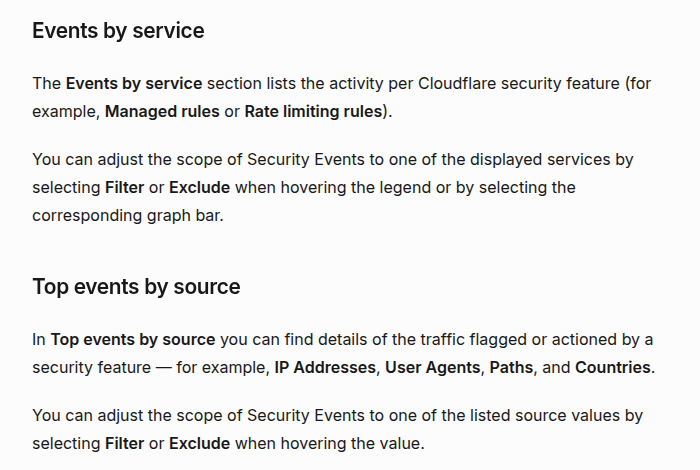
    Reproduce the failure once and note the precise time. In Cloudflare, open the zone’s Security Events view and narrow the window around that request. Filter by the API hostname and REST path, then refine with source IP, User-Agent, action, or Ray ID when available. The goal is to identify the service and rule that acted—not merely to notice that the domain uses Cloudflare.

    Cloudflare Security Events documentation showing Events by service and Top events by source for diagnosing blocked API requests

    Cloudflare’s Security Events documentation separates Events by service from Top events by source. That distinction is useful here: the service tells you whether a managed WAF rule, rate-limiting rule, bot feature, User-Agent rule, or another security product acted; the source dimensions help match the event to the n8n request.

    If you find no matching event, do not immediately conclude that Cloudflare was uninvolved. Security Events retention depends on the plan and results may be sampled. Narrow the time range, verify the hostname and path, and compare the response branding and body. If the response is unbranded and no edge event matches, origin logs become the better next source of evidence.

    Step 4: apply a narrow Cloudflare correction

    Only create an exception after a matching Security Event identifies the product or rule. Prefer conditions that bind the exception to the smallest trustworthy request surface, such as:

    • the exact API hostname;
    • a specific REST path or path prefix required by the integration;
    • the stable egress IP of the n8n server, when available;
    • the exact security rule or ruleset that produced the false positive;
    • the HTTP methods the workflow actually uses.

    Do not broadly allow all traffic to /wp-json/, disable the WAF for the entire domain, or trust a User-Agent string as the only security boundary. User-Agent values are easy to spoof. If a User-Agent Blocking rule is the confirmed cause, Cloudflare recommends using custom rules for more control; change the rule based on the matching event rather than assuming n8n’s default User-Agent is inherently blocked.

    A Skip rule can bypass supported Cloudflare security phases for narrowly matched traffic. It should skip only the feature or rule required by the legitimate client. There is an important exception: Cloudflare’s free Bot Fight Mode runs outside the Ruleset Engine and cannot be bypassed with WAF Skip or Page Rules. Cloudflare recommends Super Bot Fight Mode when you need granular exceptions, or disabling Bot Fight Mode if it produces an unacceptable false positive and an upgrade is not appropriate.

    Step 5: configure n8n so failures remain diagnosable

    In the n8n HTTP Request node, use a stored credential rather than embedding a password in the URL, body, expression, or workflow JSON. During diagnosis, configure the node to preserve the HTTP status, response headers, and response body. Redact secrets before saving any execution data or sharing screenshots.

    Build a small probe before testing the full publishing workflow:

    1. Call GET /wp-json/ without authentication.
    2. Call GET /wp-json/wp/v2/users/me?context=edit with the WordPress Application Password credential.
    3. Only after the identity probe succeeds, test the smallest write operation required by the production workflow.
    4. Log a sanitized failure record containing time, method, path, status, content type, WordPress error code when present, and CF-Ray.
    5. Stop the publish path on an authentication or authorization failure. Do not retry a deterministic 401/403 in a tight loop.

    This isolates credential transport from post/media permissions and from the rest of the automation. It also gives you a request that is easy to correlate with Cloudflare and origin logs.

    A practical decision tree

    1. Is the response Cloudflare-branded? If yes, correlate it with Security Events. If no, inspect the JSON or HTML body and origin logs.
    2. Does the unauthenticated REST index load? If no, check routing, REST restrictions, and edge/origin policy before credentials.
    3. Does /users/me?context=edit succeed with an Application Password? If no, fix HTTPS, username, credential, header forwarding, or feature availability.
    4. Does identity succeed but the target endpoint fail? Check WordPress user capability, endpoint policy, object ownership/status, and security plugins.
    5. Does a matching Cloudflare event name a rule or service? Correct that specific control with the narrowest match. Do not create a general allow rule.
    6. Does the same request pass after the correction? Re-run the identity probe and the exact production method, then confirm the intended WordPress change rather than trusting the HTTP status alone.

    Common fixes that create new problems

    Changing the User-Agent first

    This can hide the symptom without proving the cause. Change it only when Security Events or an origin rule shows that the User-Agent was the matching condition.

    Using the administrator’s normal password

    It increases exposure and makes revocation disruptive. Use a dedicated automation user and a separate Application Password that can be revoked without affecting interactive login.

    Disabling Cloudflare protection for the whole REST API

    A broad bypass expands the attack surface for every unauthenticated request. Match the integration as narrowly as your plan and network allow, and skip only the confirmed feature.

    Retrying every 403

    Authentication and policy failures are usually deterministic. Repeated retries add noise, can trigger rate limits, and make incident correlation harder. Retry transient transport failures separately from 401/403 policy failures.

    Calling the workflow fixed after receiving 200

    A successful identity probe proves authentication, not the full publishing operation. Verify the exact post or media action and inspect the resulting WordPress resource or public page.

    Related DevelopWhale guides

    Final verification checklist

    • The failing response is saved without credentials or private payload data.
    • The response body identifies Cloudflare, WordPress, or the origin layer as far as the evidence allows.
    • The WordPress REST identity probe succeeds over HTTPS with a dedicated Application Password.
    • The automation user has only the capabilities the workflow needs.
    • The proxy and origin preserve the Authorization header.
    • A matching Cloudflare Security Event identifies the product/rule before any exception is created.
    • Any exception is limited by hostname, path, method, source, and specific security feature where possible.
    • Bot Fight Mode limitations are handled explicitly rather than assuming a Skip rule will work.
    • The exact n8n request succeeds after the change.
    • The intended WordPress post or media result is verified independently.

    The durable lesson is simple: diagnose the rejecting layer before changing the system. A 403 is useful evidence only when you preserve its body, headers, time, and request context. Once WordPress authentication, origin policy, and Cloudflare enforcement are tested separately, the correction becomes smaller, safer, and easier to verify.

    Official references: WordPress REST API Authentication, WordPress Application Passwords, WordPress authorization status behavior, Cloudflare Error 403, Cloudflare Security Events, Cloudflare security feature interoperability, Cloudflare Skip rules, and Cloudflare Bot Fight Mode.

  • How to Purge Cloudflare Cache from n8n After WordPress Publishing

    How to Purge Cloudflare Cache from n8n After WordPress Publishing

    If your WordPress publishing workflow runs through n8n and your site uses Cloudflare caching, publishing the post is only half the job. The new article can exist correctly in WordPress while visitors still receive an older cached copy from Cloudflare.

    The safest fix is not to purge the entire zone every time. Cloudflare recommends targeted single-file purging, and its API lets you invalidate one or more exact URLs with a single request. That makes it a good fit for an n8n workflow that already knows the final WordPress URL after publishing.

    When this pattern is actually useful

    Cloudflare does not cache HTML by default. This workflow matters when you have deliberately made HTML cacheable, for example with a Cache Rule, Automatic Platform Optimization, or another configuration that can return cached page HTML. It is also useful for static assets whose URLs stay the same after deployment.

    Before adding any purge step, check the response headers for the page you are trying to invalidate. If Cloudflare is not caching that resource, a purge request may succeed but change nothing. Cloudflare explicitly notes that an HTTP 200 response only means the purge request was accepted; it does not prove that the target was cached.

    The architecture

    WordPress publish/update
            ↓
    final public URL available
            ↓
    n8n HTTP Request
            ↓
    POST /zones/{zone_id}/purge_cache
            ↓
    purge exact URLs
            ↓
    verify public response

    The important design choice is that the purge happens only after WordPress has successfully returned the final URL. Do not invalidate the cache first and then hope the publish succeeds.

    1. Create a least-privilege Cloudflare API token

    Use a Cloudflare API token rather than a Global API key. The purge endpoint accepts API token authentication and requires the Cache Purge permission. Scope the token to the smallest set of zones that your automation needs.

    Store the token in n8n credentials or another secret store. Do not hard-code it into a Function node, Code node, expression, exported workflow JSON, or Google Sheet.

    2. Get the Cloudflare zone ID

    The purge endpoint needs the zone ID:

    POST https://api.cloudflare.com/client/v4/zones/{ZONE_ID}/purge_cache

    The zone ID identifies the Cloudflare zone that owns the URL you are purging. Keep it as a workflow variable or credential-side configuration rather than repeating it throughout the workflow.

    3. Use purge-by-URL instead of purge-everything

    Cloudflare supports several purge modes. For a publishing workflow, exact URL purging is usually the smallest and safest blast radius.

    {
      "files": [
        "https://www.example.com/my-new-post/",
        "https://www.example.com/"
      ]
    }

    Cloudflare documents purge-by-URL for all tiers. By contrast, a purge-everything request removes every cached object in the zone and forces subsequent requests back to the origin until the cache is repopulated. That can create an unnecessary origin spike.

    For most WordPress publishing workflows, invalidate the final article URL and, only when your homepage or archive page is also cached and changed by the publication, invalidate that page too.

    4. Configure the n8n HTTP Request node

    Add an HTTP Request node after the successful WordPress publish or update step.

    Setting Value
    Method POST
    URL https://api.cloudflare.com/client/v4/zones/{ZONE_ID}/purge_cache
    Authentication Bearer token / Header Auth
    Content-Type application/json
    Body JSON

    The request header should send the API token as a Bearer token:

    Authorization: Bearer YOUR_CLOUDFLARE_API_TOKEN

    A minimal JSON body is:

    {
      "files": [
        "{{$json.url}}"
      ]
    }

    The exact expression depends on the output of your WordPress node. The rule is simple: pass the final canonical public URL returned by the successful publish step, not a draft URL, preview URL, REST endpoint, or internal post ID.

    5. Purge the homepage only when it really changed

    Many WordPress homepages show recent posts. If that page is cached at Cloudflare and publishing a new article changes its HTML, you may want to purge both the article and the homepage:

    {
      "files": [
        "{{$json.url}}",
        "https://www.example.com/"
      ]
    }

    Do not blindly add category pages, tag pages, feeds, sitemaps, and every navigation page. Each additional URL should have a reason to be invalidated. A targeted list keeps the cache warm and the workflow easy to reason about.

    6. Do not confuse Cloudflare edge cache with browser cache

    A Cloudflare purge removes the edge-cached object. It does not clear a visitor’s browser cache. If a repeat visitor still sees an older static asset, inspect the browser cache headers separately. Cloudflare’s Browser Cache TTL documentation explicitly notes that purging Cloudflare cache does not remove assets already stored in the visitor’s browser.

    7. Verify the purge instead of trusting HTTP 200

    Cloudflare states that a successful purge API call returns HTTP 200, but that status only confirms the request was received. It does not prove that Cloudflare previously cached the resource or that a specific cache entry existed.

    For a page that should be cached, request it again after the purge and inspect the CF-Cache-Status response header. A targeted purge should cause the next request to stop being a cache HIT; depending on the cache configuration, you may see a status such as MISS or EXPIRED.

    curl -I https://www.example.com/my-new-post/

    Do not build your workflow around the assumption that every HTML response must return MISS. Cloudflare does not cache HTML by default, and different cache products and rules can produce different status values.

    8. Handle failure without breaking the WordPress publish

    A cache purge failure and a WordPress publish failure are different operational events. Once WordPress has successfully published the article, rolling the post back because a cache invalidation request failed is usually the wrong recovery model.

    A more robust workflow is:

    Publish WordPress post
            ↓
    Store post ID + final URL
            ↓
    Try Cloudflare purge
            ↓
    Success → continue
    Failure → retry / alert / reconciliation queue

    This keeps the content state authoritative in WordPress while treating cache invalidation as a recoverable post-publish step.

    9. Watch for custom cache keys

    If your Cloudflare cache key includes request headers or other custom properties, a simple URL-only purge may not identify every cached variant. Cloudflare’s API documentation explains that custom cache-key inputs such as device type, country, or language may need to be included in the purge request.

    If you do not use custom cache keys, keep the request simple. If you do, document the key inputs before automating invalidation.

    10. Why this is better than adding another WordPress plugin

    If n8n already owns the publishing workflow, moving cache invalidation into the same automation keeps the responsibility in one place. The workflow already knows whether publishing succeeded, which URL changed, and whether a retry is needed.

    That does not mean every site should remove its cache plugin. The point is architectural: when Cloudflare edge invalidation is the only missing step, you can call the official API directly instead of installing a plugin solely to issue a purge request.

    Related DevelopWhale guides

    Production checklist

    • Confirm the target resource is actually cacheable at Cloudflare.
    • Create a scoped API token with Cache Purge permission.
    • Keep the token out of workflow source and logs.
    • Run the purge only after WordPress returns success.
    • Use the final canonical public URL.
    • Prefer exact URL purging over purge-everything.
    • Purge the homepage only if it is cached and changed.
    • Verify the result with response headers.
    • Treat purge failures as retryable post-publish failures.
    • Account for custom cache keys if you use them.

    Official references

    The practical rule is straightforward: let WordPress publish first, invalidate only the URLs that changed, and verify the public result. That gives you fast cache freshness without turning every deploy or article update into a full-zone cache reset.

  • How to Fix n8n Webhook 504 and Cloudflare 524 Timeouts with an Async Job Pattern

    How to Fix n8n Webhook 504 and Cloudflare 524 Timeouts with an Async Job Pattern

    A webhook is often used like a synchronous API: the caller sends a request and keeps the connection open until the workflow finishes. That works for short tasks. It becomes fragile when an n8n execution includes an AI agent, a large export, browser automation, or a slow third-party API. The client or a proxy may stop waiting even while n8n is still working.

    Returning a response quickly does not make retries safe by itself. Use Webhook Retry Lab to compare retry side effects and crash recovery before designing the durable worker; the lab sends no real webhooks.

    The reliable fix is usually an asynchronous job contract: accept and persist the work, return a job ID promptly, process it separately, and let the caller check the job status. This guide shows how to build that pattern in n8n, how its Webhook response modes fit together, and how to tell a 504 from Cloudflare’s 524.

    Why long-running webhook calls fail

    An HTTP request has multiple possible timeout points: the caller, a load balancer or reverse proxy, Cloudflare, and the n8n server. A 504 does not identify the failing layer by itself. Cloudflare’s documentation says its branded 502 or 504 pages can reflect an error returned by the origin or a Cloudflare-side condition, so check the response page and logs before changing n8n.

    A Cloudflare 524 is more specific: Cloudflare connected to the origin, but did not receive an HTTP response before its default 125-second Proxy Read Timeout. Cloudflare recommends status polling for large HTTP processes. Raising a timeout may help for a controlled, short-term case, but it does not give a caller a durable result if the connection drops or the worker restarts.

    First compare the same request through each network path you control. Record the start time, elapsed time, response status, request or trace ID, n8n execution ID, and any proxy request ID. If the direct origin succeeds while the proxied request fails near a consistent threshold, investigate the proxy path. If both fail, inspect the n8n execution and the slow upstream node.

    Choose the right n8n response mode

    The Webhook node offers several response modes. When Last Node Finishes waits for the workflow’s last node and returns its output; that keeps the HTTP request open for the entire job. Immediately returns the fixed message Workflow got started. It is a quick acknowledgment, but it does not provide a custom job ID. Using Respond to Webhook Node lets you return a chosen status code and response body, which is useful when the caller needs a job ID and status URL.

    The following screenshot is from the official n8n Webhook documentation and shows the response modes used to make that choice:

    Official n8n Webhook documentation listing Immediately, When Last Node Finishes, Respond to Webhook, and Streaming response modes

    Build the asynchronous job pattern

    Use two responsibilities: an ingress workflow that accepts and records work, and a worker workflow that performs it. A separate status endpoint reads the job record.

    POST /webhook/report-jobs
      → validate request and idempotency key
      → create or find durable job record (status: queued)
      → respond 202 with job_id and status_url
      → start worker without waiting for completion
    
    Worker workflow
      → claim queued job
      → set status: running
      → perform the long task
      → store result and set status: succeeded
      → or store safe error details and set status: failed
    
    GET /webhook/report-jobs/:job_id
      → authenticate caller
      → read job record
      → return current status and result when available

    1. Persist before acknowledging

    Do not return “accepted” while the only copy of the request is in the current execution’s memory. Store a job row in PostgreSQL or another durable queue before sending the response. A minimal PostgreSQL table could be:

    CREATE TABLE workflow_jobs (
      job_id uuid PRIMARY KEY DEFAULT gen_random_uuid(),
      idempotency_key text NOT NULL UNIQUE,
      request_hash text NOT NULL,
      status text NOT NULL CHECK (status IN ('queued', 'running', 'succeeded', 'failed')),
      request_json jsonb NOT NULL,
      result_json jsonb,
      error_code text,
      attempts integer NOT NULL DEFAULT 0,
      created_at timestamptz NOT NULL DEFAULT now(),
      updated_at timestamptz NOT NULL DEFAULT now()
    );

    Require an idempotency key for requests that may be retried. Enforce its uniqueness in the database. If the same key arrives again with the same request, return the existing job ID instead of creating duplicate work. If the key is reused for a different request, reject it rather than silently running the wrong payload. This matters because a caller that never receives the first response may retry even though the original request was accepted.

    2. Return a useful 202 response

    In the Webhook node, set Respond to Using ‘Respond to Webhook’ Node. After request validation and the durable insert, configure a Respond to Webhook node with response code 202 and a JSON body such as:

    {
      "job_id": "job_123",
      "status": "queued",
      "status_url": "/webhook/report-jobs/job_123"
    }

    Map those values from the inserted row using n8n expressions; do not paste the example UUID into a live workflow. Connect the Respond to Webhook node to the worker handoff, or use a separate queue consumer. If you use Execute Sub-workflow, turn off Wait for Sub-Workflow Completion so the parent does not wait for the long job. For stronger recovery, keep a scheduled sweeper that finds old queued rows and dispatches them if the initial handoff was interrupted.

    HTTP 202 Accepted means processing has not completed; it is not a success result or a promise that the job will eventually succeed. Include a status monitor in the response, then make that endpoint the source of truth.

    3. Claim work safely in the worker

    A worker should claim a job atomically so a manual retry, duplicate webhook, and recovery sweep cannot all run it at once. One PostgreSQL pattern is to update only a queued row and require a returned row before doing any work:

    UPDATE workflow_jobs
    SET status = 'running',
        attempts = attempts + 1,
        updated_at = now()
    WHERE job_id = $1
      AND status = 'queued'
    RETURNING job_id, request_json, attempts;

    Use the Postgres node’s query-parameter fields for $1; do not build SQL by concatenating untrusted webhook values. For jobs that may run longer than a worker lease, add a lease timestamp and a recovery rule for stale running rows. Make each side effect idempotent too: a database claim prevents simultaneous starts, but it cannot undo an external charge or email sent just before a worker crashes.

    4. Expose status without exposing the job

    Create a second Webhook workflow for GET /report-jobs/:job_id. Read the record by its ID and return a small, stable representation:

    {
      "job_id": "job_123",
      "status": "running",
      "created_at": "2026-09-24T07:30:00Z",
      "updated_at": "2026-09-24T07:30:18Z"
    }

    Return the stored result only when the job is succeeded. For failed, return a stable error code and a safe message, not credentials, raw stack traces, or private input. Authenticate the status endpoint and check that the caller is allowed to see that job; a UUID is an identifier, not access control. Add rate limits if callers may poll frequently.

    Retry and recovery rules

    • Retry transient failures such as a temporary rate limit or upstream 5xx with a bounded attempt count and exponential backoff.
    • Do not automatically retry validation errors or permanent 4xx responses.
    • Before retrying a step with an external side effect, use that provider’s idempotency feature or reconcile whether the side effect already happened.
    • Move exhausted jobs to failed and make them visible in an alert or operator queue.
    • Run a recovery workflow that re-dispatches stale queued jobs and investigates stale running jobs.
    • Keep a correlation value across the inbound request, job row, worker execution, and logs.

    Test the contract before production

    Use a staging webhook and a harmless test payload. Confirm that the ingress response arrives before the simulated long task completes, that the response contains a persisted job ID, and that polling shows the state move from queued to running to a terminal state. Then test a duplicate request with the same idempotency key, a worker failure, a retry, and a restart while a job is queued.

    curl -i -X POST "https://YOUR_N8N_HOST/webhook/report-jobs" \
      -H "Content-Type: application/json" \
      -H "Idempotency-Key: customer-42-report-2026-09" \
      -d '{"customer_id":"42","period":"2026-09"}'
    
    curl -i "https://YOUR_N8N_HOST/webhook/report-jobs/JOB_ID" \
      -H "Authorization: Bearer YOUR_TEST_TOKEN"

    Measure the time to the first response separately from the total job duration. The first should stay comfortably below the shortest timeout on the path. The job duration can be longer because it is no longer tied to that client connection.

    When streaming or a longer timeout is appropriate

    Use a streaming response when the caller truly needs incremental output and the whole connection path supports streaming. Use a longer timeout only when you control the relevant limits and the request is still a reasonable synchronous operation. For work that can outlive a browser, proxy, or client connection, a persisted job plus status polling is easier to recover, retry, and audit.

    Related DevelopWhale guides

    Production checklist

    • Identify which hop produced the 504 or 524 before changing timeout settings.
    • Persist the accepted request before returning 202.
    • Use a unique idempotency key and return the existing job on a safe duplicate.
    • Return a job ID and authenticated status URL.
    • Disable sub-workflow completion waiting when using it as an asynchronous handoff.
    • Claim work atomically and make external side effects idempotent.
    • Bound retries, record terminal failures, and recover stale jobs.
    • Test response latency, worker failures, duplicate delivery, and restart recovery in staging.

    The key change is in the contract: the webhook response confirms that the request was recorded, while a separate status resource reports the eventual outcome. That removes long processing time from the request’s connection lifetime and gives operators a durable place to inspect and recover work.

    Official references: n8n Webhook node, n8n Respond to Webhook node, n8n Execute Sub-workflow, Cloudflare Error 524, Cloudflare Error 502 or 504, and RFC 9110 section 15.3.3: 202 Accepted.