
An n8n workflow that fails silently is not production-ready. The most maintainable fix is not to add a separate Slack, email, or webhook node to every automation. Instead, create one reusable error workflow, connect it to the workflows that matter, and send a compact alert with enough context to investigate the failed execution.
This guide shows how to build that shared error-handling path with n8n’s Error Trigger. It also covers the details that commonly cause false confidence: why manual tests do not trigger the handler, when an execution URL may be missing, how trigger failures use a different payload shape, and how to test the complete path safely.
What you are building
The design has two layers:
- Production workflows do the actual business work.
- One error workflow receives failure context and sends an alert to Slack, email, Microsoft Teams, PagerDuty, or another destination.
n8n lets several workflows share the same error workflow. That keeps routing, formatting, and security policy in one place. It also makes it easier to change alert destinations without editing every production workflow.
| Component | Responsibility | Typical node |
|---|---|---|
| Source workflow | Runs the automation and fails when a step cannot complete | Webhook, Schedule Trigger, app trigger |
| Error workflow | Receives failure metadata | Error Trigger |
| Normalizer | Creates a stable alert payload | Edit Fields (Set) or Code |
| Alert destination | Notifies the operator | Slack, email, Teams, HTTP Request |
1. Create the reusable error workflow
Create a new workflow and add Error Trigger as the first node. Give the workflow a clear name such as Production Error Handler, then save it. The handler itself does not need a normal schedule or webhook trigger.
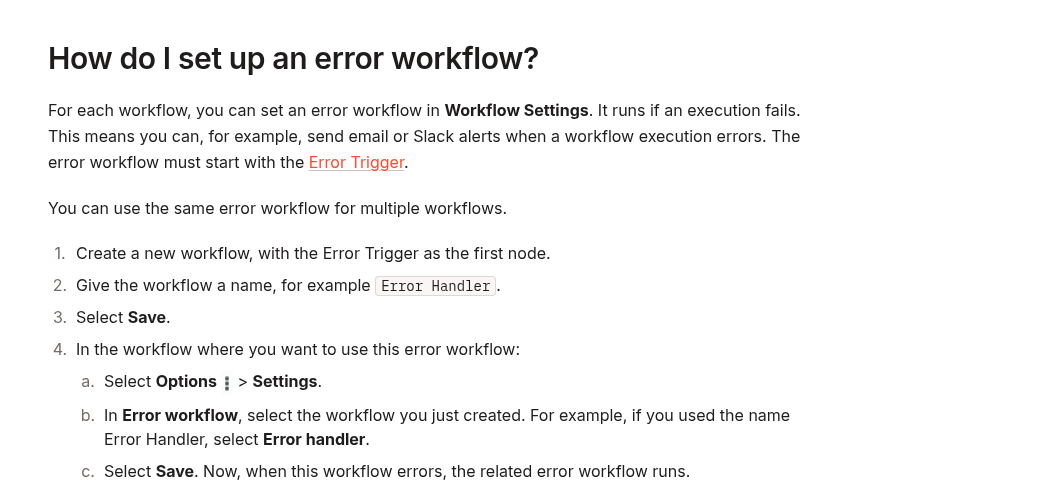
Open each production workflow that should use the handler, choose Options → Settings, and select Production Error Handler in the Error workflow field. Save the source workflow. The same handler can be selected by multiple workflows.
Do not add Error Trigger to a normal processing branch. It belongs at the beginning of the dedicated error workflow.
2. Understand the payload before formatting alerts
For a failure that occurs after a workflow execution has started, n8n normally provides an execution object and a workflow object. Useful fields include:
workflow.idandworkflow.nameexecution.idandexecution.urlexecution.error.messageexecution.lastNodeExecutedexecution.modeexecution.retryOfwhen the failed run was a retry
There are two important caveats. First, execution.id and execution.url require the execution to be saved in the database. Second, if the source workflow fails in its trigger node, the workflow may never create a normal execution. In that case n8n sends a different structure with more detail under trigger.error and less under execution.
Your alert workflow should therefore tolerate missing fields instead of assuming every failure has an execution URL.
3. Normalize the failure into a stable alert object
Add an Edit Fields (Set) node after Error Trigger. Create a small, predictable object that later notification nodes can consume. The following expressions illustrate the fallback logic:
{
  "workflow": "{{
    $json.workflow?.name ||
    'Unknown workflow'
  }}",
  "workflowId": "{{
    $json.workflow?.id || ''
  }}",
  "executionId": "{{
    $json.execution?.id || ''
  }}",
  "executionUrl": "{{
    $json.execution?.url || ''
  }}",
  "lastNode": "{{
    $json.execution?.lastNodeExecuted ||
    'Trigger or activation'
  }}",
  "mode": "{{
    $json.execution?.mode ||
    $json.trigger?.mode ||
    'unknown'
  }}",
  "message": "{{
    $json.execution?.error?.message ||
    $json.trigger?.error?.message ||
    'Unknown error'
  }}"
}
If your n8n version or node configuration does not accept a whole object in one field, create the same properties as separate fields. The important part is the fallback order, not the exact node layout.
Keep the alert payload deliberately small. Avoid sending full input data, credentials, headers, stack traces, or customer records to a chat channel. Put the execution link in the alert when it exists and keep sensitive diagnostic data inside n8n’s access-controlled execution view.
4. Route the alert to the right destination
Connect the normalizer to your notification node. A useful alert contains four things:
- the workflow name;
- the failed node or trigger context;
- a short error message;
- the saved execution URL, when available.
A compact message is easier to scan than a raw JSON dump:
n8n workflow failed
Workflow:
{{ $json.workflow }}
Node:
{{ $json.lastNode }}
Error:
{{ $json.message }}
Execution:
{{ $json.executionUrl ||
   'No saved execution URL' }}
If the destination supports severity or routing, add a Switch node before the alert. For example, production payment or publishing workflows can go to an urgent channel, while lower-priority batch jobs go to a daily operations channel. Base this on explicit workflow IDs or tags that you control; do not infer severity from an unpredictable error message.
5. Prevent an alert storm
A centralized handler makes alerts consistent, but it can also concentrate noise. Add controls appropriate to the consequences of the workflow:
- Keep the first alert actionable. Include identifiers and a link, not the entire payload.
- Separate transient retries from final failure. If a node is configured to retry, alert after the workflow actually fails rather than duplicating every attempt in a custom branch.
- Use a durable deduplication key when needed. A combination such as workflow ID plus execution ID is more reliable than matching message text.
- Do not let the alert path fail silently. Choose a destination with observable delivery and periodically verify it.
- Protect secrets. Treat error messages and stack traces as potentially sensitive.
The Error Trigger is a notification and recovery hook, not a substitute for sensible timeouts, retries, and idempotency. For long-running or stuck jobs, pair it with the layered timeout controls described in How to Stop Stuck n8n Executions with Layered Timeouts.
6. Test the real automatic-failure path
This is the step most often missed: n8n does not run Error Trigger when you manually execute a workflow in the editor. A successful manual test of the notification nodes proves only that those nodes can send a message; it does not prove that the source workflow is connected to the handler.
Use a controlled test workflow with an automatic trigger:
- Create or select a non-critical workflow with an automatic trigger.
- Assign
Production Error Handlerin Workflow Settings. - Add a Stop And Error node in a test-only branch with a recognizable message.
- Publish or activate the source workflow as required by that trigger.
- Cause one automatic execution.
- Confirm that the error workflow runs and the alert arrives.
- Open the saved execution link if it is present.
- Remove or disable the intentional failure path after verification.
The Stop And Error node is useful because it creates a deliberate workflow failure under conditions you choose. Do not test this pattern by breaking a real production credential or corrupting live data.
7. Verify the edge cases
Run the following checks before relying on the handler:
| Test | Expected result |
|---|---|
| Automatic failure after the trigger | Alert includes workflow name, failed node, message, and usually an execution URL |
| Failure in the trigger or activation stage | Fallback reads trigger.error; missing execution URL does not break the handler |
| Saved failed executions disabled | Alert still sends, but execution ID or URL may be absent |
| Alert destination temporarily unavailable | Error is visible in the error workflow’s own execution history or external monitoring |
| Several workflows share the handler | Each alert identifies the correct source workflow |
| Manual editor run | Error Trigger does not fire; this is expected behavior |
Common mistakes
Testing only with Execute Workflow
Manual execution does not exercise Error Trigger. Test an automatic execution from a controlled source workflow.
Assuming every failure has an execution URL
The URL depends on a saved database execution and is absent for some trigger failures. Use a fallback and keep the alert node working without it.
Sending the entire failure object to Slack or email
Raw failure data can contain stack traces, URLs, request details, or business data. Send a concise summary and retain detailed investigation inside n8n.
Creating one handler per workflow
That duplicates formatting and routing logic. Start with one shared handler, then split only when teams, credentials, or security boundaries genuinely differ.
Treating alerts as recovery
An alert tells you that a failure occurred. Recovery still requires retry policy, idempotent operations, rollback or compensation where necessary, and a clear runbook.
Production checklist
- Error workflow starts with Error Trigger.
- Source workflows select it in Workflow Settings.
- Message fields tolerate missing
executionortriggerdata. - Alerts exclude secrets and unnecessary payload data.
- Workflow name, failure location, message, and optional execution URL are present.
- An automatic controlled failure has been tested.
- The intentional Stop And Error test path has been removed or disabled.
- Delivery failures in the alert channel are observable.
Final takeaway
A centralized n8n error workflow turns scattered failures into one consistent operational signal. The reliable pattern is straightforward: start a dedicated handler with Error Trigger, assign it in each source workflow’s settings, normalize both execution and trigger failure shapes, send a minimal actionable alert, and verify the connection with an automatic controlled failure. Once that path is proven, you can add severity routing and deduplication without duplicating error logic across every workflow.
Official references: Handle errors gracefully, Error Trigger, and Configure workflow settings.