
A workflow that stays Running for hours is not always an n8n bug. It may be waiting on a slow API, retrying inside a node, looping over unexpected data, or running without an execution deadline. The practical fix is not one magic setting. It is a layered timeout policy that limits the entire execution, permits deliberate workflow-specific exceptions, and constrains network calls that can stall a node.
This guide shows how to configure those layers on self-hosted n8n, how they interact, and how to verify the result without confusing a timeout with queue congestion or an upstream service failure.
The three timeout layers
| Layer | Control | What it limits | Best use |
|---|---|---|---|
| Instance default | EXECUTIONS_TIMEOUT |
Total runtime for workflows unless overridden | A safe baseline for the whole n8n instance |
| Workflow override | Timeout Workflow / Timeout After | Total runtime for one workflow | Short jobs, long batch jobs, and explicit exceptions |
| Request boundary | HTTP Request node Timeout | How long the node waits for the server to start responding | Preventing one external API call from waiting indefinitely |
These controls solve different problems. An HTTP timeout can fail one slow request quickly, while the workflow timeout is the final guardrail for the complete execution. Neither setting guarantees that an overloaded queue, database lock, worker crash, or badly designed retry loop will disappear. Treat them as boundaries that make failures finite and observable.
1. Set an instance-wide execution deadline
n8n documents EXECUTIONS_TIMEOUT as the default number of seconds after which it stops a workflow execution. Its default value is -1, which disables the default timeout. EXECUTIONS_TIMEOUT_MAX is the maximum duration that a user may assign to an individual workflow.
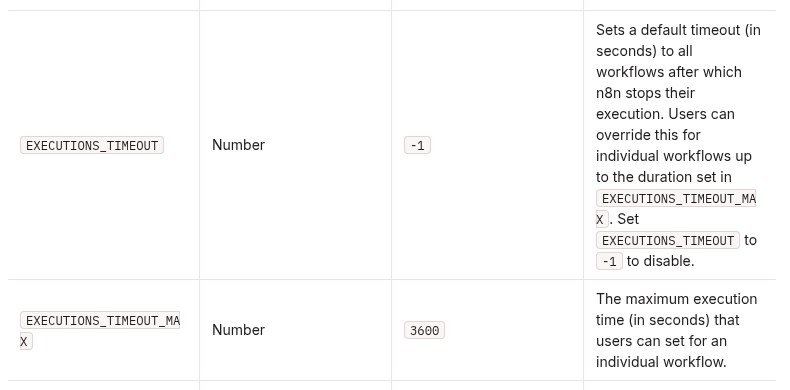
A conservative Docker Compose example is:
services:
  n8n:
    environment:
      - EXECUTIONS_TIMEOUT=3600
      - EXECUTIONS_TIMEOUT_MAX=7200
In this example, workflows receive a one-hour default deadline. A workflow owner can choose a different value, but not more than two hours. The right numbers depend on the workload: a webhook transformation may need minutes, while a controlled nightly batch may need longer. Start with observed normal runtimes plus a reasonable safety margin rather than copying a number blindly.
After changing deployment environment variables, restart or redeploy the n8n service so the process starts with the new configuration. Keep the values in your deployment configuration rather than making an undocumented change inside a running container.
2. Use per-workflow timeouts for intentional exceptions
Open the workflow, select the three-dot menu, and choose Settings. Enable Timeout Workflow, then set Timeout After in hours, minutes, and seconds. n8n cancels the execution after that elapsed time.
Use a workflow-specific value when the instance default is too broad:
- Webhook or user-facing automation: choose a short deadline so callers receive a controlled failure path instead of waiting for a long background job.
- Scheduled imports: allow enough time for the normal dataset, but stop a runaway loop or unexpectedly large batch.
- AI or scraping jobs: separate the total workflow budget from the timeout of each external request.
- Exception workflows: document why they need more time and keep the override below
EXECUTIONS_TIMEOUT_MAX.
A per-workflow timeout is especially useful when one automation has a very different runtime profile. It should not become a habit of raising every limit until errors disappear. If a job repeatedly reaches the deadline, inspect the execution data and find the slow node, retry behavior, input size, and upstream response time.
3. Bound slow HTTP calls at the node level
In an HTTP Request node, open Options, add Timeout, and enter a value in milliseconds. Current n8n documentation defines this as the time the node waits for the server to send response headers and begin the response body. The node aborts a request that exceeds that initial-response limit.
HTTP Request Timeout: 30000
Workflow Timeout:     00:05:00
Instance Default:     3600 seconds
This example gives an upstream API 30 seconds to start responding, gives the workflow five minutes to finish its complete error-handling path, and retains the one-hour instance fallback for workflows without a specific override.
Do not assume the HTTP Request timeout measures the full download duration in every situation. Its documented purpose is the initial server response. If an API streams data, returns very large files, or performs long asynchronous work, design around that behavior explicitly. A job-ID plus polling or callback pattern is often safer than holding one request open.
Choose values from runtime evidence
| Observed behavior | First control to review | What to inspect next |
|---|---|---|
| One API node waits too long | HTTP Request Timeout | Provider latency, retries, rate limits, and async API support |
| The whole workflow loops or grows unexpectedly | Workflow Timeout | Loop termination, item count, pagination, and batch size |
| Many workflows have no deadline | EXECUTIONS_TIMEOUT |
Instance-wide runtime distribution and legitimate long jobs |
| A workflow needs longer than the default | Workflow override | Whether the exception is documented and below the maximum |
| Executions remain queued before work starts | Not a timeout-only problem | Worker capacity, concurrency, Redis, database health, and queue mode |
A safe rollout sequence
- Measure first. Review recent successful and failed executions. Record typical and worst-case runtimes for important workflows.
- Set the maximum. Choose
EXECUTIONS_TIMEOUT_MAXso individual workflows cannot silently receive an unlimited exception. - Set the default. Add
EXECUTIONS_TIMEOUTwith enough headroom for ordinary jobs. - Add explicit exceptions. Configure only workflows that genuinely need a shorter or longer deadline.
- Bound external calls. Add HTTP Request timeouts based on provider behavior and your retry policy.
- Connect an error workflow. Route failures to an error workflow so a timeout produces an alert or durable incident record.
- Redeploy and test. Confirm the active n8n process received the environment variables, then test in a controlled workflow.
How to verify the policy
Create a non-production test workflow that waits longer than the intended deadline. Give it a distinctive name and no side effects. Run it manually and verify:
- the execution changes to an error or canceled state near the configured limit;
- the execution record identifies the timeout rather than an unrelated node error;
- the configured error workflow runs when appropriate;
- a normal short execution still completes;
- a workflow override works only within the maximum allowed duration;
- an HTTP Request node with a shorter timeout fails before the entire workflow budget is exhausted.
Then observe real workloads for several days. Watch for workflows that now fail close to the same duration, because that pattern usually means the deadline is revealing a slow dependency or unrealistic batch size. Adjust the workflow design before increasing the limit.
What execution timeouts do not fix
A deadline prevents unbounded runtime, but it does not diagnose every stuck execution. If an execution remains queued, investigate worker availability and concurrency. If a worker crashes, review container and process logs. If many executions slow down together, check PostgreSQL, Redis, CPU, memory, and the upstream services they call. If a webhook caller times out before n8n finishes, use an immediate acknowledgement plus asynchronous processing rather than only increasing n8n’s execution limit.
The useful mental model is simple: node timeouts isolate slow dependencies, workflow timeouts constrain a single automation, and the instance default protects the platform. Apply all three deliberately, verify them with controlled failures, and keep the actual cause visible in your logs and execution history.
Related DevelopWhale guides
- If the timeout is caused by keeping an inbound webhook connection open for long work, see How to Fix n8n Webhook 504 and Cloudflare 524 Timeouts with an Async Job Pattern.
- If you are scaling execution work across workers, see How to Migrate n8n to Queue Mode with Redis and PostgreSQL.