
An AI Agent workflow can be technically correct and still feel broken to a user. If the browser receives nothing while the model thinks, calls tools, and builds its answer, a ten-second generation looks like a frozen page. n8n’s native streaming response mode fixes that perception problem by returning output while a supported node produces it.
The important word is native. Current n8n versions do not require you to assemble a custom Server-Sent Events loop or patch LangChain callbacks for the basic case. Streaming is a contract between a compatible trigger, at least one streaming-capable downstream node, the HTTP path in front of n8n, and a client that reads the response incrementally.
Reliable baseline: set a Chat Trigger or Webhook node to Response Mode → Streaming, connect it to an AI Agent or another node that supports streaming, and verify the production endpoint with a client that reads the response body as a stream. Do not promise a specific first-token latency until you measure your model, tools, network, and proxy chain.
How n8n native streaming works
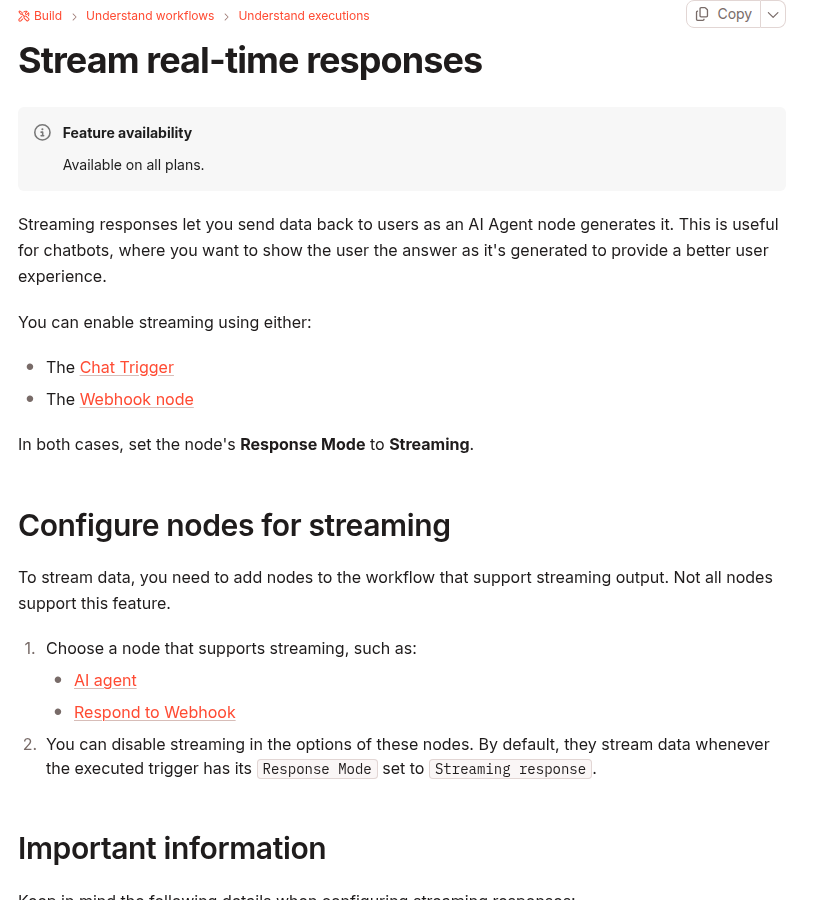
n8n documents two triggers for streaming responses: Chat Trigger and Webhook. In both cases, the trigger’s response mode must be set to Streaming. A trigger setting alone is not enough. The workflow must also contain at least one node that can stream data, such as an AI Agent or Respond to Webhook. If no downstream node emits streaming output, n8n warns that the workflow can send no data.
This gives you a useful three-part model:
- The trigger opens the response path. It keeps the request available for incremental output.
- A supported node emits data. An AI Agent can send generated output as it becomes available. Respond to Webhook can also participate in a streaming workflow.
- The client consumes the response progressively. A browser, mobile app, CLI, or backend must read chunks instead of waiting for the entire body.
If any one of those layers buffers the complete body, the workflow may execute successfully but appear non-streaming to the user.
Choose Chat Trigger or Webhook
| Entry point | Best fit | What you control |
|---|---|---|
| Chat Trigger | n8n chat interfaces and embedded chat experiences | Chat session behavior, memory integration, and the supported chat response path |
| Webhook | A custom frontend, mobile app, or server client | Authentication, request schema, browser code, retry policy, and user interface |
Use Chat Trigger when the n8n chat contract already matches the product. Use Webhook when your application needs its own route, payload, authentication, or rendering. Do not add both triggers to one workflow merely to keep options open; choose one production contract and test that exact path.
Build the smallest working streaming workflow
1. Configure the trigger
For a custom application, add a Webhook node and set its Response Mode to Streaming. Use the test URL only while developing. Activate the workflow and switch the client to the production webhook URL before measuring behavior.
For an n8n chat interface, use Chat Trigger and select its streaming response mode. Keep the Chat Trigger and AI Agent connected to the same intended memory source when conversation history matters.
2. Add a node that actually streams
Connect the trigger to an AI Agent and enable streaming on that node. n8n’s documentation states that supported nodes stream by default when the executed trigger uses Streaming response, unless streaming is disabled in the node’s options.
A normal node placed after the AI Agent can accidentally become the final response producer without supporting streaming. Start with the direct path below, verify it, and add transformations one at a time:
Webhook (Response Mode: Streaming)
  → AI Agent (streaming enabled)
      ↳ Chat Model
      ↳ Optional tools and memory
3. Activate and call the production endpoint
Test-mode webhooks and production webhooks have different lifecycle rules. A test URL generally exists for a limited listening session; the production URL requires an active workflow. A browser test that succeeds only while the editor is listening is not a production verification.
Read the response without re-buffering it
A custom browser client should read response.body incrementally. The following minimal example displays decoded text as chunks arrive. Adapt the request body and authentication to your workflow.
async function runAgent(message) {
  const response = await fetch(N8N_WEBHOOK_URL, {
    method: 'POST',
    headers: { 'Content-Type': 'application/json' },
    body: JSON.stringify({ message }),
  });

  if (!response.ok || !response.body) {
    throw new Error(`HTTP ${response.status}`);
  }

  const reader = response.body.getReader();
  const decoder = new TextDecoder();

  while (true) {
    const { value, done } = await reader.read();
    if (done) break;
    const text = decoder.decode(value, {
      stream: true,
    });
    appendToAnswer(text);
  }

  const remainder = decoder.decode();
  appendToAnswer(remainder);
}
This code proves incremental transport, not a universal message parser. Inspect the actual response produced by your n8n version and workflow before assuming that every chunk is a complete token, JSON object, or SSE event. Network boundaries can split or combine application-level messages.
Also protect the endpoint. A public AI webhook can consume model tokens, call tools, or expose internal data. Apply authentication, input size limits, rate limits, tool authorization, and origin controls appropriate to the application. CORS is a browser access control, not user authentication.
Check the reverse proxy before blaming the AI Agent
Many self-hosted n8n installations sit behind NGINX, a tunnel, a CDN, or several of them. A proxy can receive small upstream chunks and buffer them before forwarding a larger response. The user then sees a long pause followed by the complete answer even though n8n streamed internally.
NGINX documents that response buffering is enabled by default. When proxy_buffering off is set, NGINX passes the response to the client synchronously as it receives it. Apply changes only to the n8n webhook or chat location that needs streaming, then test the rendered production path.
location /webhook/ {
  proxy_pass http://n8n:5678;
  proxy_http_version 1.1;

  proxy_buffering off;
  proxy_cache off;
  proxy_read_timeout 300s;
}
The timeout value is an example, not a recommended universal setting. NGINX defines proxy_read_timeout between successive reads from the upstream response, not as a maximum duration for the entire request. Choose a value from measured model and tool latency, and do not use a very long timeout to hide a workflow that can hang indefinitely.
Streaming improves incremental delivery, but it does not make an HTTP request durable. When work can outlive proxy or client limits, use a 202 Accepted async job pattern for long-running n8n webhooks instead of relying on longer timeouts.
Failures that look like “streaming does not work”
| Observed behavior | Likely cause | Verification |
|---|---|---|
| No response body | The trigger is streaming, but no downstream node is configured to emit streaming data | Reduce the workflow to Trigger → AI Agent and inspect node options |
| The whole answer arrives at once | Client or proxy buffering | Compare direct-to-n8n and public-domain requests with timestamps |
| 404 on the webhook | Test URL is not listening or the production workflow is inactive | Activate the workflow and call the production URL |
| Stream starts, then stops during a tool call | The agent is waiting for a slow tool or upstream API | Inspect the execution timeline and tool duration |
| Browser fails but curl works | CORS, authentication, or frontend parsing | Inspect browser network headers and console errors |
| Duplicate chat messages | Client retry or reconnect created a second execution | Add a request ID and log one execution per ID |
Streaming changes the failure contract
With a buffered JSON response, the server can often choose an HTTP error status before sending the body. Once a streaming response has started, headers may already be committed. A later model or tool failure may therefore appear as an interrupted stream rather than a clean JSON error with a new status code.
Design the client for four states:
- Connecting: the request is open but no content has arrived.
- Streaming: partial output is visible and the cancel control is available.
- Completed: the stream ended normally and the final answer can be persisted.
- Interrupted: the network, model, tool, or workflow ended before a normal completion signal.
Do not automatically replay every interrupted AI request. If the Agent can call tools with side effects, a retry may repeat an email, payment, ticket, or database mutation. Give each request an idempotency key and keep side-effecting actions behind their own duplicate guard.
Measure the right latency
Streaming improves perceived responsiveness, but it does not guarantee that the first chunk arrives in under one second. Separate these measurements:
- Time to headers: request start until the HTTP response begins.
- Time to first visible content: request start until the client renders useful output.
- Generation duration: first content until the final chunk.
- Total workflow duration: request start until the n8n execution completes.
A slow first chunk can come from model queueing, DNS, TLS, a cold container, credential lookup, memory retrieval, or a tool call before generation. Streaming cannot remove work that must happen before the model has content to send.
Production verification checklist
- Confirm the workflow uses Chat Trigger or Webhook with Response Mode set to Streaming.
- Confirm at least one downstream node supports streaming and has not disabled it.
- Activate the workflow and use the production endpoint.
- Test with a client that records timestamps for the first and final chunks.
- Compare direct and public-domain paths to identify proxy buffering.
- Verify authentication, rate limiting, and tool authorization.
- Cancel a request and confirm the UI leaves the streaming state cleanly.
- Force a model or tool failure after output begins and verify the interrupted-state experience.
- Retry with the same request ID and confirm side effects are not duplicated.
- Keep a non-streaming fallback for clients or intermediaries that cannot consume incremental responses.
The safest implementation is intentionally small: native streaming trigger, one supported producer, one observable client, and one verified proxy path. Once that baseline works, add memory, tools, formatting, and richer UI behavior without losing the ability to isolate each layer.