Tag: n8n

  • Secure Multi-Tenant RAG in n8n with Qdrant Metadata Filters

    Secure Multi-Tenant RAG in n8n with Qdrant Metadata Filters

    Multi-tenant retrieval-augmented generation has a deceptively simple failure mode: the answer can look correct while its supporting document belongs to another customer. A shared Qdrant collection is not unsafe by itself. The unsafe part is allowing a search to run without a tenant constraint, or trusting a tenant identifier supplied by the caller.

    This guide builds a fail-closed pattern for n8n and Qdrant. Every document receives a server-derived tenant identifier at ingestion, and every retrieval repeats the same identifier as a metadata filter. A missing or malformed identity stops the workflow before vector search.

    The security boundary

    Similarity is not authorization. Embeddings place semantically related documents near one another, regardless of who owns them. A query for “renewal terms” can retrieve another customer’s contract if all tenants share a collection and the search has no ownership filter.

    The safe data flow is:

    1. Authenticate the request outside the vector search.
    2. Derive tenant_id from the verified identity, never from a query parameter or chat message.
    3. Reject the request if the identity is missing or invalid.
    4. Write that exact tenant_id into document metadata during ingestion.
    5. Require the same value in the Qdrant retrieval filter.
    6. Test that cross-tenant documents are absent, not merely ranked lower.

    Qdrant documents three shared-deployment choices: partition by a payload field, dedicate shards, or combine both in a tiered design. Payload partitioning is a practical default for many small tenants, while dedicated collections or shards may be appropriate when stronger operational separation is required.

    What n8n and Qdrant provide

    n8n’s Qdrant Vector Store node supports a Metadata Filter in Get Many mode. Multiple fields are combined as an AND query, and metadata is attached when documents are inserted through a document loader.
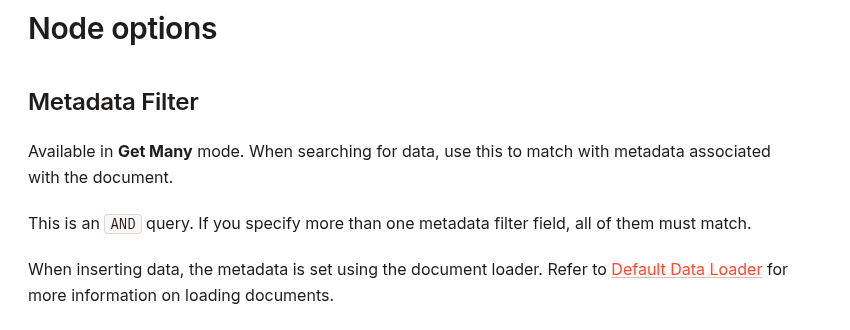
    n8n Qdrant Vector Store documentation explaining the Metadata Filter option and AND matching behavior

    On the database side, Qdrant can filter points by payload fields. Its multitenancy guidance recommends adding a tenant-identifying payload field to every point and applying that field to searches. Qdrant also supports a keyword payload index with is_tenant: true, available from Qdrant 1.11, to improve how same-tenant vectors are colocated. That setting is an optimization hint; the filter remains the authorization-critical part.

    Use one canonical tenant identifier

    Choose one normalized field such as tenant_id. Do not alternate between customer name, email domain, account slug, and an internal UUID. Display names change and can collide. A stable internal identifier is easier to validate and audit.

    In n8n, place a validation step immediately after the trusted authentication step. The property path below is deliberately generic; replace verified_identity with the output produced by your authentication layer.

    const tenantId = $json.verified_identity?.tenant_id;
    
    if (
      typeof tenantId !== 'string' ||
      !/^[a-z0-9_-]{3,64}$/.test(tenantId)
    ) {
      throw new Error('Invalid tenant_id');
    }
    
    return [{
      json: {
        ...$json,
        tenant_id: tenantId
      }
    }];

    Do not fall back to a request-body tenant ID when this check fails. A fallback converts an authentication failure into a data-leak path.

    Ingestion workflow: stamp ownership before embedding

    A safe ingestion workflow can use these nodes:

    1. Webhook or queue trigger: receives a document-ingestion job.
    2. Authentication: verifies the caller and returns a trusted account identity.
    3. Validate Tenant: normalizes and validates the canonical tenant ID.
    4. Default Data Loader: loads the document and includes tenant_id in metadata.
    5. Embeddings: produces the vector.
    6. Qdrant Vector Store — Insert Documents: writes the vector, content, and metadata.

    Keep the ownership metadata close to the document-loading step. If a workflow splits files into chunks, every chunk must inherit the same tenant ID. Also include a stable document_id so updates and deletions can target the correct tenant-owned document.

    Tenant isolation and vector compatibility are separate contracts. If you change the embedding model, verify the vector dimension during both ingestion and retrieval; this guide to diagnosing embedding dimension mismatches in Pinecone and pgvector shows the dimension checks and safe migration pattern. Its database repair steps are Pinecone/pgvector-specific, so apply the compatibility principle—not those commands—to Qdrant.

    Field Source Purpose
    tenant_id Verified server-side identity Mandatory retrieval boundary
    document_id Internal content record Update, delete, and audit
    source Trusted ingestion context Traceability
    visibility Server-side policy Optional additional AND filter

    Retrieval workflow: fail closed before Qdrant

    Use Qdrant Vector Store in Get Many mode for deterministic retrieval. Configure the query text and result limit, then add a Metadata Filter:

    • Field: tenant_id
    • Value: ={{ $json.tenant_id }}

    If you also filter on visibility or a document state, n8n combines the fields with AND. That is useful, but the tenant condition must never be optional.

    A conservative retrieval flow is:

    1. Verify identity and derive tenant_id.
    2. Stop on any missing or malformed value.
    3. Run Qdrant Get Many with the tenant metadata filter.
    4. Verify each returned item still carries the expected tenant ID.
    5. Only then pass retrieved text to the language model.

    The post-query check is defense in depth. It should not replace the database filter, because unfiltered foreign text has already crossed the boundary by that point.

    Optional Qdrant tenant index

    For a shared collection with many tenants, create a keyword payload index for the field used to partition data. The Qdrant REST shape is:

    PUT /collections/knowledge/index
    {
      "field_name": "tenant_id",
      "field_schema": {
        "type": "keyword",
        "is_tenant": true
      }
    }

    Use the actual payload path stored by your integration. Inspect one inserted point before creating the index: depending on the document-loader mapping, the field may be nested under a metadata object. The index and every filter must reference the same path.

    Negative tests that prove isolation

    A happy-path answer is not evidence of tenant isolation. Build a small two-tenant test corpus and run explicit negative cases.

    Test Expected result
    Tenant A asks for a unique phrase present only in A A document is returned
    Tenant A asks for a unique phrase present only in B No B document is returned
    Request omits authenticated tenant identity Workflow stops before Qdrant
    Caller sends a different tenant ID in the body Body value is ignored or rejected
    Document chunk lacks tenant_id Ingestion fails; chunk is not stored
    Batch contains mixed tenants Split into isolated executions or reject the batch

    For each test, log the authenticated account ID, normalized tenant ID, workflow execution ID, and returned document IDs. Do not log document content or secrets merely to prove the filter worked.

    Common unsafe patterns

    • Using chat input as the tenant ID: prompt text is untrusted data, not an authorization decision.
    • Filtering after retrieval: foreign content has already left the database boundary.
    • Allowing an empty filter: a missing expression can silently become a collection-wide search.
    • Stamping metadata only on the parent document: every stored chunk needs ownership metadata.
    • Assuming a high similarity threshold protects tenants: relevance scores do not encode ownership.
    • Connecting an unrestricted vector tool directly to an agent: prefer a deterministic retrieval workflow that enforces identity before the model can use results.

    When metadata filtering is not enough

    Payload filtering is an application-enforced boundary. It reduces cross-tenant retrieval risk when implemented consistently, but it is not the same as separate credentials, collections, clusters, encryption keys, or regulatory environments. Consider stronger separation for high-value tenants, incompatible retention rules, customer-managed keys, or workloads where one configuration error would be unacceptable.

    Also restrict direct Qdrant access. If another workflow or service can query the same collection without the tenant filter, the overall system is still exposed. Treat the n8n workflow, Qdrant credentials, collection configuration, and audit trail as one security boundary.

    Production checklist

    • Tenant ID comes from verified server-side identity.
    • Missing identity fails before vector search.
    • Every chunk stores the same canonical tenant field.
    • Every retrieval includes the tenant metadata filter.
    • The stored payload path and filter path match.
    • Cross-tenant negative tests run in CI or a staging workflow.
    • Logs contain IDs and outcomes, not sensitive document text.
    • Direct database access is restricted and reviewed.
    • Higher-risk tenants use stronger physical or operational separation when needed.

    The core rule is simple: derive ownership once from trusted identity, write it on every vector, and require it on every query. In a multi-tenant RAG system, that invariant matters more than the embedding model, similarity threshold, or prompt.

    Official references: n8n Qdrant Vector Store node, Qdrant multitenancy guide, and Qdrant filtering documentation.
  • n8n Merge Node Explained: Fix Empty Branches and Wrong Joins

    n8n Merge Node Explained: Fix Empty Branches and Wrong Joins

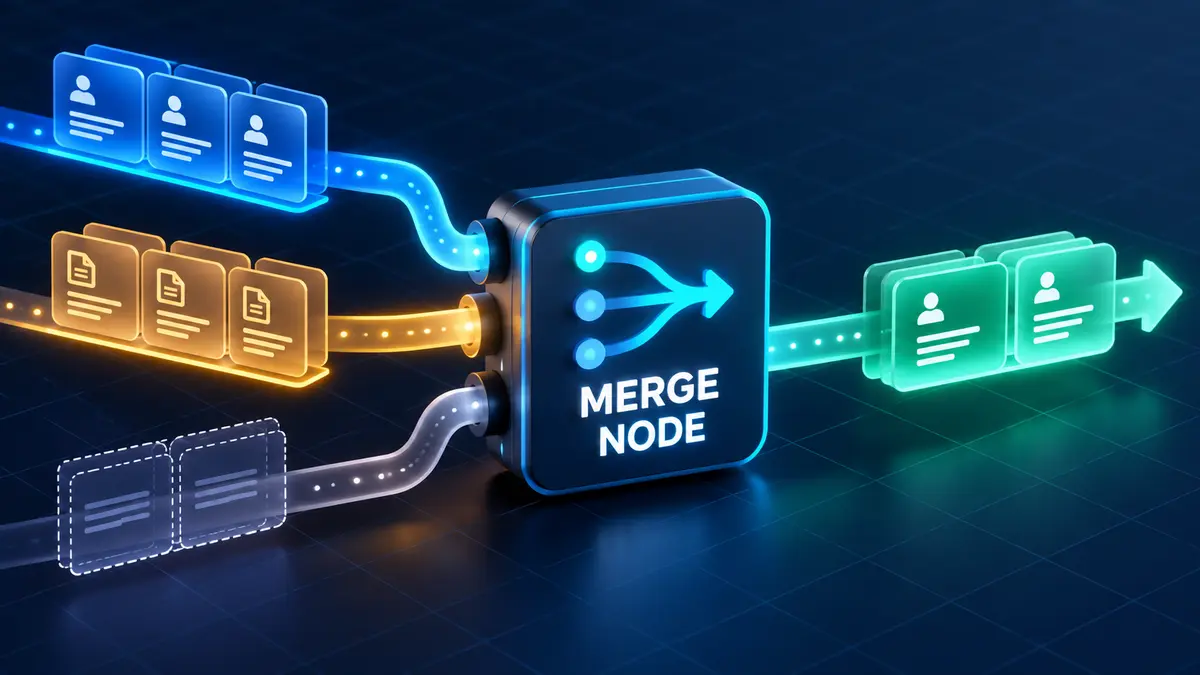
    The n8n Merge node is simple only when both inputs are predictable. Real workflows are messier: one API returns no records, an IF node sends execution down only one branch, two lists arrive in a different order, or a join key is missing. The Merge node then appears to “stall” or silently produces fewer items than expected.

    The fix is not a random node option. You need to identify the contract of each input, then choose a Merge mode that matches that contract. This guide shows how Append, Combine, and Choose Branch differ, how to distinguish an empty input from an unexecuted path, and how to test the result before production data is involved.

    The first distinction: zero items versus an unexecuted branch

    These two states look similar downstream but mean different things:

    • Executed with zero items: the upstream node ran, but its output contains no items. In the execution view, the node is present and shows an empty result.
    • Branch not executed: routing never entered that path. Nodes on the branch have no run data for that workflow execution.

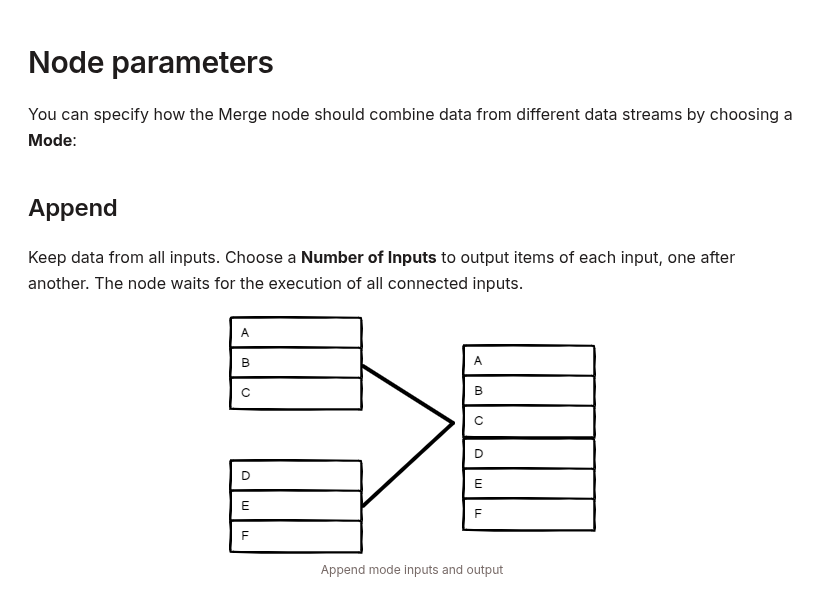
    A Merge node cannot manufacture a missing execution. The official documentation says Append waits for all connected inputs to execute, while Choose Branch always waits for data from both inputs. That makes the execution path part of the data contract—not just a canvas detail.

    Official n8n Merge node documentation showing Append mode and its wait-for-all-inputs behavior

    Before changing the Merge configuration, open the failed execution and inspect both immediate upstream nodes. Record whether each node executed and how many items it returned. That single check prevents most trial-and-error fixes.

    Pick the mode from the result you actually need

    Required result Merge mode Main risk
    Keep every item from every input Append A connected path never executes
    Join records using a stable ID Combine → Matching Fields Missing, duplicated, or differently typed keys
    Pair item 1 with item 1, item 2 with item 2 Combine → Position Order or item count changes
    Create every possible pair All Possible Combinations Multiplicative output growth
    Wait for synchronization, then keep one input Choose Branch It still waits for both inputs

    Append: concatenate streams without joining records

    Append keeps the items from all configured inputs and outputs them one stream after another. It does not compare fields and it does not merge two objects into one object.

    Given these inputs:

    Input 1
    [
      { "id": 101, "source": "crm" },
      { "id": 102, "source": "crm" }
    ]
    
    Input 2
    [
      { "id": 201, "source": "billing" }
    ]

    Append returns three items. This is the correct mode for consolidating independent event streams that already share a usable schema.

    It is the wrong choice when the goal is to enrich CRM records with billing fields. For that, both streams need a stable key and a matching-field join.

    Combine by Matching Fields: treat it like a database join

    Matching Fields compares values from selected fields. n8n exposes several output types that map closely to familiar joins:

    • Keep Matches: only matching records, similar to an inner join.
    • Keep Everything: matching records plus unmatched records from both inputs, similar to a full outer join.
    • Enrich Input 1: keep every Input 1 record and add matching Input 2 data, similar to a left join.
    • Enrich Input 2: the corresponding right-side behavior.
    • Keep Non-Matches: return records that did not match.

    Normalize the key before the Merge node. The values 42 and "42" may look identical in the table view but have different types. Whitespace and inconsistent casing can also produce unexpected non-matches.

    // Edit Fields or Code node before Merge
    {
      "customer_id": "42",
      "email_normalized": "[email protected]"
    }

    Use a unique identifier when possible. Joining on a non-unique field such as status, city, or product name can create multiple combinations and duplicate-looking output.

    Combine by Position: safe only with locked ordering

    Position mode pairs items by index. The first item from Input 1 joins the first item from Input 2, and so on. It can be useful when two branches are guaranteed to preserve identical order and cardinality.

    That guarantee is fragile. Filtering one branch, retrying a paginated request, removing duplicates, or sorting on only one side changes the alignment. The workflow may still complete while joining the wrong records.

    Prefer Matching Fields whenever a stable key exists. If Position is unavoidable, add a temporary sequence field before splitting:

    [
      { "_sequence": 0, "customer_id": "c-101" },
      { "_sequence": 1, "customer_id": "c-102" }
    ]

    Verify that both sides contain the same sequence range immediately before the Merge node.

    Choose Branch is a synchronization gate, not an IF replacement

    Choose Branch waits until both inputs are available, then outputs Input 1, Input 2, or a single empty item. Use it when two independent operations must finish but only one result should continue.

    Do not use it merely to reunite mutually exclusive IF routes. If only one route is intended to run, there may never be a second input to wait for. Normalize both routes to the same schema and converge them through a pass-through or No-op pattern instead. Reserve Merge for cases where multiple streams genuinely participate in the result.

    A deterministic debugging procedure

    1. Inspect the execution, not the canvas. Confirm whether each immediate upstream node ran.
    2. Count items on both inputs. Write down values such as Input 1 = 12 and Input 2 = 0.
    3. State the expected result. Concatenation, keyed enrichment, index pairing, Cartesian pairs, or synchronization are different operations.
    4. Check key types and uniqueness. Normalize strings, numbers, casing, and whitespace before Matching Fields.
    5. Use tiny fixtures. Test with two or three hand-built records whose expected output can be calculated mentally.
    6. Add production assertions. Stop or alert when input counts, unmatched counts, or output counts violate the contract.

    Handle an intentionally empty source explicitly

    Sometimes zero rows are valid—for example, a customer has no unpaid invoices. Decide what that means before the Merge node:

    • For an inner join, zero matches may correctly produce zero output.
    • For enrichment, use the output type that preserves the primary input.
    • For an optional source that must still be observable, emit an explicit sentinel item and remove it after the merge.
    return [{
      json: {
        source: "billing",
        present: false,
        reason: "no_open_invoices"
      }
    }];

    Use a sentinel only when the downstream workflow understands it. A fabricated blank business record is worse than an empty stream because it can be mistaken for real data.

    Watch for explosive output

    All Possible Combinations creates a Cartesian product. Ten items on one input and 20 on the other create 200 output items. With 1,000 items on each side, the result is one million combinations.

    Before using this mode in production, calculate:

    expected_output =
      input_1_count * input_2_count

    If that number is not intentionally bounded, use a key-based join or filter each stream first.

    Version and execution-order checks

    The current Merge documentation covers the overhauled node introduced in n8n 0.194.0. More than two inputs and SQL Query mode require n8n 1.49.0 or later. The workflow execution order also differs between legacy workflows and workflows created from n8n 1.0 onward: modern workflows complete one branch before starting the next, ordered by canvas position.

    If a copied workflow behaves differently from a newly created one, inspect its workflow settings before assuming the Merge node is broken. Execution order is observable behavior and should be part of the migration test.

    Production checklist

    • Both upstream paths are expected to execute.
    • Each input’s zero-item behavior is defined.
    • The selected mode matches the intended data operation.
    • Matching keys have the same type and normalization.
    • Position mode has verified order and cardinality.
    • Cartesian output has a safe upper bound.
    • A small fixture produces the expected count and fields.
    • Production monitoring records input and output counts.

    The reliable mental model is straightforward: routing determines whether an input exists; Merge mode determines what happens after the inputs exist. Debug those layers separately, and the Merge node becomes predictable instead of mysterious.

    Official references: n8n Merge node, Merge data, and Understand execution order.

  • Fix Custom npm Modules in n8n Code Nodes with Secure Task Runners

    Fix Custom npm Modules in n8n Code Nodes with Secure Task Runners

    The error Import of external package is disallowed looks like a missing npm package, but self-hosted n8n has two separate controls: the package must exist in the process that executes the Code node, and that runner must explicitly allow the import.

    With modern n8n, the execution location matters. n8n 2.x runs Code node work on task runners, and production deployments should use external mode for isolation. Adding NODE_FUNCTION_ALLOW_EXTERNAL only to the main n8n container can therefore change nothing—the JavaScript runner may never receive it.

    The three gates an import must pass

    Gate Question Typical failure
    Execution location Which runner actually executes this Code node? Configuration is applied to the main container instead of the runner
    Package installation Does that runner image contain the npm package? Cannot find module
    Allowlist Is the exact package permitted for the JavaScript runner? Module is disallowed

    Treat these as independent checks. An allowlist does not install a package, and installing a package does not authorize Code node users to import it.

    What the official n8n setting does

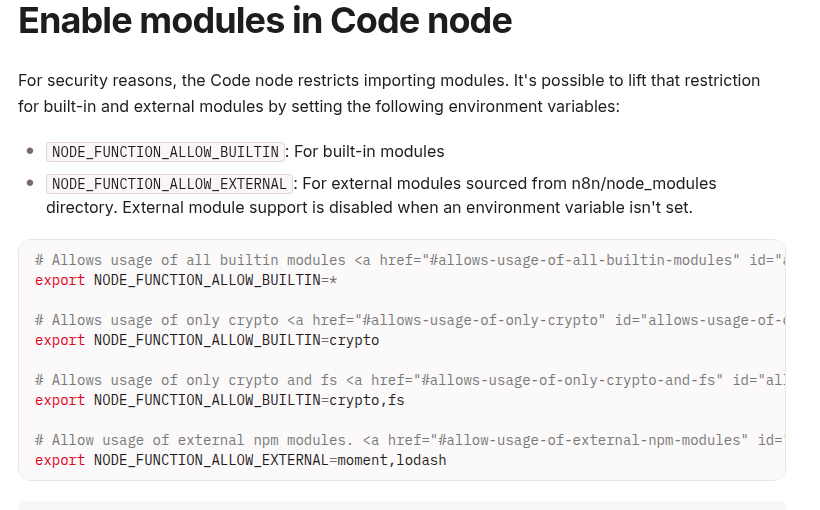
    n8n restricts built-in and external imports by default. NODE_FUNCTION_ALLOW_BUILTIN controls Node.js built-ins such as crypto. NODE_FUNCTION_ALLOW_EXTERNAL controls third-party packages available from the runner’s module directory.

    n8n documentation showing NODE_FUNCTION_ALLOW_EXTERNAL and module allowlist examples for the Code node

    Use a comma-separated list such as lodash,moment. Avoid * in production: every workflow editor who can modify a Code node would gain access to every installed package that the wildcard exposes.

    Choose the correct path for your runner mode

    Internal or legacy setups

    In a simple setup where the JavaScript runner receives normal environment variables directly, an allowlist may look like this:

    NODE_FUNCTION_ALLOW_BUILTIN=crypto
    NODE_FUNCTION_ALLOW_EXTERNAL=lodash,moment

    The variables must reach the process executing the Code node. The official module guide specifically warns that task-runner deployments should configure the runners, not only the main n8n node.

    External task-runner mode

    For production, n8n recommends external mode: a separate n8nio/runners sidecar connects to the task broker. Current n8n documentation configures per-language allowlists in the runner launcher configuration as env-overrides.

    Start from the configuration file shipped with the exact matching runner image. Modify the existing JavaScript runner entry instead of replacing the whole file with a partial example:

    {
      "runner-type": "javascript",
      "env-overrides": {
        "NODE_FUNCTION_ALLOW_BUILTIN": "crypto",
        "NODE_FUNCTION_ALLOW_EXTERNAL": "lodash,moment"
      }
    }

    Keep the rest of the shipped configuration, including any Python runner entry you use. Mount or copy the customized file to the path documented for your n8n version; current external-runner documentation uses /etc/n8n-task-runners.json for the custom launcher configuration.

    Build the packages into the runner image

    Do not run npm install interactively inside a live container. That change disappears when the container is recreated and makes production state impossible to reproduce. Extend the runner image and pin the dependencies you need.

    ARG N8N_VERSION
    
    FROM n8nio/runners:${N8N_VERSION}
    
    USER root
    
    RUN cd /opt/runners/task-runner-javascript \
        && pnpm add \
            [email protected] \
            [email protected]
    
    COPY n8n-task-runners.json \
        /etc/n8n-task-runners.json
    
    USER runner

    Build with a runner tag that exactly matches the n8nio/n8n tag used by the main service. n8n’s official setup guide requires matching versions and currently documents extending runner images from the supported runner baseline onward.

    docker build \
      --build-arg N8N_VERSION=YOUR_N8N_VERSION \
      -f Dockerfile.runners \
      -t my-n8n-runners:YOUR_N8N_VERSION \
      .

    Replace YOUR_N8N_VERSION with one explicit version in both images. Do not mix latest with a pinned runner tag.

    Wire the external runner to n8n

    A minimal Compose fragment needs a shared authentication token, a broker address reachable from the runner container, and external mode on the n8n service:

    services:
      n8n:
        image: n8nio/n8n:${N8N_VERSION}
        environment:
          N8N_RUNNERS_MODE: external
          N8N_RUNNERS_BROKER_LISTEN_ADDRESS: 0.0.0.0
          N8N_RUNNERS_AUTH_TOKEN: ${RUNNERS_TOKEN}
    
      task-runners:
        image: my-n8n-runners:${N8N_VERSION}
        environment:
          N8N_RUNNERS_TASK_BROKER_URI: http://n8n:5679
          N8N_RUNNERS_AUTH_TOKEN: ${RUNNERS_TOKEN}
        depends_on:
          - n8n

    In n8n 2.x, N8N_RUNNERS_ENABLED is deprecated and no longer required. For n8n 1.x migration testing it remains supported, so confirm the exact major version before copying an older Compose example.

    Queue mode needs more than one runner sidecar

    If your n8n installation uses Queue Mode, each worker that executes Code nodes needs its own task-runner sidecar. If manual executions remain on the main instance, the main instance also needs a runner. A package working in the editor but failing only in production often means manual and production executions reached different runner images or configurations.

    Execution Likely component What to compare
    Manual test Main instance runner Runner image, config file, allowlist
    Production webhook Worker runner Same image digest and matching config
    Retry on another worker Another worker runner All workers use the same deployment artifact

    Verify with a minimal Code node

    After rebuilding and restarting the services, test one built-in and one external package. Keep the test free of file-system or network access; n8n recommends using dedicated file and HTTP nodes for those operations.

    const crypto = require('crypto');
    const _ = require('lodash');
    
    return items.map((item) => ({
      json: {
        ...item.json,
        moduleCheck: {
          id: crypto.randomUUID(),
          uniqueTags: _.uniq(
            item.json.tags ?? []
          )
        }
      }
    }));

    A successful execution proves only that this runner can load the packages. Repeat the check through the same trigger and worker path used in production.

    Troubleshooting by error message

    Symptom Most likely cause Next check
    Module is disallowed Missing allowlist or wrong configuration layer Inspect the JavaScript runner’s effective launcher config
    Cannot find module Package absent from the active runner image Verify the package under /opt/runners/task-runner-javascript
    Manual works, production fails Main and worker use different runner sidecars Compare image digests and mounted config files
    Runner never connects Broker URI, listen address, or token mismatch Check runner and broker logs without printing the token
    Works until restart Package was installed interactively Bake it into a versioned image

    Security rules worth keeping

    • Allowlist exact packages rather than using *.
    • Pin versions and rebuild intentionally for upgrades.
    • Use external task-runner mode for production isolation.
    • Give workflow-edit permission only to trusted users.
    • Do not expose runner authentication tokens in workflow data or logs.
    • Review package provenance, transitive dependencies, and known vulnerabilities.
    • Keep main and runner image versions aligned.
    • Roll the same runner artifact to every Queue Mode worker.

    Some libraries mutate global prototypes. n8n blocks prototype mutation by default and offers a separate override, but enabling it weakens the security boundary. Prefer a library that works without that permission unless the operational need clearly justifies the risk.

    The reliable mental model

    An external module becomes usable only when the correct runner contains it and the correct runner configuration allows it. Solve the problem in that order: locate the executor, bake the dependency into its image, apply the narrow allowlist, restart every relevant runner, and test through the production execution path.

    Official references: Enable modules in the Code node, Set up task runners, Task-runner environment variables, and n8n 2.0 breaking changes.

  • Stop WordPress Admin Freezes: Queue n8n Webhooks with Action Scheduler

    Stop WordPress Admin Freezes: Queue n8n Webhooks with Action Scheduler

    A WordPress hook that calls an n8n webhook directly can make the editor wait for DNS, TLS, the remote server, and the workflow response. Even if the webhook usually returns quickly, one slow network path can turn a routine publish into a spinner, timeout, or “Publishing failed” message.

    The safer design is to keep the interactive request short: enqueue a durable background action, let WordPress finish the save, and have a queue worker deliver the webhook afterward. Action Scheduler provides a traceable WordPress job queue with an API, an administration screen, and per-action logs.

    The blocking pattern and the queued pattern

    Pattern Editor request Failure visibility Best use
    Direct wp_remote_post() Waits for the outbound request by default Must be added to the save path Short, noncritical calls where waiting is acceptable
    Non-blocking HTTP flag Returns without waiting for a response Little confirmation that the receiver accepted the event Best-effort notifications
    Action Scheduler queue Stores a job and lets the save complete Pending, complete, failed, and log views Production webhooks that need retries and auditability

    Action Scheduler is not WordPress core. It is commonly available through WooCommerce and some plugins, or it can be included as a library in your own plugin. Check that the API is loaded before enqueueing work.

    What as_enqueue_async_action() actually promises

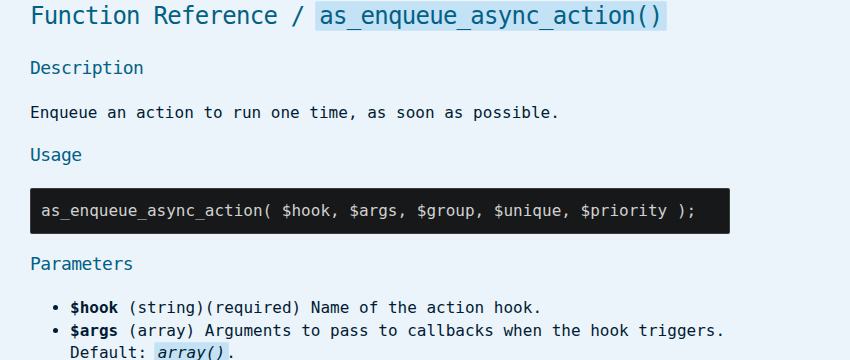
    The official API describes as_enqueue_async_action() as enqueueing a one-time action to run “as soon as possible.” That is deliberately different from “run immediately.” The queue still needs a runner. On a typical site, Action Scheduler is driven by WP-Cron and asynchronous loopback requests; larger queues may be better served by WP-CLI.

    Action Scheduler API documentation for as_enqueue_async_action with its description, usage, and parameters

    Use this distinction in both design and monitoring. The editor can return quickly after the job is stored, but actual delivery latency depends on traffic, loopback health, cron configuration, hosting limits, and queue load.

    Build a minimal WordPress plugin

    The following example queues a webhook only when a post first transitions to publish. It creates a deterministic event ID, uses a queue group for filtering, and asks Action Scheduler to avoid an identical pending action.

    <?php
    /**
     * Plugin Name: DevelopWhale Async n8n Dispatch
     */
    
    add_action(
        'transition_post_status',
        'dw_queue_n8n_dispatch',
        10,
        3
    );
    
    function dw_queue_n8n_dispatch(
        $new_status,
        $old_status,
        $post
    ) {
        if (
            'publish' !== $new_status
            || 'publish' === $old_status
            || 'post' !== $post->post_type
        ) {
            return;
        }
    
        if (
            ! function_exists('as_enqueue_async_action')
            || ! did_action('action_scheduler_init')
        ) {
            error_log(
                'n8n dispatch not queued: '
                . 'Action Scheduler is unavailable'
            );
            return;
        }
    
        $event_id = hash_hmac(
            'sha256',
            $post->ID . '|' . $post->post_modified_gmt,
            wp_salt('nonce')
        );
    
        as_enqueue_async_action(
            'dw_send_post_to_n8n',
            array($post->ID, $event_id, 1),
            'developwhale',
            true
        );
    }

    The true argument requests a unique action. Uniqueness is useful for repeated hooks, but it is not a complete idempotency strategy. The receiver should also store and reject an already-processed event_id.

    Deliver the webhook in the background

    Register a callback for the queued hook. Keep the endpoint and shared secret outside the plugin source—for example, in environment-backed configuration—and never place them in logs.

    add_action(
        'dw_send_post_to_n8n',
        'dw_send_post_to_n8n',
        10,
        3
    );
    
    function dw_send_post_to_n8n(
        $post_id,
        $event_id,
        $attempt
    ) {
        $endpoint = getenv('DW_N8N_WEBHOOK_URL');
        $secret   = getenv('DW_N8N_WEBHOOK_SECRET');
    
        if (! $endpoint || ! $secret) {
            throw new RuntimeException(
                'Webhook configuration is missing'
            );
        }
    
        $payload = array(
            'event_id'     => $event_id,
            'event_type'   => 'post.published',
            'post_id'      => (int) $post_id,
            'permalink'    => get_permalink($post_id),
            'published_at' => get_post_time(
                DATE_ATOM,
                true,
                $post_id
            ),
        );
    
        $body = wp_json_encode($payload);
        $signature = hash_hmac(
            'sha256',
            $body,
            $secret
        );
    
        $response = wp_safe_remote_post(
            $endpoint,
            array(
                'timeout' => 20,
                'headers' => array(
                    'Content-Type' => 'application/json',
                    'X-DW-Event-ID' => $event_id,
                    'X-DW-Signature' => $signature,
                ),
                'body' => $body,
                'data_format' => 'body',
            )
        );
    
        $status = is_wp_error($response)
            ? 0
            : wp_remote_retrieve_response_code($response);
    
        if ($status < 200 || $status >= 300) {
            if ($attempt < 3) {
                $delay = min(
                    900,
                    60 * (2 ** ($attempt - 1))
                );
    
                as_schedule_single_action(
                    time() + $delay,
                    'dw_send_post_to_n8n',
                    array(
                        $post_id,
                        $event_id,
                        $attempt + 1
                    ),
                    'developwhale',
                    true
                );
            }
    
            throw new RuntimeException(
                'n8n webhook delivery failed; HTTP '
                . $status
            );
        }
    }

    This example treats every non-2xx response as a failed delivery and schedules at most two additional attempts with increasing delay. Tune the policy to the receiver: retry timeouts, connection failures, 429, and temporary 5xx responses; usually do not retry a permanent authentication or payload error without intervention.

    Make the n8n side idempotent

    Background delivery changes when the webhook runs, not the realities of distributed systems. A timeout can occur after n8n accepted the request, so WordPress may retry an event that n8n has already started.

    1. Use X-DW-Event-ID as the idempotency key.
    2. Store the key before any external side effect.
    3. If the key already exists, return a successful duplicate response without repeating the work.
    4. Verify the HMAC against the unchanged request body before trusting the payload.
    5. Keep secrets and full sensitive payloads out of execution logs.

    Raw-body access varies by n8n version and webhook configuration, so verify the exact field in your deployment before enabling signature enforcement. Do not recreate the signature from a parsed and re-serialized object.

    Observe and operate the queue

    Action Scheduler’s administration screen lets operators filter actions by status and hook, run a pending action, and inspect log entries for a failure. Use a dedicated group such as developwhale so webhook jobs are easy to isolate.

    • Watch the age of the oldest pending action, not only the number of failures.
    • Alert when the queue runner has stopped or loopback tests fail.
    • Record the event ID, action ID, attempt number, response class, and elapsed time.
    • Do not log credentials, signatures, or unnecessary post content.
    • For large or long-running queues, evaluate the official WP-CLI runner instead of relying only on web requests.

    Common mistakes

    Assuming “async” means instant

    The API queues work as soon as possible; it does not guarantee zero-second dispatch. A low-traffic site with broken WP-Cron or blocked loopbacks can accumulate pending actions.

    Queueing on every save

    Autosaves, revisions, and repeated status transitions can create duplicate notifications. Filter post type and transition, use unique actions, and keep a receiver-side idempotency key.

    Using update calls as the queue

    Do not make a second synchronous HTTP call merely to confirm the first one. Let the background action own delivery, response checking, retries, and logging.

    Ignoring permanent failures

    A wrong URL, revoked secret, or invalid payload will not recover through blind retries. Limit attempts and expose the final failed action for review.

    Production checklist

    • Action Scheduler is installed and initialized.
    • The publish hook excludes revisions and repeated transitions.
    • The editor request only queues work.
    • The webhook URL and secret are outside source control.
    • The event has a stable idempotency key.
    • n8n verifies the signature using the unchanged body.
    • Retry rules distinguish temporary and permanent errors.
    • Pending and failed actions are visible to operators.
    • Loopback and WP-Cron health are monitored.
    • The workflow is tested with n8n offline before production.

    The practical boundary

    Action Scheduler removes remote webhook latency from the WordPress editor path and gives delivery work a durable, inspectable home. It does not replace an external message broker, guarantee immediate execution, or make n8n processing exactly once. The reliable boundary is: enqueue quickly, deliver in the background, verify the receiver, retry deliberately, and make every side effect idempotent.

    Official references: Action Scheduler API, Scheduled Actions administration, Action Scheduler WP-CLI runner, WordPress wp_safe_remote_post(), and WordPress loopback test.

  • Reliable Structured JSON from Ollama in n8n: Two Schema-First Patterns

    Reliable Structured JSON from Ollama in n8n: Two Schema-First Patterns

    Local models are attractive in n8n because they keep data close to your infrastructure and remove per-request API costs. The difficult part is not getting text back from Ollama. It is getting a predictable object that the next node can trust.

    A prompt such as “return JSON” is only a request. A production workflow needs a contract: a schema at generation time when possible, validation before side effects, and an explicit failure path when the response does not match.

    The three layers of reliable structured output

    Layer Purpose What it prevents
    Generation constraint Ask the model runtime to emit JSON or follow a JSON Schema Markdown fences and free-form prose
    Schema validation Check required fields, types, and allowed values Valid JSON with the wrong shape
    Workflow gate Stop or route invalid items before database, email, or API nodes Bad data reaching a side effect

    These layers are related, but they are not interchangeable. JSON mode can produce syntactically valid JSON while still omitting a required field. A parser can reject a bad response, but it cannot guarantee that every model attempt will succeed. The workflow must handle both outcomes.

    Choose one of two schema-first patterns

    Use the native n8n pattern when your AI root node supports an output-parser connection and you want the workflow canvas to own the schema. Use the direct Ollama API pattern when you need Ollama’s runtime-level format contract or the current n8n node does not expose the control you need.

    Pattern A: n8n Structured Output Parser

    1. Add a Basic LLM Chain or another compatible AI root node.
    2. Connect the Ollama Chat Model as the model.
    3. Enable Require Specific Output Format.
    4. Attach a Structured Output Parser.
    5. Define the shape with a JSON example or a JSON Schema.

    For a support-ticket classifier, a small schema is easier to debug than a deeply nested one:

    {
      "type": "object",
      "properties": {
        "category": {
          "type": "string",
          "enum": ["billing", "technical", "other"]
        },
        "priority": {
          "type": "string",
          "enum": ["low", "normal", "high"]
        },
        "summary": {
          "type": "string"
        }
      },
      "required": [
        "category",
        "priority",
        "summary"
      ]
    }

    n8n treats every field as required when it generates a schema from a JSON example. If optional fields matter, define the JSON Schema manually so required and optional properties are explicit.

    There is also an important agent caveat. n8n’s documentation says structured parsing directly inside agents is often unreliable and recommends a separate LLM chain to receive the agent result and parse the final object. That creates a cleaner boundary:

    AI Agent
      → Basic LLM Chain
      → Structured Output Parser
      → Validate business rules
      → Continue workflow

    The parser formats the final output. It is not intended to structure every intermediary tool call inside an agent.

    Pattern B: call Ollama with a JSON Schema

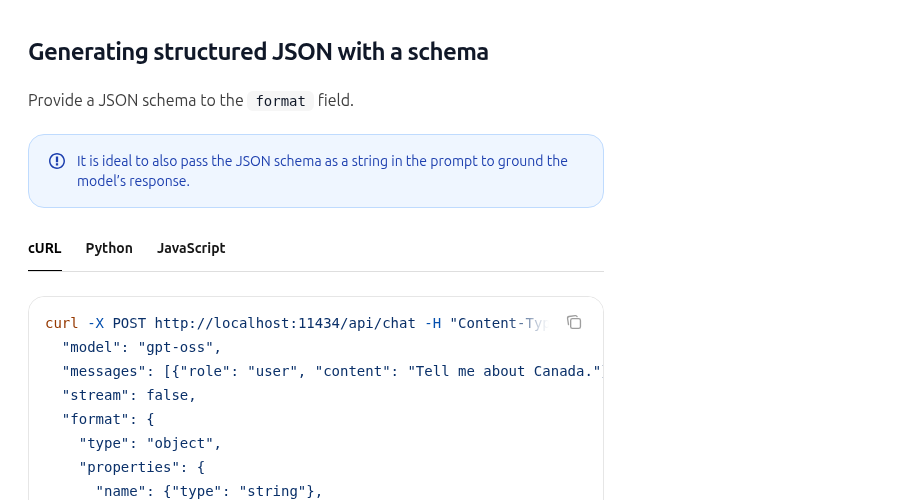
    Ollama’s API accepts either "json" or a JSON Schema object in the format field. A schema is stronger because it declares the fields and types you expect.

    Ollama Structured Outputs documentation showing a JSON schema passed to the format field

    The following request can be sent from an n8n HTTP Request node to Ollama’s chat endpoint:

    {
      "model": "qwen2.5:7b",
      "messages": [
        {
          "role": "user",
          "content": "Classify this ticket: {{$json.text}}"
        }
      ],
      "stream": false,
      "format": {
        "type": "object",
        "properties": {
          "category": {
            "type": "string",
            "enum": ["billing", "technical", "other"]
          },
          "priority": {
            "type": "string",
            "enum": ["low", "normal", "high"]
          },
          "summary": {
            "type": "string"
          }
        },
        "required": [
          "category",
          "priority",
          "summary"
        ]
      }
    }

    Use POST http://ollama:11434/api/chat when n8n and Ollama share a Docker network and the Ollama service is named ollama. If they run in different environments, use the reachable Ollama base URL for that deployment. Do not assume that localhost inside the n8n container points to the host or to another container.

    Ollama also recommends including the schema in the prompt to ground the response. Treat that as reinforcement, not as a replacement for the format schema and downstream validation.

    Parse once, then validate business rules

    Depending on the Ollama endpoint and n8n node configuration, the generated object may arrive as JSON text inside a response field. Parse it once in a Code node, then check the values that matter to your workflow:

    const raw = $json.message?.content
      ?? $json.response;
    
    if (typeof raw !== 'string') {
      throw new Error('Missing Ollama response text');
    }
    
    let data;
    try {
      data = JSON.parse(raw);
    } catch {
      throw new Error('Ollama returned invalid JSON');
    }
    
    const categories = [
      'billing',
      'technical',
      'other'
    ];
    const priorities = [
      'low',
      'normal',
      'high'
    ];
    
    if (!categories.includes(data.category)) {
      throw new Error('Unexpected category');
    }
    if (!priorities.includes(data.priority)) {
      throw new Error('Unexpected priority');
    }
    if (typeof data.summary !== 'string'
        || data.summary.trim() === '') {
      throw new Error('Missing summary');
    }
    
    return [{ json: data }];

    This check is intentionally boring. Deterministic validation is easier to inspect than asking a second agent to decide whether the first response “looks right.” For large schemas, use a dedicated JSON Schema validator in a controlled Code node or service rather than hand-writing dozens of checks.

    Fail closed before side effects

    Never connect unvalidated model output directly to a WordPress publish, database update, invoice, or outbound message. Route the result through a validation gate first:

    1. Accept the object only when JSON parsing and schema checks pass.
    2. Record the model, workflow execution, and validation error without logging secrets.
    3. Retry once only when the failure is likely transient.
    4. Send repeated failures to an error workflow or review queue.
    5. Make downstream writes idempotent so a retry cannot duplicate work.

    If you already operate a central failure handler, connect this validation branch to it. The related guide on building an n8n error workflow with Error Trigger explains the alerting side of that design.

    Batch-processing trap in parser sub-nodes

    n8n sub-nodes resolve expressions against the first input item rather than processing every expression independently across all incoming items. If five source items need separate prompts and separate structured results, split or loop them so each model invocation receives the intended item. Do not assume that a parser sub-node will automatically resolve a different schema expression for every input row.

    Production checklist

    • Keep the schema small and explicit.
    • Use enums for values that drive branching.
    • Mark required fields deliberately.
    • Set stream: false when your node expects one complete JSON response.
    • Parse the response once.
    • Validate business rules after JSON parsing.
    • Stop before side effects when validation fails.
    • Use a separate LLM chain for final agent-output formatting.
    • Test with missing fields, unexpected enum values, empty strings, and malformed JSON.
    • Record failures without storing sensitive prompts or credentials.

    What this pattern does—and does not—guarantee

    A schema-first design sharply reduces formatting failures and makes bad responses visible. It does not make every local model equally capable, eliminate hallucination inside valid fields, or replace domain validation. Model size, prompt quality, context length, and quantization can still affect correctness.

    The reliable contract is therefore: constrain generation, validate the object, enforce business rules, and fail closed before the workflow changes the outside world.

    Official references: Ollama Structured Outputs, Ollama Generate API, n8n Structured Output Parser, n8n parser common issues, and n8n Information Extractor.

  • How to Build a Centralized n8n Error Workflow with Error Trigger

    How to Build a Centralized n8n Error Workflow with Error Trigger

    An n8n workflow that fails silently is not production-ready. The most maintainable fix is not to add a separate Slack, email, or webhook node to every automation. Instead, create one reusable error workflow, connect it to the workflows that matter, and send a compact alert with enough context to investigate the failed execution.

    This guide shows how to build that shared error-handling path with n8n’s Error Trigger. It also covers the details that commonly cause false confidence: why manual tests do not trigger the handler, when an execution URL may be missing, how trigger failures use a different payload shape, and how to test the complete path safely.

    What you are building

    The design has two layers:

    1. Production workflows do the actual business work.
    2. One error workflow receives failure context and sends an alert to Slack, email, Microsoft Teams, PagerDuty, or another destination.

    n8n lets several workflows share the same error workflow. That keeps routing, formatting, and security policy in one place. It also makes it easier to change alert destinations without editing every production workflow.

    Component Responsibility Typical node
    Source workflow Runs the automation and fails when a step cannot complete Webhook, Schedule Trigger, app trigger
    Error workflow Receives failure metadata Error Trigger
    Normalizer Creates a stable alert payload Edit Fields (Set) or Code
    Alert destination Notifies the operator Slack, email, Teams, HTTP Request

    1. Create the reusable error workflow

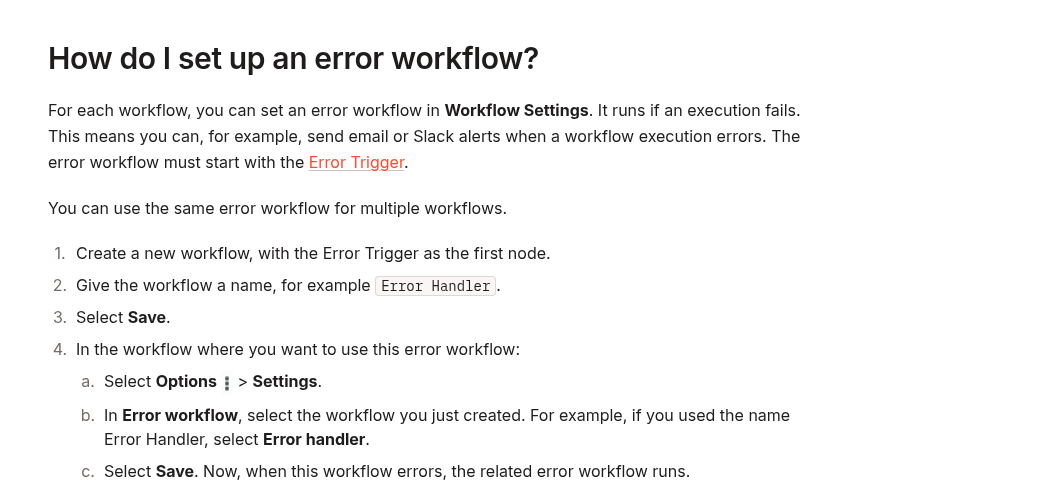
    Create a new workflow and add Error Trigger as the first node. Give the workflow a clear name such as Production Error Handler, then save it. The handler itself does not need a normal schedule or webhook trigger.

    Official n8n documentation showing how to set up a reusable error workflow with Error Trigger

    Open each production workflow that should use the handler, choose Options → Settings, and select Production Error Handler in the Error workflow field. Save the source workflow. The same handler can be selected by multiple workflows.

    Do not add Error Trigger to a normal processing branch. It belongs at the beginning of the dedicated error workflow.

    2. Understand the payload before formatting alerts

    For a failure that occurs after a workflow execution has started, n8n normally provides an execution object and a workflow object. Useful fields include:

    • workflow.id and workflow.name
    • execution.id and execution.url
    • execution.error.message
    • execution.lastNodeExecuted
    • execution.mode
    • execution.retryOf when the failed run was a retry

    There are two important caveats. First, execution.id and execution.url require the execution to be saved in the database. Second, if the source workflow fails in its trigger node, the workflow may never create a normal execution. In that case n8n sends a different structure with more detail under trigger.error and less under execution.

    Your alert workflow should therefore tolerate missing fields instead of assuming every failure has an execution URL.

    3. Normalize the failure into a stable alert object

    Add an Edit Fields (Set) node after Error Trigger. Create a small, predictable object that later notification nodes can consume. The following expressions illustrate the fallback logic:

    {
      "workflow": "{{
        $json.workflow?.name ||
        'Unknown workflow'
      }}",
      "workflowId": "{{
        $json.workflow?.id || ''
      }}",
      "executionId": "{{
        $json.execution?.id || ''
      }}",
      "executionUrl": "{{
        $json.execution?.url || ''
      }}",
      "lastNode": "{{
        $json.execution?.lastNodeExecuted ||
        'Trigger or activation'
      }}",
      "mode": "{{
        $json.execution?.mode ||
        $json.trigger?.mode ||
        'unknown'
      }}",
      "message": "{{
        $json.execution?.error?.message ||
        $json.trigger?.error?.message ||
        'Unknown error'
      }}"
    }

    If your n8n version or node configuration does not accept a whole object in one field, create the same properties as separate fields. The important part is the fallback order, not the exact node layout.

    Keep the alert payload deliberately small. Avoid sending full input data, credentials, headers, stack traces, or customer records to a chat channel. Put the execution link in the alert when it exists and keep sensitive diagnostic data inside n8n’s access-controlled execution view.

    4. Route the alert to the right destination

    Connect the normalizer to your notification node. A useful alert contains four things:

    • the workflow name;
    • the failed node or trigger context;
    • a short error message;
    • the saved execution URL, when available.

    A compact message is easier to scan than a raw JSON dump:

    n8n workflow failed
    Workflow:
    {{ $json.workflow }}
    Node:
    {{ $json.lastNode }}
    Error:
    {{ $json.message }}
    Execution:
    {{ $json.executionUrl ||
       'No saved execution URL' }}

    If the destination supports severity or routing, add a Switch node before the alert. For example, production payment or publishing workflows can go to an urgent channel, while lower-priority batch jobs go to a daily operations channel. Base this on explicit workflow IDs or tags that you control; do not infer severity from an unpredictable error message.

    5. Prevent an alert storm

    A centralized handler makes alerts consistent, but it can also concentrate noise. Add controls appropriate to the consequences of the workflow:

    • Keep the first alert actionable. Include identifiers and a link, not the entire payload.
    • Separate transient retries from final failure. If a node is configured to retry, alert after the workflow actually fails rather than duplicating every attempt in a custom branch.
    • Use a durable deduplication key when needed. A combination such as workflow ID plus execution ID is more reliable than matching message text.
    • Do not let the alert path fail silently. Choose a destination with observable delivery and periodically verify it.
    • Protect secrets. Treat error messages and stack traces as potentially sensitive.

    The Error Trigger is a notification and recovery hook, not a substitute for sensible timeouts, retries, and idempotency. For long-running or stuck jobs, pair it with the layered timeout controls described in How to Stop Stuck n8n Executions with Layered Timeouts.

    6. Test the real automatic-failure path

    This is the step most often missed: n8n does not run Error Trigger when you manually execute a workflow in the editor. A successful manual test of the notification nodes proves only that those nodes can send a message; it does not prove that the source workflow is connected to the handler.

    Use a controlled test workflow with an automatic trigger:

    1. Create or select a non-critical workflow with an automatic trigger.
    2. Assign Production Error Handler in Workflow Settings.
    3. Add a Stop And Error node in a test-only branch with a recognizable message.
    4. Publish or activate the source workflow as required by that trigger.
    5. Cause one automatic execution.
    6. Confirm that the error workflow runs and the alert arrives.
    7. Open the saved execution link if it is present.
    8. Remove or disable the intentional failure path after verification.

    The Stop And Error node is useful because it creates a deliberate workflow failure under conditions you choose. Do not test this pattern by breaking a real production credential or corrupting live data.

    7. Verify the edge cases

    Run the following checks before relying on the handler:

    Test Expected result
    Automatic failure after the trigger Alert includes workflow name, failed node, message, and usually an execution URL
    Failure in the trigger or activation stage Fallback reads trigger.error; missing execution URL does not break the handler
    Saved failed executions disabled Alert still sends, but execution ID or URL may be absent
    Alert destination temporarily unavailable Error is visible in the error workflow’s own execution history or external monitoring
    Several workflows share the handler Each alert identifies the correct source workflow
    Manual editor run Error Trigger does not fire; this is expected behavior

    Common mistakes

    Testing only with Execute Workflow

    Manual execution does not exercise Error Trigger. Test an automatic execution from a controlled source workflow.

    Assuming every failure has an execution URL

    The URL depends on a saved database execution and is absent for some trigger failures. Use a fallback and keep the alert node working without it.

    Sending the entire failure object to Slack or email

    Raw failure data can contain stack traces, URLs, request details, or business data. Send a concise summary and retain detailed investigation inside n8n.

    Creating one handler per workflow

    That duplicates formatting and routing logic. Start with one shared handler, then split only when teams, credentials, or security boundaries genuinely differ.

    Treating alerts as recovery

    An alert tells you that a failure occurred. Recovery still requires retry policy, idempotent operations, rollback or compensation where necessary, and a clear runbook.

    Production checklist

    • Error workflow starts with Error Trigger.
    • Source workflows select it in Workflow Settings.
    • Message fields tolerate missing execution or trigger data.
    • Alerts exclude secrets and unnecessary payload data.
    • Workflow name, failure location, message, and optional execution URL are present.
    • An automatic controlled failure has been tested.
    • The intentional Stop And Error test path has been removed or disabled.
    • Delivery failures in the alert channel are observable.

    Final takeaway

    A centralized n8n error workflow turns scattered failures into one consistent operational signal. The reliable pattern is straightforward: start a dedicated handler with Error Trigger, assign it in each source workflow’s settings, normalize both execution and trigger failure shapes, send a minimal actionable alert, and verify the connection with an automatic controlled failure. Once that path is proven, you can add severity routing and deduplication without duplicating error logic across every workflow.

    Official references: Handle errors gracefully, Error Trigger, and Configure workflow settings.

  • How to Build Reliable Pagination in the n8n HTTP Request Node

    How to Build Reliable Pagination in the n8n HTTP Request Node

    Most pagination bugs in n8n are not caused by the HTTP Request node. They start with a mismatch between the API’s pagination contract and the value that the next request sends. A workflow may fetch only the first page, repeat the same page forever, skip records, or consume far more memory than expected.

    This guide shows how to configure the three patterns you will meet most often: a next-page URL, a page or offset parameter, and an opaque cursor. It also adds a verification checklist so a workflow that “ran successfully” does not silently return an incomplete or duplicated dataset.

    Start with the API contract, not the n8n expression

    Before enabling pagination, run the endpoint once without pagination and inspect the response. The current n8n documentation explicitly recommends checking the API documentation or making a single request first because pagination shapes differ between APIs.

    Record these five details:

    Question Example answer Why it matters
    Where are records stored? body.data You need to distinguish records from pagination metadata.
    What identifies the next page? next, next_cursor, or page This determines the pagination mode and expression.
    What marks the end? next = null or has_more = false A reliable loop needs an explicit terminal signal.
    Does the first index start at 0 or 1? page=1 An off-by-one error can skip or repeat the first page.
    What is the maximum page size? limit=100 The API may reject or silently clamp larger values.

    Do not copy a pagination expression from another API just because both responses contain a field named next. One may return a complete URL; another may return an opaque token that belongs in a query parameter.

    The two pagination modes in n8n

    Open the HTTP Request node and select Add Option → Pagination. n8n currently documents two modes:

    • Response Contains Next URL — use this when the response provides the complete URL for the following page.
    • Update a Parameter in Each Request — use this when the next request must change a query parameter or body parameter.
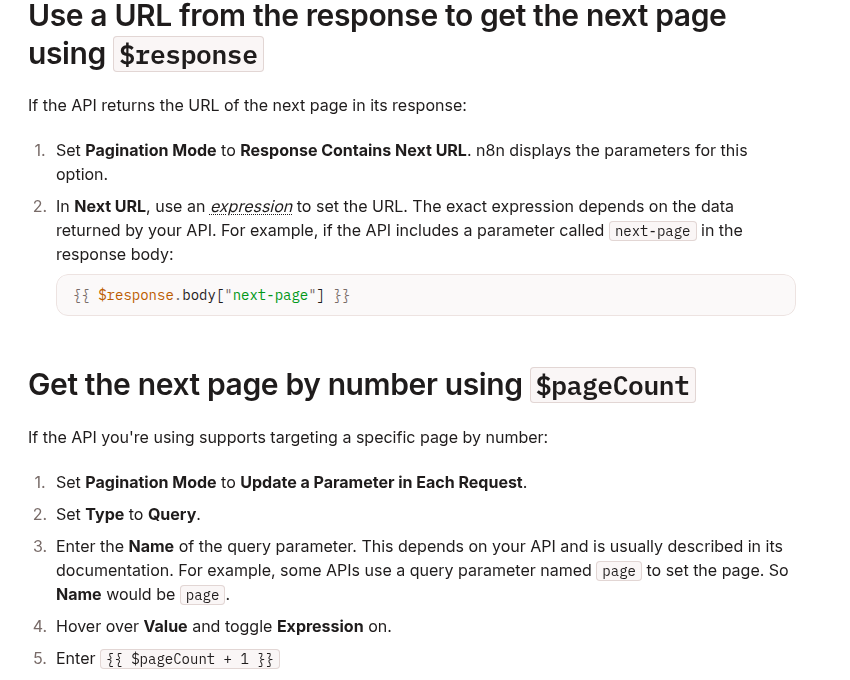
    Official n8n documentation showing next-URL and page-number pagination settings

    The node exposes pagination variables including $pageCount, $request, and $response. The response object includes the body, headers, and status code returned by the API. The exact JSON path remains API-specific.

    Pattern 1: follow a next-page URL

    This is the cleanest case. Suppose the endpoint returns:

    {
      "data": [
        { "id": "cus_101" },
        { "id": "cus_102" }
      ],
      "next-page": "https://api.example.com/customers?cursor=eyJpZCI6MTAyfQ"
    }

    Choose Response Contains Next URL and set Next URL to:

    {{ $response.body["next-page"] }}

    This is the same structure shown in n8n’s official pagination cookbook. Adapt only the property path. If the API uses links.next, for example, the expression becomes:

    {{ $response.body.links.next }}

    Confirm what the terminal response returns. A final page may use null, an empty string, an omitted property, or a separate Boolean such as has_more. Do not invent a fallback URL when the next-page value is absent; that can send the workflow back to page one.

    Pattern 2: increment a page number

    For an API that accepts ?page=1, choose Update a Parameter in Each Request, set Type to Query, and set the parameter name to page.

    n8n documents this value:

    {{ $pageCount + 1 }}

    $pageCount starts at zero. Adding one sends page 1 on the first request, page 2 on the next request, and so on. If the API is zero-based, do not add one:

    {{ $pageCount }}

    Set the page size separately in the node’s normal query parameters. For example:

    limit = 100
    page  = {{ $pageCount + 1 }}

    The page size should remain stable during a run. Changing it while also changing the page number can create gaps or overlaps because the server recalculates page boundaries.

    Pattern 3: calculate an offset

    Offset APIs commonly accept a fixed limit and a changing offset. If the first request uses offset zero and the page size is 100, the offset can be derived from the zero-based page count:

    limit  = 100
    offset = {{ $pageCount * 100 }}

    This arithmetic is an implementation pattern, not a universal API rule. Verify whether the endpoint defines offset as a record index, a page index, or something else. Also check whether the underlying dataset can change while the workflow is running. Inserts and deletions can shift offsets and cause duplicate or missing records.

    When the API offers a stable cursor as well as an offset, prefer the cursor for long-running synchronization jobs. An opaque cursor is designed to preserve the server’s traversal state; an offset is only a position in a potentially changing result set.

    Pattern 4: pass an opaque cursor

    A cursor response may look like this:

    {
      "data": [
        { "id": "evt_201" },
        { "id": "evt_202" }
      ],
      "next_cursor": "eyJhZnRlciI6ImV2dF8yMDIifQ",
      "has_more": true
    }

    Use Update a Parameter in Each Request and update the query parameter expected by the API, such as cursor. For subsequent requests, the expression usually reads the token from the previous response:

    {{ $response.body.next_cursor }}

    The token is opaque. Do not decode it, increment it, trim it, or substitute the last record ID unless the API explicitly documents that behavior. Preserve it exactly as returned.

    The API’s terminal signal still controls completion. For the sample response, that may be has_more = false or a missing next_cursor. Test the final page deliberately and verify the node stops instead of resending the last cursor.

    How infinite pagination loops happen

    The cursor never changes

    If page two returns the same cursor as page one and the workflow keeps using it, every later request can repeat the same page. During testing, compare the cursor or next URL between successive responses. A repeated non-empty token is a failure signal, not progress.

    The expression points to the wrong level

    An API may return body.meta.next_cursor while the expression reads body.next_cursor. The value becomes empty, and the next request may fall back to the original endpoint. Inspect the execution data and copy the actual JSON path.

    The first-page index is wrong

    Using $pageCount against a one-based API starts at page zero. Using $pageCount + 1 against a zero-based API starts at page one and can skip the first page. Confirm the convention from the API documentation or a manual request.

    There is no trustworthy end condition

    “Stop when fewer than 100 records are returned” can work only when the API guarantees that page size and response shape. Rate limits, filtering, permissions, or server-side caps may produce a short page before the dataset ends. Prefer the documented next-link, cursor, or Boolean completion signal.

    A safe test procedure

    1. Call the endpoint once with a small page size, such as 2 or 5.
    2. Save the first response and identify the records plus the pagination metadata.
    3. Configure exactly one pagination strategy.
    4. Execute the node against a bounded test dataset.
    5. Inspect at least the first, second, and final requests in execution data.
    6. Confirm the page value, offset, URL, or cursor changes every time progress is expected.
    7. Confirm the final response produces the documented terminal state.
    8. Compare the collected count with an authoritative count endpoint when the API provides one.
    9. Check record IDs for duplicates before connecting downstream side effects.

    Keep side-effect nodes—email sends, order creation, database writes—disconnected while pagination is being tested. A repeated page is merely annoying during a read-only test; it can become expensive or destructive when every repeated item triggers an action.

    Production hardening

    • Use API-defined limits. Stay within documented maximum page sizes and request-rate limits.
    • Separate fetching from side effects. Fetch and validate records before performing irreversible actions.
    • Deduplicate by a stable ID. Pagination correctness and business idempotency solve different problems; use both.
    • Persist sync checkpoints. For scheduled incremental jobs, store the last confirmed cursor or timestamp only after downstream processing succeeds.
    • Log the contract. Record the endpoint, mode, parameter name, page size, and terminal signal in workflow notes.
    • Monitor volume. A sudden jump in page count can indicate a filter regression or a terminal condition that stopped working.

    Related DevelopWhale guides

    Decision guide

    • Complete next-page URL: use Response Contains Next URL and pass the returned next URL.
    • One-based page number: use Update a Parameter with $pageCount + 1.
    • Zero-based offset: use Update a Parameter with $pageCount × page size.
    • Opaque cursor token: use Update a Parameter and pass the returned next_cursor unchanged.

    The most reliable rule is simple: let the API define the pagination contract, let n8n carry the documented value forward, and verify that every request makes measurable progress toward a real terminal state.

    Official references: n8n HTTP Request pagination cookbook and n8n HTTP Request node documentation.

  • How to Stop Stuck n8n Executions with Layered Timeouts

    How to Stop Stuck n8n Executions with Layered Timeouts

    A workflow that stays Running for hours is not always an n8n bug. It may be waiting on a slow API, retrying inside a node, looping over unexpected data, or running without an execution deadline. The practical fix is not one magic setting. It is a layered timeout policy that limits the entire execution, permits deliberate workflow-specific exceptions, and constrains network calls that can stall a node.

    This guide shows how to configure those layers on self-hosted n8n, how they interact, and how to verify the result without confusing a timeout with queue congestion or an upstream service failure.

    The three timeout layers

    Layer Control What it limits Best use
    Instance default EXECUTIONS_TIMEOUT Total runtime for workflows unless overridden A safe baseline for the whole n8n instance
    Workflow override Timeout Workflow / Timeout After Total runtime for one workflow Short jobs, long batch jobs, and explicit exceptions
    Request boundary HTTP Request node Timeout How long the node waits for the server to start responding Preventing one external API call from waiting indefinitely

    These controls solve different problems. An HTTP timeout can fail one slow request quickly, while the workflow timeout is the final guardrail for the complete execution. Neither setting guarantees that an overloaded queue, database lock, worker crash, or badly designed retry loop will disappear. Treat them as boundaries that make failures finite and observable.

    1. Set an instance-wide execution deadline

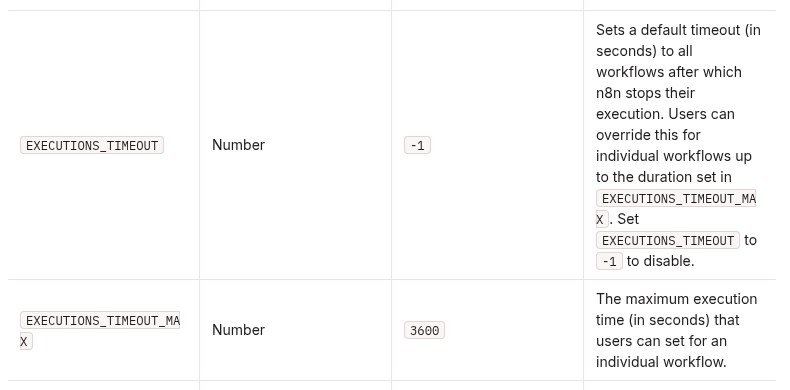
    n8n documents EXECUTIONS_TIMEOUT as the default number of seconds after which it stops a workflow execution. Its default value is -1, which disables the default timeout. EXECUTIONS_TIMEOUT_MAX is the maximum duration that a user may assign to an individual workflow.

    n8n execution environment variables showing EXECUTIONS_TIMEOUT and EXECUTIONS_TIMEOUT_MAX

    A conservative Docker Compose example is:

    services:
      n8n:
        environment:
          - EXECUTIONS_TIMEOUT=3600
          - EXECUTIONS_TIMEOUT_MAX=7200

    In this example, workflows receive a one-hour default deadline. A workflow owner can choose a different value, but not more than two hours. The right numbers depend on the workload: a webhook transformation may need minutes, while a controlled nightly batch may need longer. Start with observed normal runtimes plus a reasonable safety margin rather than copying a number blindly.

    After changing deployment environment variables, restart or redeploy the n8n service so the process starts with the new configuration. Keep the values in your deployment configuration rather than making an undocumented change inside a running container.

    2. Use per-workflow timeouts for intentional exceptions

    Open the workflow, select the three-dot menu, and choose Settings. Enable Timeout Workflow, then set Timeout After in hours, minutes, and seconds. n8n cancels the execution after that elapsed time.

    Use a workflow-specific value when the instance default is too broad:

    • Webhook or user-facing automation: choose a short deadline so callers receive a controlled failure path instead of waiting for a long background job.
    • Scheduled imports: allow enough time for the normal dataset, but stop a runaway loop or unexpectedly large batch.
    • AI or scraping jobs: separate the total workflow budget from the timeout of each external request.
    • Exception workflows: document why they need more time and keep the override below EXECUTIONS_TIMEOUT_MAX.

    A per-workflow timeout is especially useful when one automation has a very different runtime profile. It should not become a habit of raising every limit until errors disappear. If a job repeatedly reaches the deadline, inspect the execution data and find the slow node, retry behavior, input size, and upstream response time.

    3. Bound slow HTTP calls at the node level

    In an HTTP Request node, open Options, add Timeout, and enter a value in milliseconds. Current n8n documentation defines this as the time the node waits for the server to send response headers and begin the response body. The node aborts a request that exceeds that initial-response limit.

    HTTP Request Timeout: 30000
    Workflow Timeout:     00:05:00
    Instance Default:     3600 seconds

    This example gives an upstream API 30 seconds to start responding, gives the workflow five minutes to finish its complete error-handling path, and retains the one-hour instance fallback for workflows without a specific override.

    Do not assume the HTTP Request timeout measures the full download duration in every situation. Its documented purpose is the initial server response. If an API streams data, returns very large files, or performs long asynchronous work, design around that behavior explicitly. A job-ID plus polling or callback pattern is often safer than holding one request open.

    Choose values from runtime evidence

    Observed behavior First control to review What to inspect next
    One API node waits too long HTTP Request Timeout Provider latency, retries, rate limits, and async API support
    The whole workflow loops or grows unexpectedly Workflow Timeout Loop termination, item count, pagination, and batch size
    Many workflows have no deadline EXECUTIONS_TIMEOUT Instance-wide runtime distribution and legitimate long jobs
    A workflow needs longer than the default Workflow override Whether the exception is documented and below the maximum
    Executions remain queued before work starts Not a timeout-only problem Worker capacity, concurrency, Redis, database health, and queue mode

    A safe rollout sequence

    1. Measure first. Review recent successful and failed executions. Record typical and worst-case runtimes for important workflows.
    2. Set the maximum. Choose EXECUTIONS_TIMEOUT_MAX so individual workflows cannot silently receive an unlimited exception.
    3. Set the default. Add EXECUTIONS_TIMEOUT with enough headroom for ordinary jobs.
    4. Add explicit exceptions. Configure only workflows that genuinely need a shorter or longer deadline.
    5. Bound external calls. Add HTTP Request timeouts based on provider behavior and your retry policy.
    6. Connect an error workflow. Route failures to an error workflow so a timeout produces an alert or durable incident record.
    7. Redeploy and test. Confirm the active n8n process received the environment variables, then test in a controlled workflow.

    How to verify the policy

    Create a non-production test workflow that waits longer than the intended deadline. Give it a distinctive name and no side effects. Run it manually and verify:

    • the execution changes to an error or canceled state near the configured limit;
    • the execution record identifies the timeout rather than an unrelated node error;
    • the configured error workflow runs when appropriate;
    • a normal short execution still completes;
    • a workflow override works only within the maximum allowed duration;
    • an HTTP Request node with a shorter timeout fails before the entire workflow budget is exhausted.

    Then observe real workloads for several days. Watch for workflows that now fail close to the same duration, because that pattern usually means the deadline is revealing a slow dependency or unrealistic batch size. Adjust the workflow design before increasing the limit.

    What execution timeouts do not fix

    A deadline prevents unbounded runtime, but it does not diagnose every stuck execution. If an execution remains queued, investigate worker availability and concurrency. If a worker crashes, review container and process logs. If many executions slow down together, check PostgreSQL, Redis, CPU, memory, and the upstream services they call. If a webhook caller times out before n8n finishes, use an immediate acknowledgement plus asynchronous processing rather than only increasing n8n’s execution limit.

    The useful mental model is simple: node timeouts isolate slow dependencies, workflow timeouts constrain a single automation, and the instance default protects the platform. Apply all three deliberately, verify them with controlled failures, and keep the actual cause visible in your logs and execution history.

    Related DevelopWhale guides

    Official references

  • How to Migrate n8n to Queue Mode with Redis and PostgreSQL

    How to Migrate n8n to Queue Mode with Redis and PostgreSQL

    When a self-hosted n8n instance starts handling more webhooks, scheduled jobs, and AI-heavy workflows at the same time, simply giving one container more CPU is not always the cleanest next step. Queue Mode separates orchestration from execution: a main instance accepts triggers, Redis holds execution IDs, PostgreSQL stores shared state, and one or more workers run the workflows.

    This guide shows a conservative migration path for a Docker-based installation. It focuses on the configuration contract, the checks that prevent credential and data problems, and a rollback plan. Queue Mode improves horizontal scalability, but it does not make slow APIs, unsafe workflows, or synchronous webhook timeouts disappear by itself.

    What Queue Mode changes

    In regular mode, the same n8n process can serve the editor, accept production triggers, and execute workflows. Under heavy parallel work, those responsibilities compete for the same process resources. In Queue Mode, the main instance creates an execution and sends its ID to Redis. A worker retrieves that ID, loads the workflow and execution state from the shared database, performs the work, writes the result back, and reports completion through Redis.

    Official n8n documentation explaining how Queue Mode sends execution IDs through Redis to worker processes

    The official n8n documentation describes Queue Mode as its most scalable execution mode. It also notes an important trade-off: webhook requests are received by the main or webhook process while actual execution happens on a worker, so the handoff can add some latency.

    Before you migrate

    Queue Mode is an infrastructure change, not a single environment-variable toggle. Prepare these items first:

    • PostgreSQL: all main and worker processes must share the same supported PostgreSQL database. A distributed Queue Mode setup over SQLite is not supported.
    • Redis: Redis is the message broker for pending execution IDs. Protect it from public access and use authentication where appropriate.
    • One encryption key: the main instance, workers, and optional webhook processors must use the same N8N_ENCRYPTION_KEY. Otherwise workers cannot decrypt credentials stored in the database.
    • One n8n version: pin the same image version across every n8n service. Avoid migrating and upgrading versions in the same change window.
    • Backups: back up PostgreSQL and the current n8n configuration before changing the topology.
    • Binary-data plan: n8n does not support Queue Mode with filesystem binary-data storage as the normal persistence model. If workflows persist files, choose a supported storage design before cutover.

    A minimal Docker Compose topology

    The following example is an architectural starting point, not a drop-in production file. Put secrets in an .env file or secret manager, add health checks and backups appropriate to your platform, and pin an explicit n8n image version.

    services:
      postgres:
        image: postgres:17
        environment:
          POSTGRES_DB: n8n
          POSTGRES_USER: n8n
          POSTGRES_PASSWORD: ${POSTGRES_PASSWORD}
        volumes:
          - postgres_data:/var/lib/postgresql/data
    
      redis:
        image: redis:7-alpine
        command: ["redis-server", "--requirepass", "${REDIS_PASSWORD}"]
    
      n8n-main:
        image: docker.n8n.io/n8nio/n8n:${N8N_VERSION}
        ports:
          - "5678:5678"
        environment: &n8n-env
          DB_TYPE: postgresdb
          DB_POSTGRESDB_HOST: postgres
          DB_POSTGRESDB_DATABASE: n8n
          DB_POSTGRESDB_USER: n8n
          DB_POSTGRESDB_PASSWORD: ${POSTGRES_PASSWORD}
          EXECUTIONS_MODE: queue
          QUEUE_BULL_REDIS_HOST: redis
          QUEUE_BULL_REDIS_PORT: 6379
          QUEUE_BULL_REDIS_PASSWORD: ${REDIS_PASSWORD}
          N8N_ENCRYPTION_KEY: ${N8N_ENCRYPTION_KEY}
          WEBHOOK_URL: https://n8n.example.com/
        depends_on:
          - postgres
          - redis
    
      n8n-worker:
        image: docker.n8n.io/n8nio/n8n:${N8N_VERSION}
        command: worker --concurrency=5
        environment: *n8n-env
        depends_on:
          - postgres
          - redis
    
    volumes:
      postgres_data:

    The key relationship is more important than the exact YAML: main and worker use the same database, Redis connection, encryption key, execution mode, and n8n version. Scale workers only after measuring CPU, memory, database load, and external API limits.

    Configuration that must match

    Setting Where Why it matters
    EXECUTIONS_MODE=queue Main, workers, webhook processors Places production executions on the Redis-backed queue.
    N8N_ENCRYPTION_KEY Every n8n process Allows workers to decrypt the same stored credentials.
    QUEUE_BULL_REDIS_HOST and port Every n8n process Points all processes to the same broker.
    PostgreSQL connection Every n8n process Provides the shared workflow and execution state.
    n8n image version Every n8n service Avoids protocol and schema mismatches during execution.
    WEBHOOK_URL Main configuration Keeps generated production webhook URLs aligned with the public origin.

    Choose worker concurrency deliberately

    A worker can run multiple jobs at once. The command-line --concurrency flag sets the worker concurrency, while N8N_CONCURRENCY_PRODUCTION_LIMIT can place a broader limit on production executions. More concurrency is not automatically better: every parallel workflow may consume memory, database connections, API quotas, and file bandwidth.

    Start with a conservative value, observe real workloads, and increase it gradually. A useful validation set includes:

    • worker CPU and memory at peak load;
    • PostgreSQL active connections and query latency;
    • Redis memory and queue depth;
    • execution wait time versus execution duration;
    • 429 responses or other rate-limit errors from downstream APIs;
    • failure and retry rates for large AI or file-processing jobs.

    If one workflow is unusually memory-heavy, reducing concurrency or routing that workload to dedicated workers is often safer than increasing the global worker count.

    Decide whether you need webhook processors

    Workers scale workflow execution. Webhook processors are an optional, separate layer that scales incoming production webhook requests. They are useful when webhook intake itself becomes a bottleneck.

    If you add webhook processors, route production paths such as /webhook/* and /webhook-waiting/* to their load-balancer pool. Keep editor and internal API traffic on the main instance. The official documentation advises against putting the main process in the webhook load-balancer pool because webhook load can degrade editor responsiveness.

    You can also disable production webhook handling on the main process with N8N_DISABLE_PRODUCTION_MAIN_PROCESS=true after the webhook-processor pool is healthy. Do not enable that flag before routing and health checks are proven, or production webhooks may have nowhere to go.

    Handle binary data before cutover

    Queue Mode changes where execution happens, so local files cannot be assumed to exist on every process. n8n explicitly warns that Queue Mode is not supported with filesystem binary-data storage as the normal persistence model.

    For workflows that persist images, PDFs, audio, or other binary data, review the current n8n storage options and licensing before migration. External S3 or Azure storage is available only on qualifying self-hosted plans. If you use external storage, every relevant n8n process must receive the same storage configuration. Also configure the provider’s lifecycle policy for binary data rather than allowing files to accumulate forever.

    Large synchronous webhook responses need separate attention. The worker sends the response back to the main or webhook process through the queue path, and n8n documents a relay-size limit. Queue Mode therefore is not a substitute for an asynchronous job pattern when a request can take a long time or return a very large payload.

    A safe migration sequence

    1. Inventory the current instance. Record the n8n version, database, encryption key source, public URL, binary-data mode, mounted volumes, and reverse-proxy routes.
    2. Back up PostgreSQL and configuration. Test that the backup can be read before continuing.
    3. Introduce Redis privately. Verify authentication and connectivity from the n8n Docker network; do not expose Redis directly to the internet.
    4. Start one worker with no production cutover. Give it the same database and encryption key, then enable QUEUE_HEALTH_CHECK_ACTIVE and check /healthz/readiness for database and Redis readiness.
    5. Enable Queue Mode on main and worker. Restart in a controlled window and confirm both processes remain on the same n8n version.
    6. Run a canary production workflow. Use a harmless webhook or schedule that reads credentials, performs a small external request, writes a result, and completes through the worker.
    7. Test failure paths. Confirm that a failed node is recorded, retries behave as expected, and queued executions recover after a worker restart.
    8. Increase load gradually. Add concurrency or workers one change at a time while watching resource and error signals.
    9. Add webhook processors only if intake needs scaling. Validate load-balancer paths before disabling production webhooks on main.

    Verification checklist

    Do not call the migration complete merely because all containers are running. Verify the behavior that matters:

    • The editor loads and saved credentials can be used by a worker.
    • A production webhook creates an execution and the worker completes it.
    • Scheduled workflows still trigger at the expected time.
    • Execution results appear in the UI and survive restarts.
    • Worker readiness reports successful database and Redis connectivity.
    • Stopping one worker leaves queued jobs available for another healthy worker.
    • Binary-data workflows can read their files on the process that executes them.
    • Your reverse proxy still sends the correct webhook and editor paths to the correct services.
    • Execution pruning remains configured so finished execution data does not grow without bound.

    Common migration failures

    Workers start but every credentialed node fails

    Compare N8N_ENCRYPTION_KEY byte for byte across main and workers. A newly generated worker key cannot decrypt credentials created by the original main instance.

    Executions remain queued

    Check worker logs, Redis connectivity, PostgreSQL connectivity, and whether every process actually has EXECUTIONS_MODE=queue. A running container is not the same as a ready worker.

    The editor becomes slow during webhook spikes

    Measure whether the main process is accepting too much production webhook traffic. If the workload justifies it, add webhook processors and route only production webhook paths to them instead of placing main in that pool.

    Image or document workflows fail after migration

    Revisit binary-data storage. A file written to one container’s local filesystem is not automatically available to another worker. Use a supported shared storage design and test the full write-and-read path.

    More workers create more 429 errors

    Queue Mode increases execution capacity; it does not increase a third-party API quota. Reduce concurrency, add workflow-level throttling, or coordinate global rate limits before scaling further.

    Rollback without data loss

    Keep the previous Compose configuration, pinned image version, and database backup available during the change window. If the canary fails, stop accepting new production triggers, allow or terminate active jobs according to your incident plan, restore the prior execution topology, and verify a known workflow before reopening traffic.

    A rollback should not replace the current database with an older backup unless the database itself is damaged; doing so can discard executions and configuration created after the snapshot. Treat configuration rollback and database restoration as separate decisions.

    Related DevelopWhale guides

    Final recommendation

    Use Queue Mode when measurement shows that separating intake and execution will solve a real capacity or isolation problem. The smallest reliable production topology is one main instance, PostgreSQL, Redis, and at least one worker, all sharing the same encryption key and n8n version. Add worker concurrency, more workers, webhook processors, and external storage only when the workload and verification data justify each layer.

    For the current behavior and supported options, keep the official Queue Mode guide, concurrency documentation, execution-data guidance, and external-storage documentation in your migration checklist.

  • How to Diagnose n8n–WordPress REST API 403 Errors Behind Cloudflare

    How to Diagnose n8n–WordPress REST API 403 Errors Behind Cloudflare

    An HTTP 403 between n8n and the WordPress REST API does not identify the component that rejected the request. WordPress can return 403 after authenticating a user who lacks permission, a security plugin or web server can reject the request at the origin, and Cloudflare can block or challenge it before WordPress sees it. The fastest fix is therefore not to rotate credentials or weaken the firewall at random. It is to identify the layer first.

    This guide gives you a repeatable diagnostic sequence for an n8n workflow calling a WordPress site through Cloudflare. You will collect one failing response, separate edge-generated responses from origin responses, verify WordPress Application Password authentication, use Cloudflare Security Events to identify the exact security product, and apply the narrowest correction that the evidence supports.

    What a 403 tells you—and what it does not

    A 403 means the request was understood but refused. It does not prove that the username or password is wrong, and it does not prove that Cloudflare blocked n8n. Treat the status as the beginning of the investigation.

    Evidence Most likely layer Next check
    Cloudflare-branded HTML error page Cloudflare edge Search Security Events for the same time, path, IP, and User-Agent
    Unbranded HTML 403 Origin web server or security plugin Inspect origin logs and WordPress security-plugin events
    WordPress-style JSON with code, message, and data.status WordPress application layer Check authentication and the user capability required by the endpoint
    401 from the authenticated probe Authentication was not accepted Check username, Application Password, HTTPS, and whether a proxy stripped Authorization
    403 after WordPress identifies the user Authorization or an application-level restriction Check role/capability and plugin policy

    Cloudflare documents an especially useful distinction: a 403 page without Cloudflare branding is returned by the origin server, not generated by Cloudflare. Also remember that a CF-Ray header alone does not prove the edge generated the error. Proxied origin responses can still carry Cloudflare headers.

    Step 1: capture one complete failing response

    Start with the exact method and path that fail in n8n. Record the UTC timestamp, hostname, REST path, response status, response Content-Type, a short sanitized response body, CF-Ray, the source IP seen by Cloudflare, and the User-Agent. Do not copy an Application Password, Basic Auth header, cookie, nonce, or bearer token into logs or screenshots.

    First confirm that the public REST API index is reachable:

    curl -i https://example.com/wp-json/

    Then test authentication with a read-only identity request over HTTPS. WordPress documents Application Passwords for external REST API clients and accepts them through HTTP Basic Authentication:

    WP="https://example.com"
    curl -i --user "USERNAME:APPLICATION_PASSWORD" \
      "$WP/wp-json/wp/v2/users/me?context=edit"

    Use a newly issued per-integration Application Password for the test, not the user’s normal WordPress login password. Run the command in a controlled shell because credentials supplied on a command line may be retained by shell history or visible to local processes. Revoke the temporary password after diagnosis if it is no longer needed.

    Compare the cURL result with n8n using the same endpoint and credential. If cURL succeeds from one network but n8n fails from its server, you now have evidence that request source, headers, or an edge/origin policy matters. If both fail with the same WordPress JSON response, investigate the WordPress side first.

    Step 2: verify WordPress authentication before changing Cloudflare

    Application Passwords are separate, individually revocable credentials tied to a WordPress user. WordPress recommends HTTPS and lets external REST clients send the WordPress username plus the generated Application Password with Basic Auth. Check these items in order:

    1. HTTPS: use an https:// endpoint and confirm WordPress recognizes the site as HTTPS.
    2. Correct username: send the WordPress login name, not an email alias unless that login is the actual username accepted by the site.
    3. Application Password: use the generated integration credential, not the main interactive-login password.
    4. Authorization header: verify that the reverse proxy and origin web server preserve the header. WordPress specifically notes that some clients or proxies can strip it.
    5. Feature availability: security plugins, must-use plugins, or custom filters can disable Application Passwords globally or for a user.
    6. User capability: the authenticated account must be allowed to perform the requested action, such as creating posts or uploading media.

    WordPress core distinguishes authentication from authorization when it chooses an authorization error status: it uses 401 when the user is not logged in and 403 when the user is logged in. Custom plugins and upstream servers do not have to follow that exact convention, so always read the response body as well as the status.

    Use a least-privilege automation user and one Application Password per integration. If the /users/me?context=edit probe works but a post or media request returns 403, the credential is being accepted. Focus next on the endpoint’s capability requirements, post status, ownership, security plugins, and any custom REST restrictions.

    Step 3: determine whether Cloudflare acted on the request

    Reproduce the failure once and note the precise time. In Cloudflare, open the zone’s Security Events view and narrow the window around that request. Filter by the API hostname and REST path, then refine with source IP, User-Agent, action, or Ray ID when available. The goal is to identify the service and rule that acted—not merely to notice that the domain uses Cloudflare.

    Cloudflare Security Events documentation showing Events by service and Top events by source for diagnosing blocked API requests

    Cloudflare’s Security Events documentation separates Events by service from Top events by source. That distinction is useful here: the service tells you whether a managed WAF rule, rate-limiting rule, bot feature, User-Agent rule, or another security product acted; the source dimensions help match the event to the n8n request.

    If you find no matching event, do not immediately conclude that Cloudflare was uninvolved. Security Events retention depends on the plan and results may be sampled. Narrow the time range, verify the hostname and path, and compare the response branding and body. If the response is unbranded and no edge event matches, origin logs become the better next source of evidence.

    Step 4: apply a narrow Cloudflare correction

    Only create an exception after a matching Security Event identifies the product or rule. Prefer conditions that bind the exception to the smallest trustworthy request surface, such as:

    • the exact API hostname;
    • a specific REST path or path prefix required by the integration;
    • the stable egress IP of the n8n server, when available;
    • the exact security rule or ruleset that produced the false positive;
    • the HTTP methods the workflow actually uses.

    Do not broadly allow all traffic to /wp-json/, disable the WAF for the entire domain, or trust a User-Agent string as the only security boundary. User-Agent values are easy to spoof. If a User-Agent Blocking rule is the confirmed cause, Cloudflare recommends using custom rules for more control; change the rule based on the matching event rather than assuming n8n’s default User-Agent is inherently blocked.

    A Skip rule can bypass supported Cloudflare security phases for narrowly matched traffic. It should skip only the feature or rule required by the legitimate client. There is an important exception: Cloudflare’s free Bot Fight Mode runs outside the Ruleset Engine and cannot be bypassed with WAF Skip or Page Rules. Cloudflare recommends Super Bot Fight Mode when you need granular exceptions, or disabling Bot Fight Mode if it produces an unacceptable false positive and an upgrade is not appropriate.

    Step 5: configure n8n so failures remain diagnosable

    In the n8n HTTP Request node, use a stored credential rather than embedding a password in the URL, body, expression, or workflow JSON. During diagnosis, configure the node to preserve the HTTP status, response headers, and response body. Redact secrets before saving any execution data or sharing screenshots.

    Build a small probe before testing the full publishing workflow:

    1. Call GET /wp-json/ without authentication.
    2. Call GET /wp-json/wp/v2/users/me?context=edit with the WordPress Application Password credential.
    3. Only after the identity probe succeeds, test the smallest write operation required by the production workflow.
    4. Log a sanitized failure record containing time, method, path, status, content type, WordPress error code when present, and CF-Ray.
    5. Stop the publish path on an authentication or authorization failure. Do not retry a deterministic 401/403 in a tight loop.

    This isolates credential transport from post/media permissions and from the rest of the automation. It also gives you a request that is easy to correlate with Cloudflare and origin logs.

    A practical decision tree

    1. Is the response Cloudflare-branded? If yes, correlate it with Security Events. If no, inspect the JSON or HTML body and origin logs.
    2. Does the unauthenticated REST index load? If no, check routing, REST restrictions, and edge/origin policy before credentials.
    3. Does /users/me?context=edit succeed with an Application Password? If no, fix HTTPS, username, credential, header forwarding, or feature availability.
    4. Does identity succeed but the target endpoint fail? Check WordPress user capability, endpoint policy, object ownership/status, and security plugins.
    5. Does a matching Cloudflare event name a rule or service? Correct that specific control with the narrowest match. Do not create a general allow rule.
    6. Does the same request pass after the correction? Re-run the identity probe and the exact production method, then confirm the intended WordPress change rather than trusting the HTTP status alone.

    Common fixes that create new problems

    Changing the User-Agent first

    This can hide the symptom without proving the cause. Change it only when Security Events or an origin rule shows that the User-Agent was the matching condition.

    Using the administrator’s normal password

    It increases exposure and makes revocation disruptive. Use a dedicated automation user and a separate Application Password that can be revoked without affecting interactive login.

    Disabling Cloudflare protection for the whole REST API

    A broad bypass expands the attack surface for every unauthenticated request. Match the integration as narrowly as your plan and network allow, and skip only the confirmed feature.

    Retrying every 403

    Authentication and policy failures are usually deterministic. Repeated retries add noise, can trigger rate limits, and make incident correlation harder. Retry transient transport failures separately from 401/403 policy failures.

    Calling the workflow fixed after receiving 200

    A successful identity probe proves authentication, not the full publishing operation. Verify the exact post or media action and inspect the resulting WordPress resource or public page.

    Related DevelopWhale guides

    Final verification checklist

    • The failing response is saved without credentials or private payload data.
    • The response body identifies Cloudflare, WordPress, or the origin layer as far as the evidence allows.
    • The WordPress REST identity probe succeeds over HTTPS with a dedicated Application Password.
    • The automation user has only the capabilities the workflow needs.
    • The proxy and origin preserve the Authorization header.
    • A matching Cloudflare Security Event identifies the product/rule before any exception is created.
    • Any exception is limited by hostname, path, method, source, and specific security feature where possible.
    • Bot Fight Mode limitations are handled explicitly rather than assuming a Skip rule will work.
    • The exact n8n request succeeds after the change.
    • The intended WordPress post or media result is verified independently.

    The durable lesson is simple: diagnose the rejecting layer before changing the system. A 403 is useful evidence only when you preserve its body, headers, time, and request context. Once WordPress authentication, origin policy, and Cloudflare enforcement are tested separately, the correction becomes smaller, safer, and easier to verify.

    Official references: WordPress REST API Authentication, WordPress Application Passwords, WordPress authorization status behavior, Cloudflare Error 403, Cloudflare Security Events, Cloudflare security feature interoperability, Cloudflare Skip rules, and Cloudflare Bot Fight Mode.